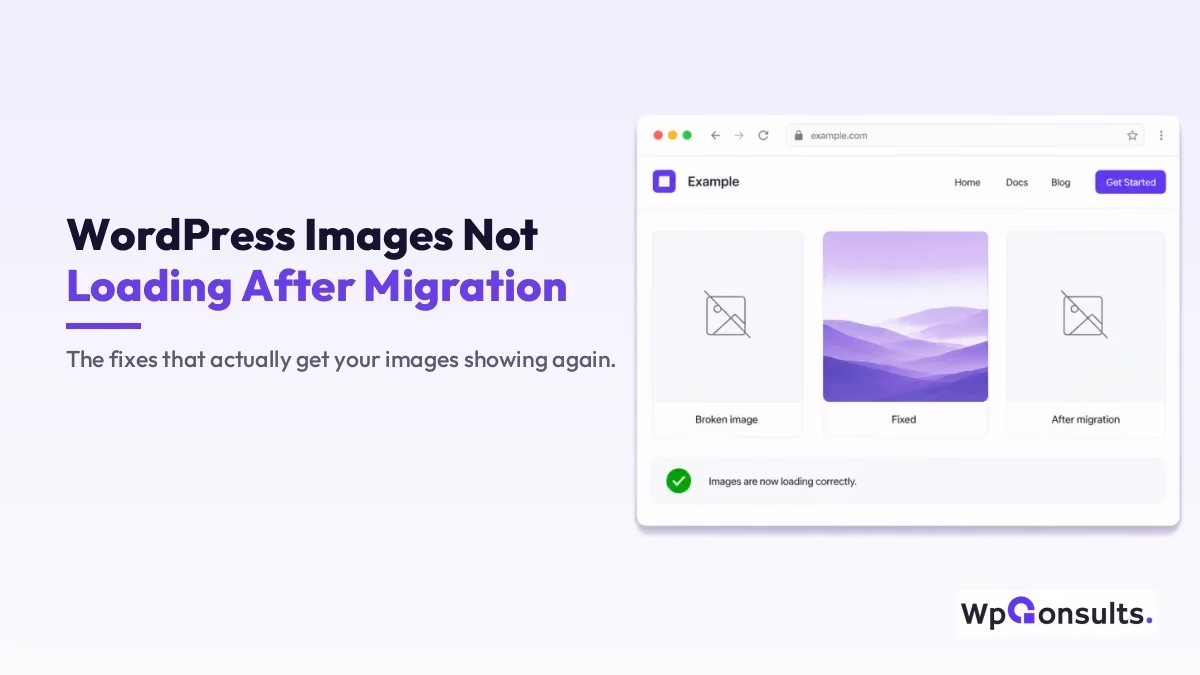
You moved your WordPress site to a new host or domain, everything looks fine, and then half your images show a broken icon instead of the picture. It is one of the most common post-migration headaches, and almost always it traces back to the same handful of causes: old URLs left in the database, mixed HTTP and HTTPS content, missing thumbnails, file permissions, or stale cache.
The good news is that WordPress images not loading after migration is almost always fixable in a few minutes once you work through the causes in the right order. Below is the exact order I check them, starting with the two fixes that solve the problem most of the time.
Key Takeaways
- Most broken images after a migration come from old URLs in the database or mixed HTTP and HTTPS content, not lost files.
- Start with regenerating thumbnails and fixing mixed content; that clears the issue on most sites.
- If links still point to the old domain, a search-and-replace on
wp_postsandwp_postmetaupdates them in one pass. - Folders should be 755 and files 644; wrong permissions can hide images that are actually there.
- Always clear your site cache, browser cache, and CDN last, or you will keep seeing the old broken version.
Why images break after a migration
Before you start fixing, it helps to know what actually went wrong, because the cause decides the cure. In practice the culprit is almost always one of these: the media URLs still point at the old domain or folder structure, your new site runs on HTTPS but the image links are still HTTP (so the browser blocks them as mixed content), the thumbnail sizes were never regenerated on the new server, the wp-content/uploads permissions are wrong, or a cache or CDN is still serving the old, broken page.
None of those mean your images are gone; they are sitting in wp-content/uploads, WordPress just cannot reach or display them correctly yet. That is why a clean migration to a well-configured host matters in the first place, and if migrations keep biting you it is often worth moving to a solid managed WordPress host that handles paths and SSL for you.
Start here: regenerate thumbnails and fix mixed content
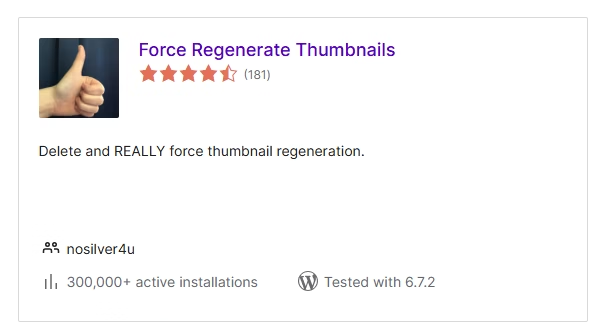
These two fixes clear the problem on most sites, so I always run them first. After a move, WordPress often has not rebuilt the resized versions of your images, so the media library shows blanks even though the originals are fine. Installing the Regenerate Thumbnails plugin and running Tools > Regenerate Thumbnails rebuilds every size in one pass.
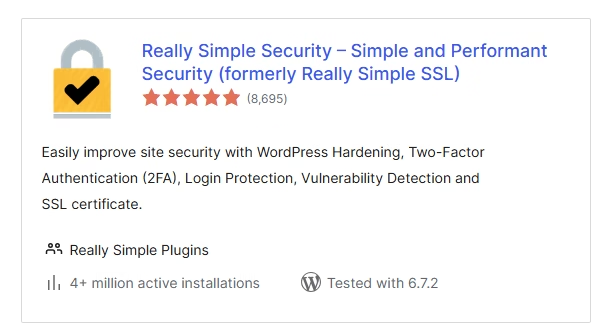
The second common cause is mixed content. If your new site loads over HTTPS but the image URLs still say HTTP, the browser quietly blocks them, which is a security behavior browsers enforce by design, as MDN explains in its mixed content guide. The quickest fix is the Really Simple SSL plugin: activate it, enable SSL under its settings, and it rewrites those insecure URLs to HTTPS for you.
For most people the broken images come back at this point. If yours have, remember to clear your cache before you celebrate, because a cached copy will keep showing the old broken page even after the fix is live.

Still broken? Update the old URLs in your database
If images are still pointing at your old domain, the links are hard-coded in the database and need a proper find-and-replace. The safe way to do this is the Better Search Replace plugin, which handles serialised data correctly (a manual SQL replace can corrupt it). Go to Tools > Better Search Replace, enter the old URL and the new one, and select the wp_posts and wp_postmeta tables.
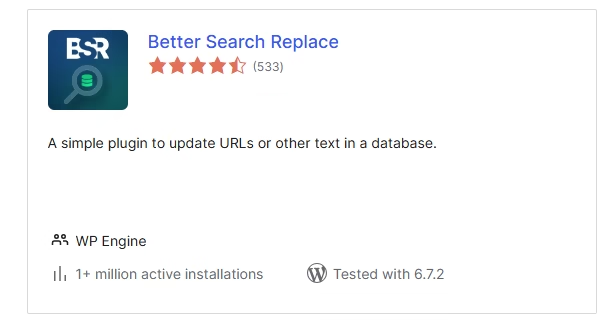
Run it with the “dry run” box ticked first so you can see how many rows will change before you commit, then run it for real. If you are not sure which database your site even uses (common when a host has several), my guide on finding which database is assigned to your site will save you some guesswork before you touch anything.
Check file permissions (755 for folders, 644 for files)
If the URLs are correct but images still will not show, wrong file permissions can be the reason: the files exist, but the server is not allowed to serve them. Connect over FTP or your host’s File Manager, open wp-content/uploads, and set the folders to 755 and the files inside to 644, which are the values WordPress recommends in its permissions documentation. Most FTP clients let you apply this recursively to the whole uploads folder in one go.
Clear every cache and your CDN
This is the step people skip and then waste an hour on. After any of the fixes above, purge your caching plugin (WP Rocket, W3 Total Cache, or whatever you run), clear your browser cache, and if you use a CDN like Cloudflare, purge that too and check its image settings. A stale cache will happily keep serving the broken version long after the underlying problem is solved, so always finish here.
Last check: the media upload path
If you have worked through everything and a stubborn few images still fail, confirm WordPress is looking in the right place. Under Settings > Media, make sure the upload path is not pointing somewhere odd; if a custom path is set, it should be /wp-content/uploads. This is rare, but on some migrations the old path travels with the database and quietly breaks new uploads. While you are tidying performance, it is also worth checking that your images are not dragging down your Core Web Vitals once they are loading again.
So how do you get your images back?
In my experience, you rarely need all six steps. Regenerating thumbnails and fixing mixed content clears the problem on most migrations, and a database search-and-replace catches almost everything that survives that. Permissions, cache, and the media path are the long-tail cases worth knowing about but seldom needed.
So work top-down and stop as soon as the images return; there is no prize for running every fix. And whatever you change, clear the cache before you judge whether it worked, because more often than not the fix was fine and the cache was lying to you.
Update Logs
27 Jun 2026
- Reordered the fixes by how likely each one is to solve the problem, added a dry-run tip for the database replace, and explained why mixed content blocks images, with Mozilla and WordPress references.
Want our posts to show up more often on Google?
One step & Google will surface this site in your Top Stories.