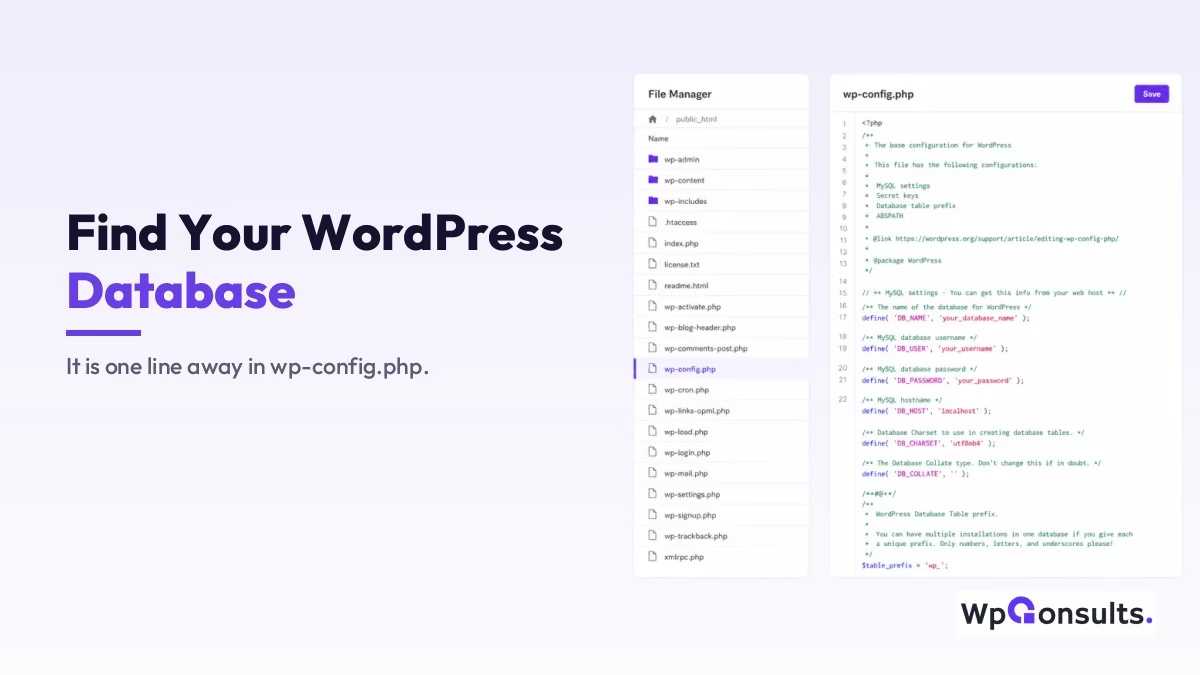
If you have several databases on one hosting account and cannot tell which belongs to which site, the answer is sitting in one file. Every WordPress install names its database in wp-config.php, so you do not have to guess: you open that file, read one line, and you have it.
Below I show the quickest way through the file manager, the one detail people miss when several sites share a database (the table prefix), and a couple of other ways to find it if you have no file manager at all.
Key Takeaways
- Your database name lives in the
DB_NAMEline ofwp-config.php, in your site’s root folder. - Open the file through your host’s file manager and read the value; you do not need to edit anything.
- If several sites share one database, the
$table_prefixline is what separates them, so note it too. - No file manager? You can read it from the hosting panel’s MySQL section, or with one WP-CLI command.
- Treat
wp-config.phpwith care; it holds your database username and password as well.
The fastest way: read it from wp-config.php
The wp-config.php file is where WordPress stores its connection details, including the exact database it talks to. Reading it takes under a minute, and you only need to look, not change anything.
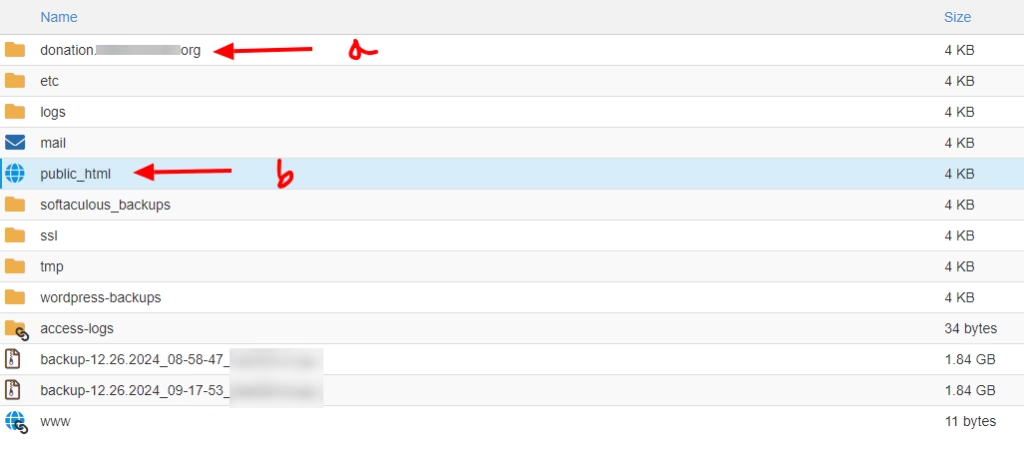
1. Open the file manager and go to your site’s root. In cPanel or hPanel, open the file manager and head to public_html. If the site is on a subdomain or an add-on domain, its files usually sit in their own folder near (not always inside) public_html, so make sure you are in the right site’s directory.

In the example below, a marks the folders for a subdomain and b marks the main domain’s directory. Picking the correct one matters, because each site has its own wp-config.php pointing at its own database.
2. Find wp-config.php, then right-click and choose View or Edit. View is enough if you only want to read the name; use Edit only if you actually need to change credentials. Either way, you are looking for one line.
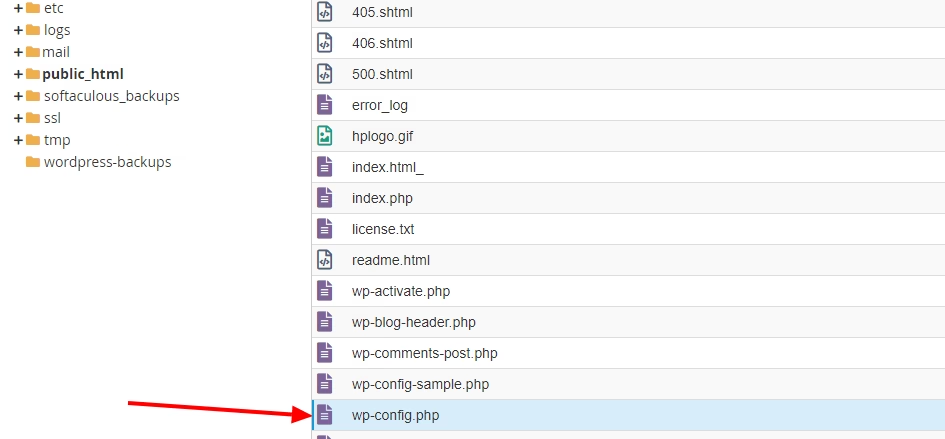
3. Read the DB_NAME value. Near the top you will see a line like this, and the text in quotes is your database name:
define( 'DB_NAME', 'your_database_name' );
That is the whole job. The full reference for every value in this file lives in the WordPress documentation on editing wp-config.php, but for finding your database, DB_NAME is all you need.
Why the table prefix matters too
Here is the part most guides skip. Knowing the database name is only half the story when more than one WordPress install shares a single database, which is common on cheaper plans. In that case all the sites’ tables sit in the same database and are kept apart by their table prefix, set in this line:
$table_prefix = 'wp_';So if you open phpMyAdmin and see tables like wp_options, wpa_options, and wpb_options all in one database, the prefix tells you which set belongs to which site. When you go on to edit anything, for example to reset a password from the database, you must use the correct prefix or you will edit the wrong site entirely. That is why I always note the prefix at the same time as the name.
No file manager? Other ways to find it
Some managed hosts hide the file manager or lock down file access. You still have options.
From the hosting panel. Most panels have a MySQL Databases or Manage Databases section that lists every database on the account alongside its assigned user. If your databases are named after the site (many hosts do this automatically), the match is obvious from there without opening a single file.
With WP-CLI, if you have SSH. One command prints the name straight from the config:
wp config get DB_NAMEYou can swap DB_NAME for table_prefix to read the prefix the same way; the full options are in the WP-CLI config get handbook. It is the quickest route of all when you already live in the terminal, though most people reaching for this will find the file manager simpler.
One related gotcha worth knowing: if the credentials in wp-config.php are wrong or the database server is unreachable, you will see connection errors rather than your site, and sometimes a missing-extension message instead. I cover that case in fixing the missing MySQL extension error.
So where is your WordPress database?
Honestly, for nearly everyone the file manager route wins, because wp-config.php gives you the database name and the table prefix in one place, and you can read it without any special access. The hosting panel list is a fine shortcut when your databases are clearly named, and WP-CLI is the fastest if you have SSH, but those are conveniences on top of the one method that always works.
My advice: grab both the DB_NAME and the $table_prefix while you are in there, and keep the file private, since it also holds your database password. Get those two values and you can confidently open the right database in phpMyAdmin without second-guessing yourself.
Update Logs
27 Jun 2026
- Added the table-prefix detail for sites that share one database, plus hosting-panel and WP-CLI ways to find the name, and a clearer verdict on which method to use.
Want our posts to show up more often on Google?
One step & Google will surface this site in your Top Stories.