Your CDN dashboard shows a green light, your speed score went up, so you assume your pages are being served from cache. Often they are not, and the checker tools that tell you “your CDN is working” only prove your images cache, which was never the question.
This guide shows you how to check if your CDN is actually caching your pages, not just your assets: the one header to read, what each value means, and what to do when your HTML is quietly going to origin on every request.
Key Takeaways
- A CDN caches your CSS, JS, and images by default, but not your HTML pages, so “my assets HIT” does not mean your pages are cached.
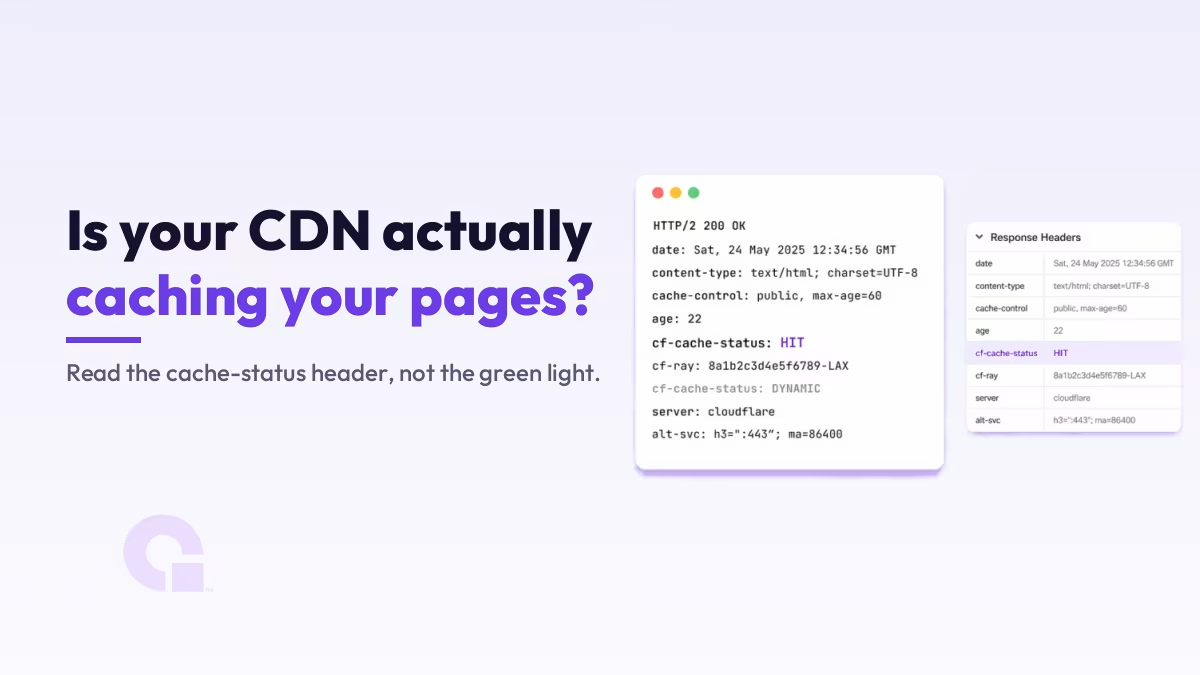
- Read the cache-status response header (
cf-cache-statuson Cloudflare) on the PAGE itself, withcurl -Ior the browser Network tab: HIT means cache, DYNAMIC or BYPASS means it went to origin. - DYNAMIC means the CDN never considered the page cacheable; BYPASS means it would have, but a cookie or a
Cache-Controlheader stopped it. - The
Ageheader only appears on a cached response and climbs the longer the object sits in cache, so it is the cleanest proof a page is genuinely served from the edge. - On a WooCommerce store you check the opposite thing too: cart, checkout, and my-account must NOT cache, or one shopper’s session gets served to the next.
How to check if your CDN is actually caching a page
Request the page and read its cache-status response header. On Cloudflare that header is cf-cache-status: HIT means the page came from the CDN’s cache, MISS or EXPIRED means it went to your origin server this time, and DYNAMIC or BYPASS means the CDN did not serve it from cache at all.
The fastest way to see it is one command in your terminal:
curl -sI https://yoursite.com/ | grep -i cf-cache-statusThe header name changes by provider (Fastly uses x-cache, a LiteSpeed server cache uses x-litespeed-cache, KeyCDN and others use their own), but the idea is identical: read whichever cache-status header your stack sends back.
Here is the catch, and the whole reason this guide exists. Run that same check against an image or a stylesheet and you will almost always see HIT, because CDNs cache those by default. That result tells you nothing about your pages. So test the page URL, not the logo.
Prefer a browser? Open the page, press F12, go to the Network tab, reload, then click the very first request, which is the HTML document itself, and read cf-cache-status under Response Headers. Just make sure you click the top document row and not an image or script below it, or you are back to checking assets again.
The 30-second cache check
- Run curl -I against a real page URL (not an image)
- Read the cache-status header (cf-cache-status on Cloudflare)
- HIT or REVALIDATED means the page came from cache
- DYNAMIC or BYPASS means it went to your origin every time
- Confirm with the Age header, which only shows on a cached response
Why your images cache but your HTML pages usually do not
A CDN caches static files by file extension and leaves your HTML alone. In Cloudflare’s own words, “The Cloudflare CDN does not cache HTML or JSON by default.” Its default list covers CSS, JS, JPG, PNG, WEBP, WOFF2, PDF and dozens more, but not .html and nothing that serves a page, so your pages go to origin unless you add a rule.
This is why a “CDN cache checker” can green-light a site whose every page is uncached. The tool fetches an asset, sees HIT, and reports success. Meanwhile your actual pages, the slow database-driven ones you wanted cached, still hit your origin on every visit.
You can see the split on real sites. Here are genuine header reads I ran against three public sites, all fronted by Cloudflare:
$ curl -sI https://kinsta.com/ | grep -i cf-cache-status
cf-cache-status: DYNAMIC

$ curl -sI https://wpengine.com/ | grep -i cf-cache-status
cf-cache-status: DYNAMIC

$ curl -sI https://yoast.com/ | grep -iE 'cf-cache-status|age'
cf-cache-status: HIT
age: 22
Two of them serve their HTML DYNAMIC, straight from origin, and one caches it at the edge with a real, climbing Age. Same CDN, opposite outcomes, and the only way to know which camp your site is in is to read the header on your own page. (Real captures, July 2026; public sites, headers are public.)
What every cf-cache-status value means and what to do about it
Here is every cf-cache-status value, what Cloudflare says it means, and the one action it calls for. The checker tools show you the value; the action column is the part they leave out.
| Value | What Cloudflare says it means | What to do about it |
|---|---|---|
| HIT | “The resource was found in Cloudflare’s cache.” | Working as intended. Confirm the Age is climbing so it is a real, lasting cache. |
| MISS | “The resource was not found in Cloudflare’s cache and was served from the origin web server.” | Normal on the first hit. Reload; if it never becomes HIT, the page is not being cached. |
| EXPIRED | “The resource was found in Cloudflare’s cache but was expired and served from the origin.” | Fine in moderation. Constant EXPIRED means your TTL is too short for the page. |
| REVALIDATED | The origin confirmed the cached copy is unchanged and it was served from cache. | Working. The edge checked with origin and reused the cached page. |
| DYNAMIC | “Cloudflare does not consider the asset eligible to cache and your Cloudflare settings do not explicitly instruct Cloudflare to cache the asset.” | The default for HTML. Add a Cache Rule if you want this page cached. |
| BYPASS | The origin told Cloudflare to skip cache via Cache-Control, or the response set a cookie. | Find the cookie or header opting the page out; correct for cart and login, a bug elsewhere. |
| STALE | Served from cache while expired because Cloudflare could not reach the origin. | Check your origin’s health; the edge is covering for a server that did not answer. |
| UPDATING | Expired but served from cache while the origin refreshes it in the background. | Normal under load right after expiry. No action. |
| NONE / UNKNOWN | Cloudflare generated a response that is not eligible for caching (a Worker, a redirect, a WAF rule). | The request was answered before it reached cache; expected on those routes. |
One more header does a lot of quiet work here: Age. Cloudflare returns it only “for responses served from the cache,” and it counts the seconds the object has been sitting there, resetting on a purge or revalidation. So a growing Age is your cleanest proof a page is genuinely coming from the edge, and its absence on a page you expected to be cached is the tell that it is not.
What cf-cache-status DYNAMIC means, and how it differs from BYPASS
DYNAMIC means the CDN never treated the page as cacheable, so it fetched it from your origin. In Cloudflare’s words the asset was “not eligible to cache” and your settings did not tell it otherwise. It is the default state of an HTML page with no cache rule, which is exactly why so many people search for it: they turned the CDN on, saw DYNAMIC on every page, and assumed something broke.
BYPASS is a different animal. Cloudflare would have cached the page, but your origin actively told it not to, either through a Cache-Control header set to no-cache, private, or max-age=0, or because the response set a cookie. Cloudflare will not cache a response that carries a Set-Cookie header, by design.
The practical difference decides your fix. DYNAMIC is a configuration gap: you simply have not told the CDN to cache HTML yet, so the fix is a Cache Rule. BYPASS is something on the page opting out: the fix is to hunt down the cookie or the Cache-Control header doing it. On a normal page a stray session cookie is usually the culprit; on a cart or checkout page, that BYPASS is correct and you want to leave it alone.
How to cache your HTML on Cloudflare without breaking anything
To cache HTML you add a Cache Rule that marks the matching URLs “Eligible for cache” (the older equivalent was a “Cache Everything” Page Rule). The mistake is pointing it at your whole site blindly, because that sweeps in the pages that must stay per-user. Scope the rule to the pages that are safe to cache and leave the personal ones out, which is the WooCommerce trap in the next section.
It also helps to know Cloudflare’s defaults. When your origin sends no Cache-Control or Expires header, Cloudflare caches a 200, 206, or 301 for 120 minutes, a 302 or 303 for 20 minutes, and a 404 or 410 for just 3 minutes; everything else is not cached. So a short-lived cache on a page you expected to stick is often just the origin staying silent and Cloudflare falling back to the two-hour default.
Worth knowing: on the Free, Pro, and Business plans that most WordPress owners use, Cloudflare already respects the Cache-Control your origin sends. So if your pages will not cache, the header your own stack (or your WordPress cache and optimization layer) is emitting is the first place to look, and curl -I puts it right in front of you.
On a WooCommerce store, check that cart and checkout do NOT cache
On a store you are checking two opposite things at once: that normal pages DO cache (HIT), and that cart, checkout, and my-account do NOT (BYPASS or DYNAMIC). A store where everything HITs is more broken than one where nothing does, because a cached logged-in page can serve one shopper’s cart and session straight to the next visitor.
WooCommerce is explicit about which pages must stay dynamic. Per its own caching guidance, exclude Cart, Checkout, and My Account, because “these pages need to stay dynamic since they display information specific to the current customer and their cart.” The cookies that signal a personal session, and that your cache must never cache around, are:
woocommerce_cart_hashandwoocommerce_items_in_cart, which tell WooCommerce when the cart contents change.wp_woocommerce_session_, which links each customer to their cart data in the database.woocommerce_recently_viewed, which powers the recently viewed products widget.
Good cache plugins handle this for you: WP Rocket auto-excludes those three pages when it detects WooCommerce, and WooCommerce actively tells WP Super Cache to skip Cart, Checkout, and My Account. A hand-rolled “cache everything” rule at the CDN does not get that memo, which is where the danger lives.
The check is the same one command, aimed at the pages that must stay private:
curl -sI https://yourstore.com/cart/ | grep -i cf-cache-statusOn the cart page you WANT to see BYPASS or DYNAMIC. If it says HIT, stop and fix your cache rule before a customer ever sees someone else’s basket. It is the one place where a HIT is the failure.
What our own site’s headers actually show
Here is a real read from our own site, and it makes an honest point. wpconsults.com does not run Cloudflare in front of its HTML at all; it runs a LiteSpeed server page cache, so the header to read is x-litespeed-cache, not cf-cache-status:
$ curl -sI https://www.wpconsults.com/ | grep -iE 'x-litespeed-cache|server'
x-litespeed-cache: hit
server: LiteSpeed
That hit means the page was served from the server’s own page cache, not from a CDN edge, and the difference matters because people conflate the two. A CDN edge cache (Cloudflare) stores your page in data centers near the visitor. A server page cache (LiteSpeed, WP Rocket, WP Super Cache) stores the rendered HTML on your own origin so PHP does not run again. You can have one, both, or neither, and each layer has its own status header to read.
Our site sits on LiteSpeed-based hosting from Hostinger, which is why the page cache lives at the server and there is no cf-cache-status to find. The static assets behave the way you would expect either way:
$ curl -sI https://www.wpconsults.com/wp-content/.../style.css | grep -i cache-control
cache-control: public, max-age=604800
A clean seven-day browser cache on the stylesheet, no drama. That is the normal split: assets are cacheable and boring, pages are the layer you actually have to verify.
Why your cache hit ratio is lower than you expect
Even with HTML caching turned on, your cache hit ratio, the share of requests served from cache instead of origin, is usually lower than the dashboard’s headline number. That number is dominated by assets that were always going to HIT, so it flatters you. The pages that matter, the dynamic ones, are a smaller slice and the first to MISS after a purge or a deploy.
So judge caching by the header on your key page templates, a post, a category or collection, the home page, not by one site-wide percentage. A high ratio with DYNAMIC pages just means your images are doing the heavy lifting while your slow pages still hit origin, which is also why cache state shows up in your Core Web Vitals and TTFB long before it shows up in a summary number.
So, is your CDN actually caching your pages?
Honestly, most of the time the answer is “not the way you think.” The green light and the speed score are measuring your assets, and your assets were never the problem. If this were my site, I would spend two minutes running curl -I against three real page templates, a post, a category, and the cart, before trusting any dashboard, because the header does not flatter you the way a score does.
Configure HTML caching deliberately, keep the per-user pages out of it, and re-check with the header every time you change a rule or a plugin. A CDN that caches everything is not the goal, and neither is one that caches nothing; the goal is knowing which pages are cached and being right about it. The tools tell you the CDN is on. Only the response header tells you it is doing the job, and on a busy site that is the difference between surviving a traffic spike and melting your origin under it.
Still not sure what your headers are telling you?
If your cache-status header is saying something you cannot explain, or your pages are stuck on DYNAMIC and you are not sure why, contact us or email me and I will take a look. Getting your pages served from cache, and keeping the right ones out, is worth doing properly.
Want our posts to show up more often on Google?
One step & Google will surface this site in your Top Stories.