

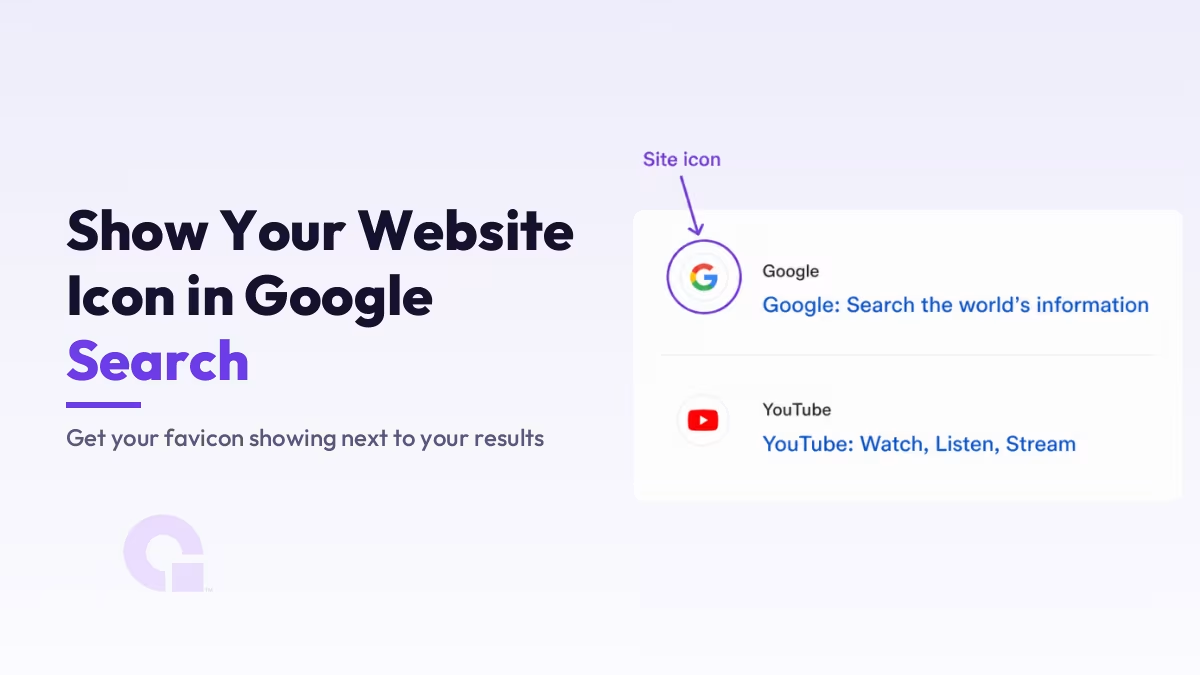
Want your website icon in Google search results, sitting next to your site name the way the big brands have it? It comes down to a compliant favicon, one WordPress setting, and a reindex request.
When I first launched this site, our icon was missing from the results page, so this post documents the exact process I used to get it showing. You can see it live on Google today.
Key Takeaways
- Google shows your favicon next to search results on both mobile and desktop, pulled from your homepage’s icon declaration.
- The icon must be square, at least 48×48 pixels (any multiple of 48, or an SVG), and crawlable by Googlebot-Image.
- Google allows one favicon per hostname: subdomains get their own, subdirectories share the main one.
- WordPress handles the code for you through the Site Icon setting; then request reindexing of your homepage and wait for the next crawl.
How Google picks your website icon
Google crawls your homepage, reads the favicon reference in it, and stores that icon for the whole site. If the file meets the rules in Google’s favicon guidelines, it appears beside your snippets; if it fails them, or Google has not recrawled yet, you get the generic globe instead.
The icon is part of how your brand shows up in the results, along with your site name and title. I broke the title side of that down in how Google builds your title link in the SERPs, and the favicon is the visual half of the same trust signal.
Step 1: Create a favicon that meets Google’s rules
Design a small square image that still reads clearly at tiny sizes: your logo mark or a simple symbol, not a full wordmark. The file must be square and at least 48×48 pixels; any multiple of 48 works (96×96, 144×144), and SVG is accepted too. Common formats like .ico and .png are all fine.
If you do not have one yet, a free generator like Favicon.io converts a logo, text, or emoji into the right formats in seconds. Keep the design respectful and relevant, because Google will not show icons it considers inappropriate.
Step 2: Add the favicon code to your homepage
On a non-WordPress site, add one line inside the <head> section of your homepage so Google knows where the icon lives:
<link rel="icon" href="/path/to/favicon.ico">Replace the path with the actual location of your file, or use an absolute URL like https://example.com/favicon.ico. Keep that URL stable over time; changing it frequently makes Google re-verify the icon and delays the swap. If you run WordPress, skip this step entirely and use the next one.
Step 3: Set the Site Icon in WordPress (no code)
WordPress outputs all the favicon markup for you once you set a Site Icon. Since WordPress 6.5 the setting lives right in Settings > General, where you upload the icon and save. On older versions or classic themes, the same option sits under Appearance > Customize > Site Identity > Site Icon.
Upload a square image of 512×512 pixels or larger and WordPress generates the sizes browsers and Google need. That is the whole job; no plugin and no manual code required for this.
Step 4: Request reindexing of your homepage

Google only picks up the new icon when it recrawls your homepage, so nudge it. Open Google Search Console, paste your homepage URL (like https://example.com) into the inspection bar at the top, and click Request Indexing. If the tool complains the URL is not in the selected property, that is a scope issue I covered in fixing the URL not in property error.
Then be patient. In my case the icon took roughly 15 to 30 days to appear after the request, and there is no way to force it faster; the swap happens on Google’s crawl schedule, not yours.
Google’s favicon guidelines that actually matter
Beyond the size rule, two requirements catch people out. First, both the favicon file and your homepage must be crawlable: if robots.txt blocks Googlebot or Googlebot-Image from either, the icon cannot be picked up. Second, Google allows one favicon per hostname, and a hostname is exact.
So example.com and news.example.com are different websites to Google and can carry different icons, while example.com/news is a subdirectory and shares the main site’s icon. If your icon looks right but never shows, check the crawlability first; it is the most common silent blocker I see.
Proof: how WpConsults’ icon showed up
This is not theory; our own favicon was missing when the site first got indexed. I followed exactly the steps above, requested reindexing, and waited out the crawl. The icon now shows next to our results:

So, will your website icon always show in Google search?
No guarantee exists, and Google says as much: meeting the guidelines makes you eligible, it does not make display automatic. In practice though, a compliant square icon, a crawlable homepage, and a reindex request get the icon showing for almost every site I have set this up on.
If yours still is not showing after a month, do not redesign the icon; recheck the boring things instead. Verify the file is reachable, the size is a proper 48px multiple, and robots.txt is not blocking the crawl, because that is where the problem almost always hides.
Icon still not showing in the results?
If your favicon refuses to appear after following the steps, contact us or email me and I will help you find the blocker. It is usually a small crawl or sizing detail rather than anything deep.
Update Logs
04 Jul 2026
- Refreshed against Google’s current favicon guidelines, added the newer Settings > General route for the WordPress Site Icon, and clarified the one-favicon-per-hostname rule with the crawlability check that usually explains a missing icon.
Want our posts to show up more often on Google?
One step & Google will surface this site in your Top Stories.



I am sorry, that I interrupt you, but you could not paint little bit more in detail.
Let me know in which area you need more in details; I’ll be happy to update the blog
You have hit the mark. Thought good, I support.
This topic is simply matchless :), it is very interesting to me.
I am sorry, that has interfered… I here recently. But this theme is very close to me. I can help with the answer. Write in PM.