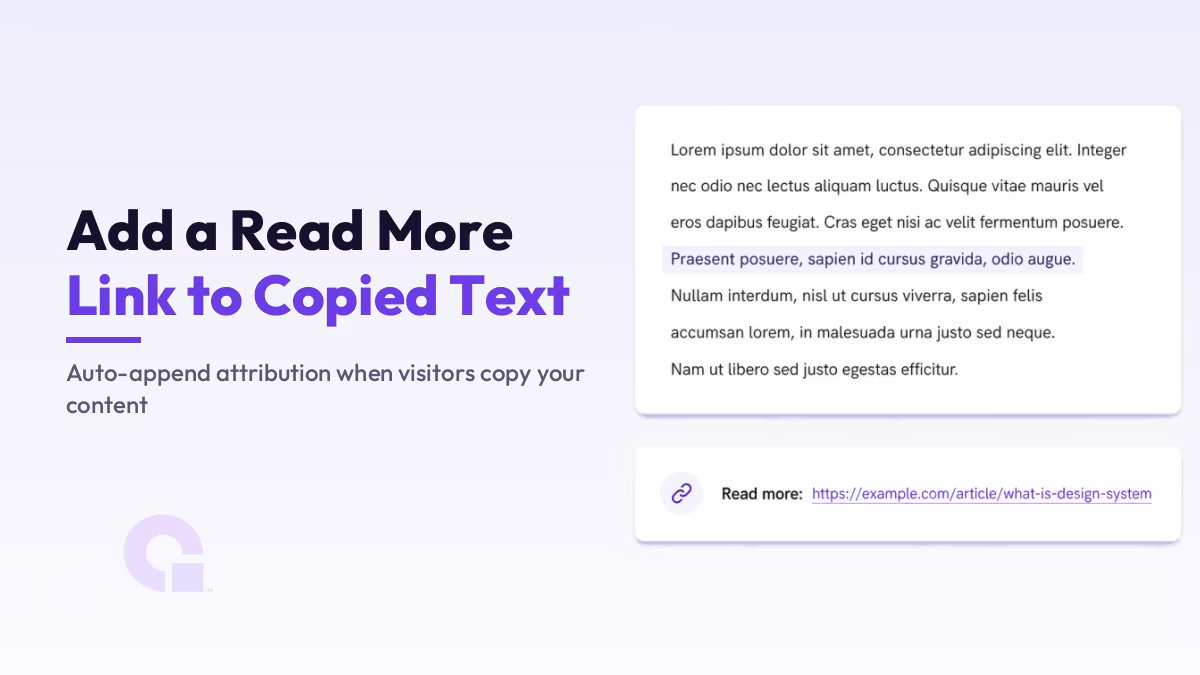
When someone copies a paragraph from your site and pastes it elsewhere, you can make WordPress quietly add a “Read more:” line with your post title and a link back to the source. It is a small attribution touch that keeps your name attached to your words wherever they travel.
In this guide I will show you the no-plugin snippet I use, a no-code route if you would rather not touch functions.php, and an honest read on what this does, and does not do, for your SEO.
Key Takeaways
- The browser “copy” event lets you append a short “Read more:” credit and a link whenever a visitor copies your text.
- The cleanest method is a small functions.php snippet; a code-snippets plugin gives the same result without editing theme files.
- Set a minimum selection length so short quotes still copy cleanly and only real chunks get the credit line.
- Point the link at your canonical URL, not the raw address, so the credit always sends readers to the right page.
- Treat it as an attribution and branding touch, not a ranking tactic; it earns the occasional link back, but a determined scraper can still strip it.
What a Read More link on copied text actually does
Every modern browser fires a copy event the moment a visitor hits Ctrl+C or Cmd+C. That event gives you a short window to change what actually lands on the clipboard, before it ever reaches the place they paste it.
So instead of blocking copying (which annoys real readers and stops nobody), you let people copy freely and simply add a credit line underneath. When they paste into a document, an email, or another blog, your title and a link ride along with the text. Think of it as a polite signature on anything that leaves your page.
Add the Read More link with a functions.php snippet (no plugin)
The lightest way to do this is a few lines in your theme’s functions.php (use a child theme so an update does not wipe it). The snippet prints a tiny script in the footer of single posts and pages, listens for the copy event, and appends the credit.
add_action( 'wp_footer', 'wpc_readmore_on_copy' );

function wpc_readmore_on_copy() {
    if ( ! is_singular() ) {
        return; // run only on single posts and pages
    }
    ?>
    <script>
    document.addEventListener('copy', function (event) {
        var selection = document.getSelection();
        if (selection.toString().length < 40) {
            return; // let short quotes copy normally
        }
        var canonical = document.querySelector('link[rel="canonical"]');
        var url = canonical ? canonical.href : window.location.href;
        var credit = 'Read more: ' + document.title + ' - ' + url;
        event.clipboardData.setData('text/plain', selection.toString() + '\n\n' + credit);
        event.clipboardData.setData('text/html', selection.toString() +
            '<br><br>Read more: <a href="' + url + '">' + document.title + '</a>');
        event.preventDefault();
    });
    </script>
    <?php
}
Save the file, open one of your posts, select a decent chunk of text, copy it, and paste it into a notes app. You should see your paragraph followed by a clean Read more: line with the title and URL.
How the copy-to-clipboard snippet works
If you are newer to this, here is the plain-English version so you can adjust it with confidence rather than pasting it blind.
document.getSelection(), part of the browser’s Selection API, reads whatever the visitor highlighted. The length check (< 40) is deliberate: it lets someone grab a short phrase or a stat without the credit line tagging along, and only adds attribution when they lift a real chunk. Tune that number to taste.
The script then reads your canonical URL from the page’s own link tag and falls back to the current address if there is not one. Using the canonical matters because it always points at the real, indexable version of the post, not a tracking or paginated variant a reader might be on.
Finally it writes two versions to the clipboard. The text/plain version is what shows up in editors and emails, and the text/html version carries a real clickable link for anywhere that accepts rich text. preventDefault() just stops the browser’s default copy so yours is used instead.
What happens when a visitor copies your text
- Visitor selects and copies a paragraph from your post
- The script catches the browser copy event before it finishes
- It appends your post title and canonical link to the copied text
- Wherever they paste, the “Read more:” credit rides along
The no-code route with a snippets plugin
If editing theme files makes you nervous, you do not have to. Paste the exact same code into a snippets manager like WPCode or Code Snippets, set it to run everywhere on the front end, and you get the identical result with none of the file editing.
Both routes reach the same place, so pick by comfort. The functions.php snippet is leaner and adds nothing to maintain, while the plugin is safer if you would rather manage snippets from the dashboard and keep them through theme changes. For a similar hands-on tweak, the same idea powers my walkthrough on how to duplicate posts and pages with a functions.php snippet.
What the Read More credit does (and does not do) for SEO
Here is the honest part, because a lot of tutorials oversell this. When someone pastes your text into their own post and leaves the credit in, you pick up a genuine link back and a brand mention, which is a real, if occasional, off-page signal. That is the same reason I treat attribution and mentions as part of off-page SEO, not an afterthought.
What it will not do is rank your site on its own. A link only carries weight when it survives, and a determined scraper or a lazy copy-paster can strip the credit in seconds. Google leans on the canonical URL to identify the original source, so keep this as a low-cost nudge for honest people to attribute you, not a substitute for the links that actually move rankings, which I break down in my guide to what link juice really is.
The bigger win is quieter: it protects your identity. When your title and URL travel with your words, readers who find the excerpt elsewhere can trace it back to you, and search engines see your page named as the source. On the copy-heavy web, that attribution is worth more than the modest link.
So, is the Read More on copy worth adding?
In my view, yes, because the cost is one small snippet and the upside is that your name quietly follows your work around the internet. It will not carry your SEO by itself, and I would not pretend otherwise, but as a branding and attribution touch it earns its place.
If I were setting this up on a content-heavy blog, I would add the snippet, set the length threshold so short quotes stay clean, and then get back to the work that actually moves the needle: better content and real links. This is a nice finishing touch, not the main event.
Stuck getting the snippet to fire?
If the copy credit is not showing up or you would like a hand wiring it into your theme, contact us or email me and I will help you get it working cleanly.
Update Logs
04 Jul 2026
- Rewrote the guide with a cleaner copy-event snippet that uses your canonical URL and a minimum selection length, added a no-code plugin route, and added an honest take on what the credit line is really worth for SEO.
Want our posts to show up more often on Google?
One step & Google will surface this site in your Top Stories.