There are three ways to put a Mermaid diagram in WordPress: a block-editor plugin like MerPress, a shortcode plugin like WP Mermaid, or skipping plugins entirely and exporting a static image from the Mermaid Live Editor. Which one you want depends on your editor and on how often the diagram will change.
Mermaid itself lets you write diagrams as plain text, a few lines of simple syntax, and have them render as clean flowcharts, sequence diagrams, or Gantt charts. Below I walk through each route, with a live example and an honest note on when a plugin is overkill.
Key Takeaways
- Mermaid turns plain-text syntax into diagrams, so you edit a flowchart by editing text, not by redrawing an image.
- MerPress is the native block route: it adds one block, you open it by typing
/MermaidJSin the block editor, and it previews the diagram live while you write it. - WP Mermaid is the shortcode route: paste Mermaid code into a Code block, or wrap it in
[mermaid]tags for the classic editor and page builders. - Diagrams render in the visitor’s browser from your text, which keeps them editable but loads the Mermaid script on those pages.
- For a one-off diagram you will never touch again, export an SVG or PNG from the Mermaid Live Editor and add no plugin at all.
What Mermaid is, and why use it in WordPress
Mermaid is a diagramming tool that reads a markdown-like syntax and draws the diagram for you. Instead of dragging boxes around in a design tool, you describe the structure in text (for example, A points to B, B points to C) and Mermaid lays it out. It supports flowcharts, sequence diagrams, Gantt charts, class diagrams, and more.
The reason it is worth using inside WordPress is editability. A diagram saved as an image is frozen; changing one step means reopening a design tool and re-exporting. A Mermaid diagram is just text in your post, so updating it is as quick as editing a sentence, which matters a lot for process flows or content structures that change over time.
Which Mermaid plugin should you use in WordPress?
Pick by the editor you actually work in. Both plugins are free and on WordPress.org, and they solve the same problem from opposite ends.
| Route | How you add the diagram | Best for |
|---|---|---|
| MerPress (block plugin) | Type /MermaidJS in the block editor to insert its block. You write the syntax in the upper pane and the diagram renders in the lower pane as you type. | The block editor, and anyone who wants to see the diagram while writing it. |
| WP Mermaid (shortcode plugin) | Paste Mermaid code into a Code block, or wrap it in [mermaid] ... [/mermaid] for the classic editor or a page builder’s Shortcode element. Source: terrylinooo/wp-mermaid. | The classic editor, page builders, and any site still on WordPress below 5.0, where the shortcode is the only option. |
| No plugin: Mermaid Live Editor | Build the diagram at the free Mermaid Live Editor, export an SVG or PNG, and place it as a normal image. | A single diagram you will rarely or never edit. |
How to add a Mermaid diagram in WordPress, step by step
Step 1: Install a Mermaid plugin
WordPress does not render Mermaid on its own, so you need a plugin that loads the Mermaid library and handles the markup. From your dashboard, go to Plugins > Add New, then search for MerPress if you work in the block editor, or WP Mermaid if you need the shortcode. Install and activate.
Step 2: Write your diagram in Mermaid syntax
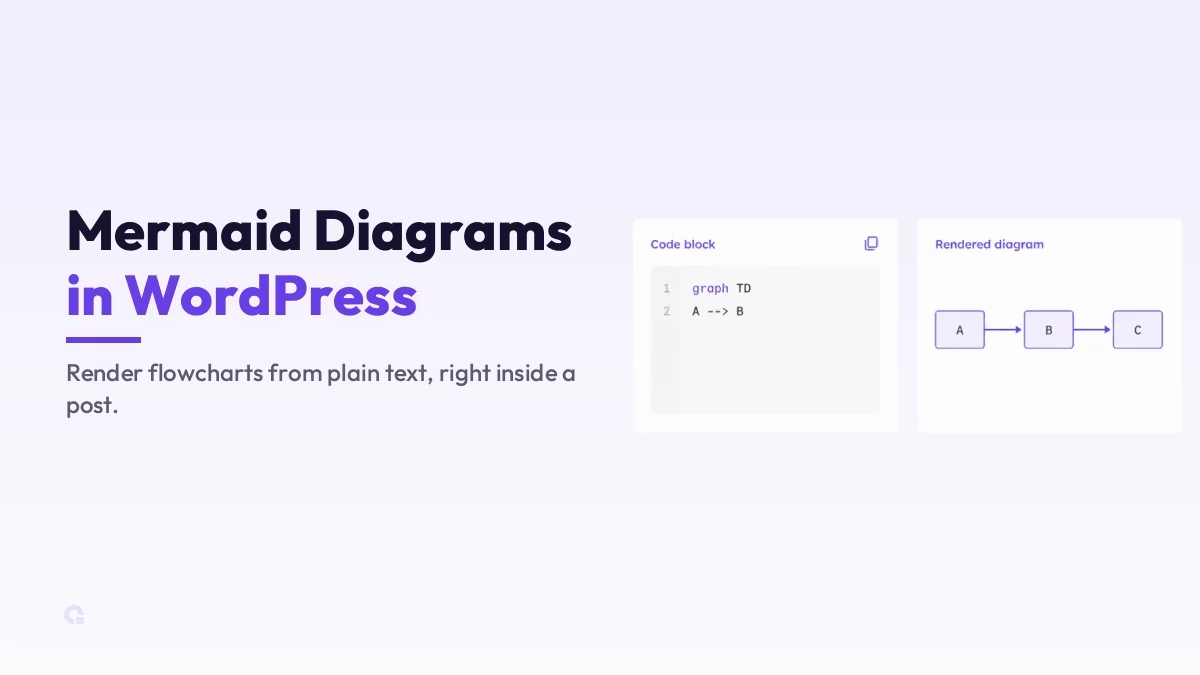
Mermaid syntax is short and readable. Here is a basic flowchart that maps a main topic down to its parts:
graph TD
    A[Fitness] --> B[Strength Training]
    A --> C[Cardio]
    A --> D[Nutrition]
    B --> E[Weightlifting]
    C --> F[Running]
    D --> G[Meal Planning]
The first line sets the diagram type and direction (graph TD means a top-down flowchart), and each arrow line draws a connection. Swap TD for LR to lay it out left to right; the full Mermaid documentation has the syntax for every diagram type.
Step 3: Add it in the block editor (Gutenberg)
With MerPress, type /MermaidJS where you want the diagram and pick its block. Write the syntax in the top area and the diagram draws itself underneath as you type; while the block is unselected it displays exactly as visitors will see it. Until the syntax is valid you will see a syntax error in the preview, which is the plugin telling you the truth rather than failing silently.
With WP Mermaid instead, add a plain Code block and paste the Mermaid syntax into it. The plugin picks up the code block and renders the diagram on the front end, so what looks like plain text in the editor becomes a drawn chart on the live page.
Step 4: Add it in the classic editor or a page builder
Outside the block editor, use WP Mermaid’s shortcode. Wrap your Mermaid code in the shortcode tags and it renders the same way:
[mermaid] graph TD; A[Start] --> B[End]; [/mermaid]In a page builder, drop in a Shortcode element (or a shortcode widget) and paste the same thing. This is also the only route on any WordPress version below 5.0, where the block editor does not exist.
What that diagram looks like
Here is the flowchart from Step 2, drawn out so you can see how the text maps to the shape:
Diagrams like this are handy for showing structure visually, which is exactly why they fit content-planning work such as a topical map for SEO, where a pillar topic branches into clusters.
Plugin or static image: which should you use?
The one trade-off worth knowing is that Mermaid renders client-side, in the visitor’s browser, so any page with a diagram loads the Mermaid script to draw it. On a handful of pages that is nothing to worry about, but it is a real consideration if you are strict about script load.
That gives a simple rule of thumb. If you publish diagrams often and want them editable, a plugin is clearly the right tool. If you just need a single diagram you will rarely touch, build it in the free Mermaid Live Editor, export it as an SVG or PNG, and place that image, no plugin required. Both are valid; pick by how often the diagram will change.
So, is the Mermaid plugin the right way to add diagrams?
If this were my site and I were on the block editor, I would reach for MerPress, because seeing the diagram render while you write the syntax removes the guesswork, and keeping diagrams as editable text saves real time over redrawing images. If I were maintaining an older site on the classic editor or a page builder, WP Mermaid and its shortcode is the one that actually fits.
The only time I would skip both is a true one-off: a single chart I will never edit, where exporting a static image keeps the site that bit leaner. For everything else, the small client-side render cost is a fair price for diagrams you can update in a sentence.
Update Logs
12 Jul 2026
- Widened the guide to cover all three real routes rather than one plugin: MerPress for the block editor (with its
/MermaidJSblock and live preview), WP Mermaid for the shortcode and older sites, and a plugin-free static export. Added a comparison table and a clearer recommendation for each editor.
28 Jun 2026
- Refreshed the walkthrough with clearer block and shortcode steps, a cleaner rendered example, and guidance on when to use the plugin versus a static exported image.
Want our posts to show up more often on Google?
One step & Google will surface this site in your Top Stories.