Honest Lastmod Documentation
One fake date can make Google stop trusting the dates across your whole site. WordPress updates a post’s modified date every time you save it, even for a design tweak or a re-save that changed nothing, and your SEO plugin copies that date into your sitemap as lastmod. Honest Lastmod moves that date only when your content really changes, shows you the exact dates your sitemap is serving, and repairs dates that were already inflated.
On this page
- What Honest Lastmod does
- Install and first run
- The three save modes
- The Sitemap dates tab
- Repair already-inflated dates
- Pro: Auto mode and the automation API
- Activate your Pro license
- Troubleshooting and FAQ
What Honest Lastmod does
Google reads the lastmod date in your sitemap as a signal of when a page genuinely changed. If it keeps seeing dates that claim an update when nothing was really edited, it stops trusting your dates across the whole property and falls back to its own crawl schedule. A wrong date is worse than no date at all.
Honest Lastmod fixes this at the source. It corrects the modified date itself, so whatever generates your sitemap (Yoast, Rank Math, SEOPress, or WordPress core) serves the honest value with no extra setup. Everything happens on your own site; nothing is sent anywhere.
Install and first run
- Install and activate the plugin. No dates are changed on activation; it only stores default settings.
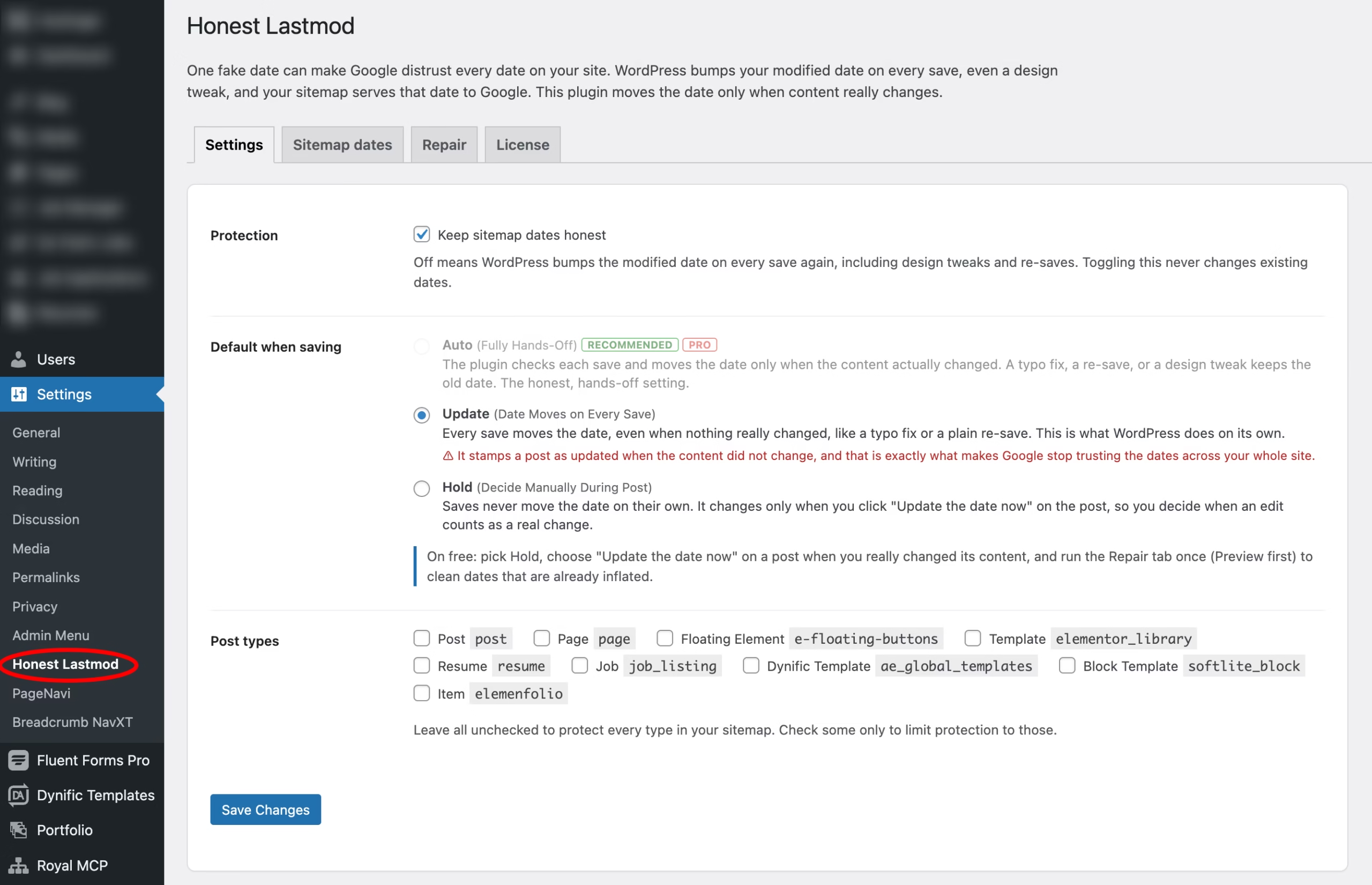
- Go to Settings › Honest Lastmod.
- Open the Sitemap dates tab to see the dates Google is being served today, and which pages are already inflated.
- On the Repair tab, click Preview (dry run), check the list, then Run repair to clean the inflated dates.
- From then on, choose Keep the current date on saves that did not really change your content.
One order-of-operations note: run the repair before any database cleanup that deletes post revisions (LiteSpeed, WP-Optimize, WP Rocket and similar), because revisions are the evidence the repair reads. After it has run once, the honest date is stored in the post itself, so cleanups are harmless from then on.
The three save modes
Every post and page has a Sitemap date panel in the editor with three choices for what a save does to the date. Your per-post choice always overrides the site default set on the Settings tab.
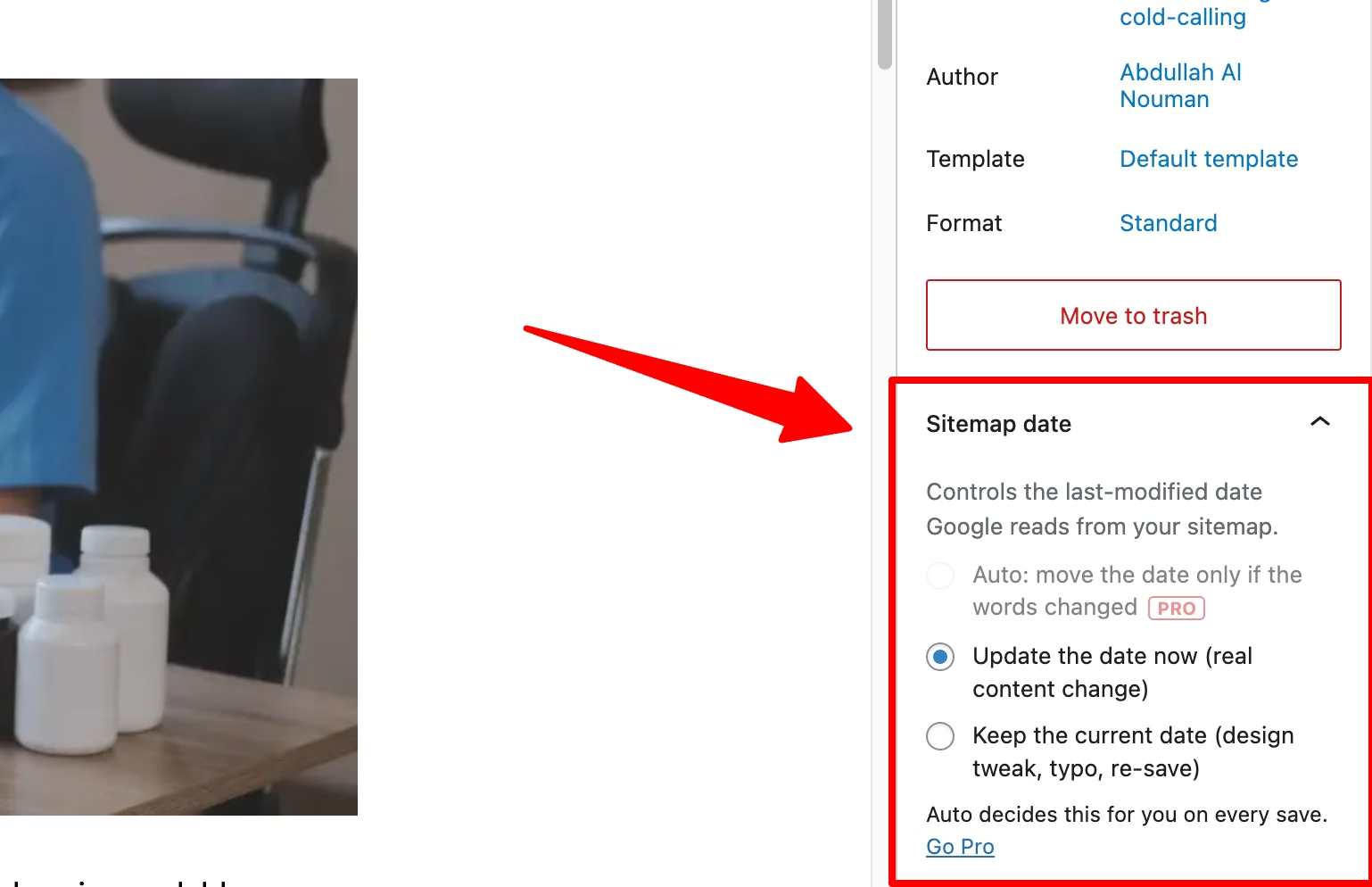
- Auto (Fully Hands-Off, Pro): the plugin checks each save and moves the date only when the words actually changed. A typo fix, a re-save, or a design tweak keeps the old date. This is the honest, set-and-forget setting.
- Update (Date Moves on Every Save): every save moves the date, which is what WordPress does on its own. Use it when you really did change the content.
- Hold (Decide Manually During Post): saves never move the date unless you pick “Update the date now” on that post. This is how you keep dates honest on the free plugin.
How does it tell a real change from a trivial one? It compares a fingerprint of the visible words, with the HTML and design markup stripped out. A layout or design change leaves the words identical, so the date holds; a genuine edit to the wording moves it.
The Sitemap dates tab
This tab reads your database live and shows, for every page, the date your sitemap serves and the last time the content really changed, with a plain verdict.
- Honest: the sitemap date matches the last real content change. Nothing to do.
- Inflated: the sitemap claims an update newer than the last real change. Run the repair to fix it.
- Not tracked yet: the plugin has not seen this post save yet. It starts tracking on the next save, or you can run the repair once to record a baseline.
Repair already-inflated dates
The dates that were already inflated will not fix themselves. The Repair tab rebuilds each one from your revision history: it finds the last revision where the words really changed and uses that date, or falls back to the publish date when no revisions remain. Always click Preview (dry run) first; it writes nothing and lists every date it would change, old to new, so you can check before committing. You can also run it from the command line with wp honest-lastmod repair --dry-run, then wp honest-lastmod repair.
Pro: Auto mode and the automation API
The free plugin gives you full manual control plus the repair. Pro adds the hands-off layer: Auto mode, which decides every save for you, and the automation API, so your own scripts can mark an update real or trivial with no human in the loop. There are four ways to declare the mode, which is one of auto, touch, or hold:
- REST:
POST /wp-json/wpc-lastmod/v1/modewith{ "id": 123, "mode": "hold", "apply": true }.apply: truecorrects the date immediately;falsestores the choice for the next save. - Inline meta: include
"meta": { "_wpc_lastmod": "hold" }when you update a post through the normal WordPress REST API. - PHP helpers:
wpc_mark_material_update( $id ),wpc_mark_trivial_update( $id ), orwpc_set_lastmod_mode( $id, 'auto' ). - Filter:
wpc_hl_modefor one server-side rule instead of tagging each post.
Activate your Pro license
- Install and activate Honest Lastmod Pro. It replaces the free plugin automatically; your settings and dates carry over.
- Go to Settings › Honest Lastmod › License, paste the key from your purchase receipt email, and click Activate.
- Auto mode and the automation API switch on the moment the license is active. Licenses are lifetime, so there is nothing to renew.
Troubleshooting and FAQ
Does activating the plugin change my dates?
No. Activation stores settings only. Dates change when you run the repair, or on saves according to the mode you choose.
My date did not hold after I chose Hold. Why?
Check that protection is enabled on the Settings tab, and that the post’s type is covered under Post types (leave all unchecked to cover every type in your sitemap). On the free plugin, Auto is not available, so a save only holds when you explicitly pick Hold or “Keep the current date” on that post.
Will it work with my SEO plugin?
Yes. It corrects the modified date at the source, so Yoast, Rank Math, SEOPress, or WordPress core all serve the honest value.
What happens to the repair if my revisions were already deleted?
With no revisions to read, the repair falls back to each post’s publish date, which is a safe, honest floor. It never claims a date fresher than reality. This is why you run the repair before any tool that clears revisions.
Can I turn it off?
Yes, on the Settings tab. Turning protection off restores normal WordPress behaviour and changes no existing dates.