

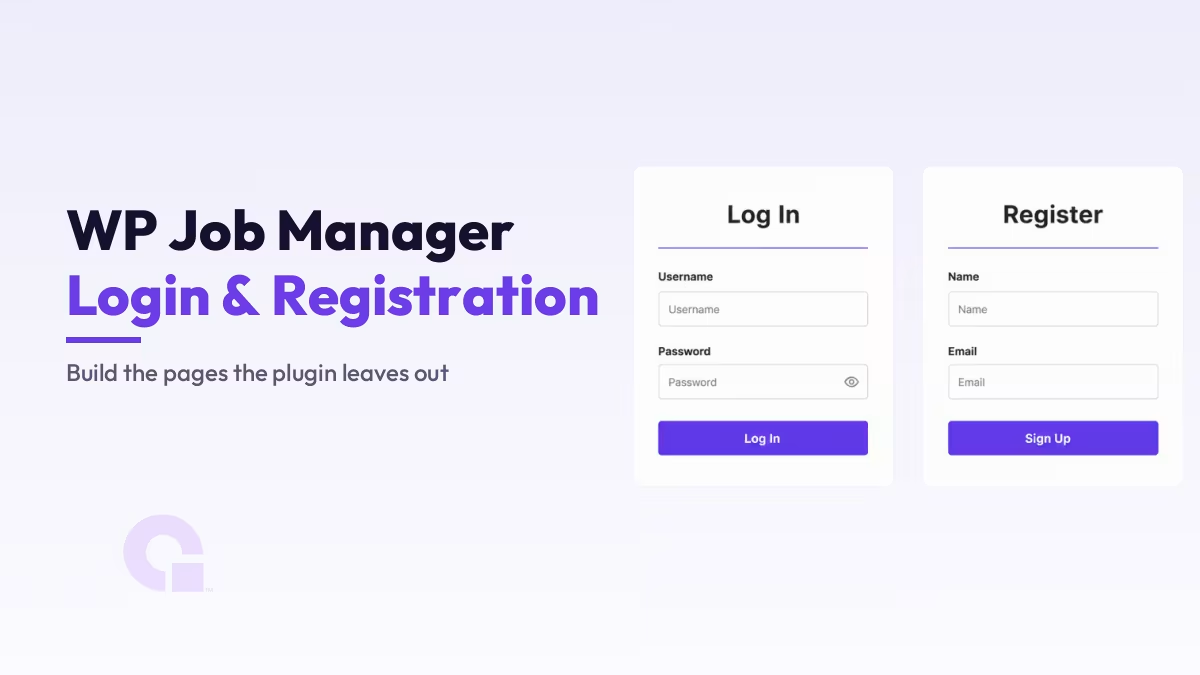
WP Job Manager vous offre un portail d'offres d'emploi fonctionnel, mais il ne comprend pas de page d'inscription ni de connexion ; les candidats et les employeurs n'ont donc aucun moyen de créer un compte. Dans ce guide, je vais vous montrer comment j'ajoute ces deux pages à l'aide du plugin gratuit « Theme My Login », en vous indiquant les paramètres exacts à utiliser et en vous fournissant les captures d'écran correspondantes.
Principaux enseignements
- WP Job Manager ne dispose pas de page de connexion ou d'inscription intégrée ; il s'appuie sur les comptes WordPress, et la page wp-login.php, telle quelle, n'est pas vraiment adaptée à un site d'offres d'emploi public.
- Deux paramètres doivent être activés pour que tout fonctionne : Tout le monde peut s'inscrire dans « Paramètres > Général », ainsi que la création de compte dans les paramètres de soumission des tâches de WP Job Manager.
- Theme My Login crée des pages de connexion et d'inscription côté utilisateur qui se comportent comme des pages WordPress classiques ; vous pouvez donc les personnaliser et les ajouter aux menus.
- Excluez les pages de connexion et d'inscription de la mise en cache, puis testez l'intégralité du parcours (inscription, connexion, soumission d'une annonce) dans une fenêtre privée avant de générer du trafic.
Pourquoi WP Job Manager est livré sans page de connexion
WP Job Manager se concentre sur les annonces : le formulaire de soumission, les archives des offres d'emploi et les candidatures. La gestion des comptes est confiée à WordPress lui-même ; ainsi, lorsqu'un candidat ou un employeur doit se connecter, il accède à la page wp-login.php par défaut, la même que celle que vous utilisez en tant qu'administrateur.
Techniquement, cela fonctionne, mais cela ne ressemble en rien à votre site, et cela déroute les visiteurs qui s'attendent à voir une page normale avec votre en-tête et votre menu de navigation. Un site d'offres d'emploi public doit disposer de pages d'inscription et de connexion bien conçues, et comme le plugin ne les crée pas, c'est nous qui allons le faire.
Oui, certains plugins et thèmes dédiés à la gestion des adhésions intègrent leurs propres formulaires de création de compte, et si vous utilisez déjà l'un d'entre eux, vous n'aurez peut-être pas besoin d'autre chose. Pour un site d'offres d'emploi classique, cependant, Theme My Login est la solution la plus simple que je connaisse ; c'est donc celle qui est utilisée dans ce tutoriel.
Comment créer les pages d'inscription et de connexion, étape par étape
D'un simple plugin à des pages de compte fonctionnelles
- Installer et activer WP Job Manager
- Activer la création de comptes dans WordPress et dans les paramètres du plugin
- Installez le thème « My Login » et consultez les pages qu'il génère
- Inscription à l'essai, connexion et soumission d'une tâche
Étape 1 : Installer WP Job Manager
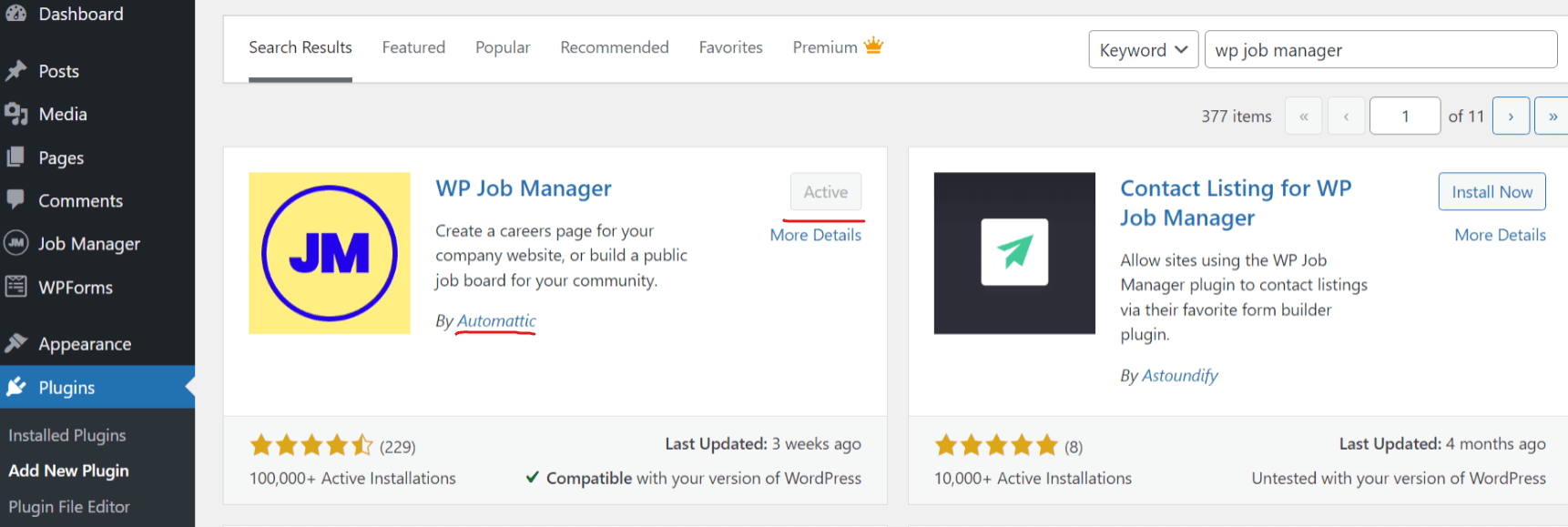
Si le plugin n'est pas encore installé sur le site, rendez-vous dans Plugins > Ajouter, recherchez « WP Job Manager », puis installez-le et activez-le. Il s'agit du plugin officiel d'Automattic dédié aux offres d'emploi ; les mises à jour et le support à long terme sont donc aussi fiables que ceux des plugins WordPress en général.
Étape 2 : Activer l'adhésion et la création de compte
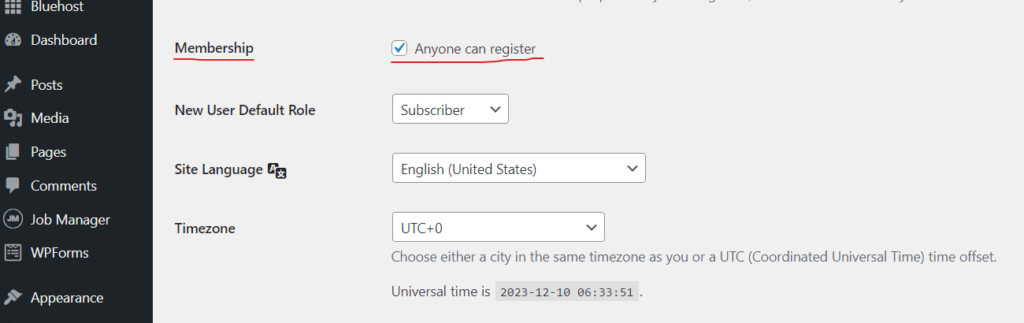
L'inscription échoue sans message d'erreur si WordPress refuse les nouveaux comptes ; il faut donc commencer par régler ce problème. Rendez-vous dans Paramètres > Général, faites défiler jusqu'à la section « Adhésion », puis cochez la case Tout le monde peut s'inscrire, puis enregistrez.
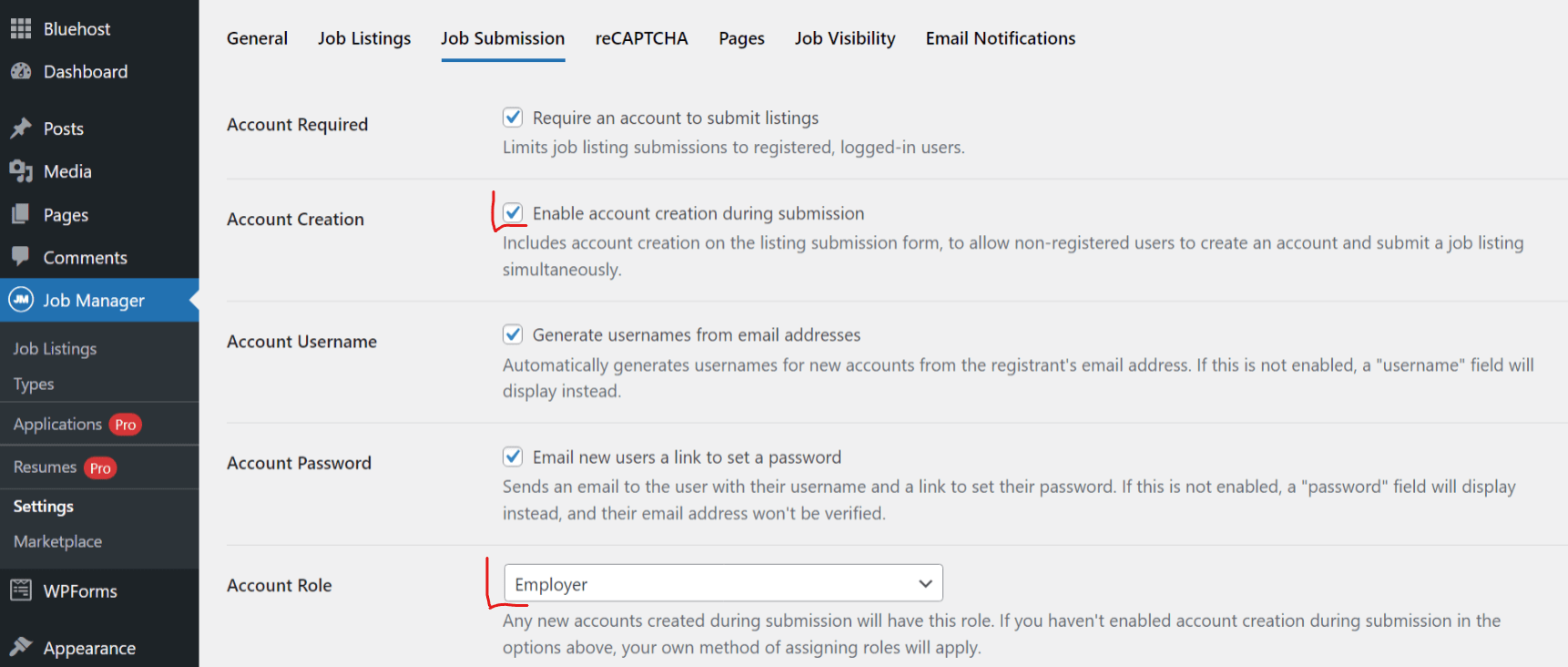
Ouvrez ensuite « Offres d'emploi » > « Paramètres » > « Soumission d'offres » et activez également la création de compte à cet endroit, car WP Job Manager dispose de ses propres paramètres permettant de déterminer si les candidats à la soumission d'une offre se voient attribuer un compte et quel rôle leur est attribué. Laissez le rôle d'inscription sur « Employeur » sauf si vous avez une raison particulière de le modifier, et décidez si un compte doit être obligatoire pour soumettre une offre.
Étape 3 : Installer et activer le thème « My Login »
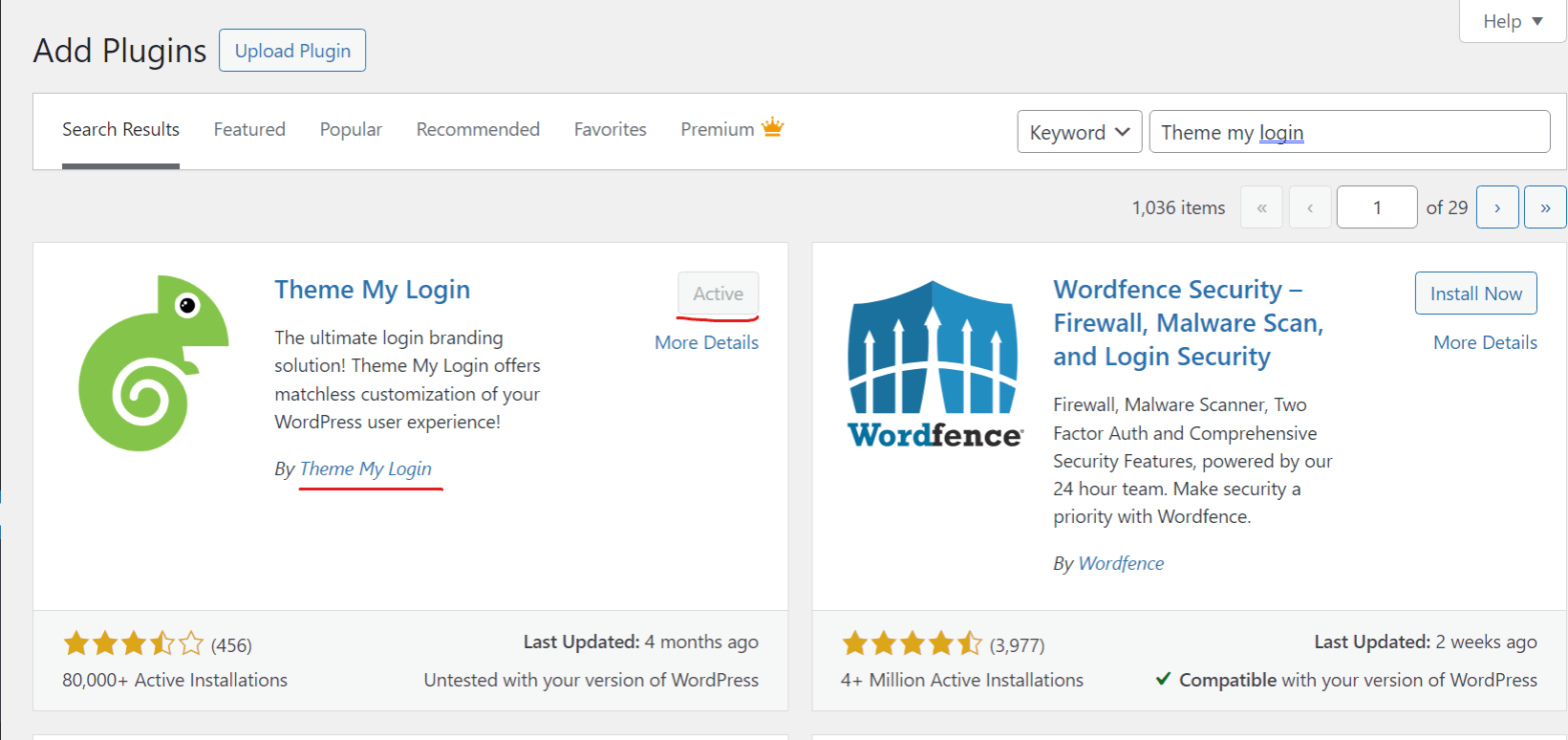
De retour dans « Plugins > Ajouter », recherchez Personnaliser ma page de connexion, puis installez-le et activez-le. Le rôle de ce plugin est de gérer les actions de connexion, d'inscription et de gestion des mots de passe de WordPress sur les pages normales de l'interface publique qui utilisent votre thème.
Étape 4 : Configuration du thème Ma connexion
Ouvrez les paramètres de « Theme My Login » et parcourez les différents onglets : type d'inscription, redirections après la connexion et notifications par e-mail envoyées aux nouveaux utilisateurs. Les paramètres par défaut sont judicieux ; pour la plupart des sites d'offres d'emploi, il s'agit donc davantage d'une vérification de deux minutes que d'un véritable travail de configuration.
Étape 5 : Vérifiez les pages de connexion et d'inscription
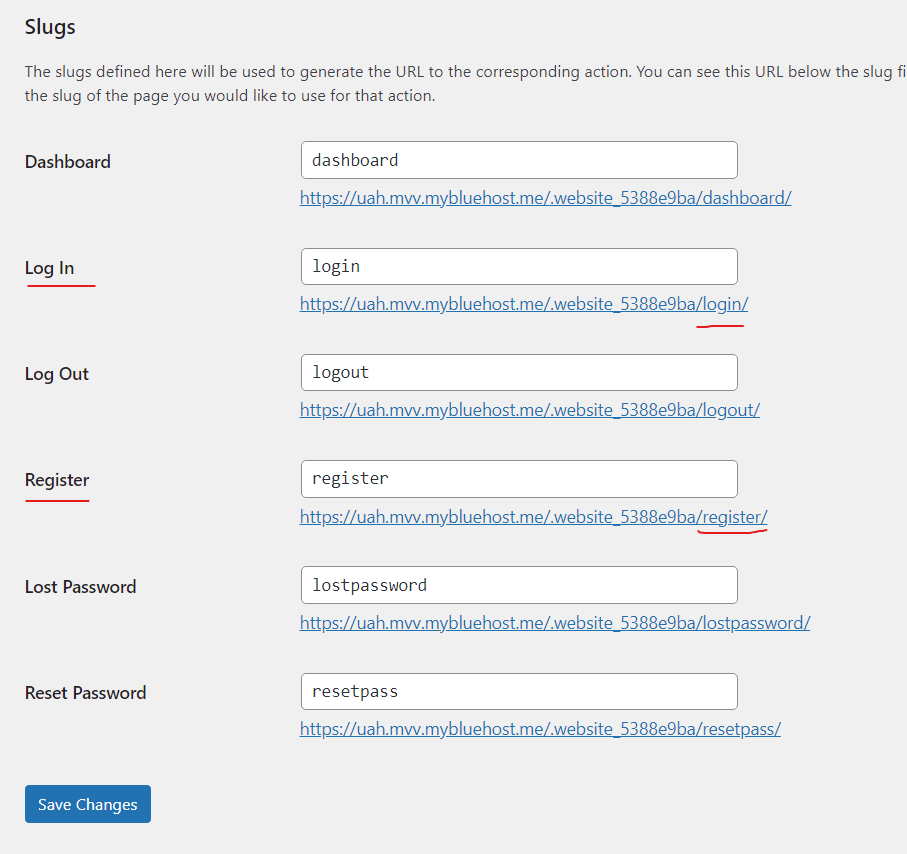
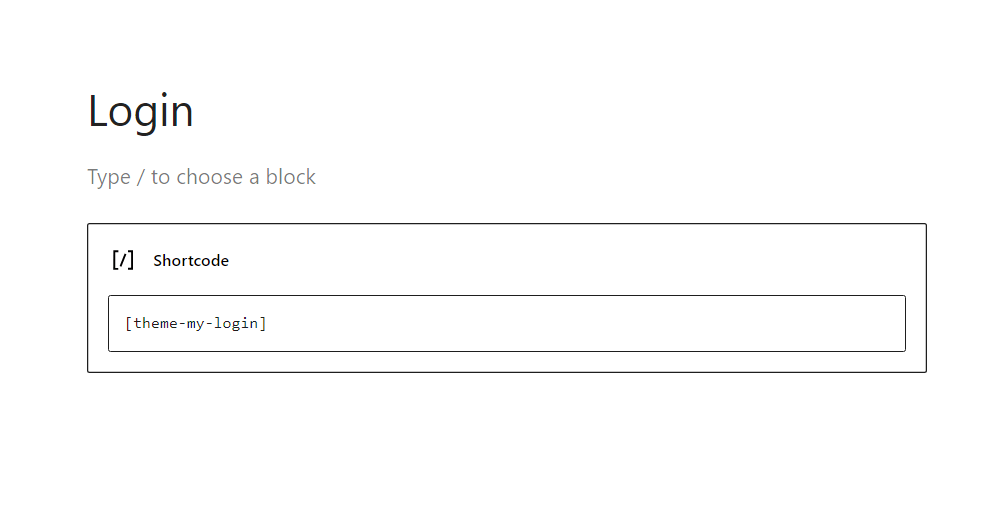
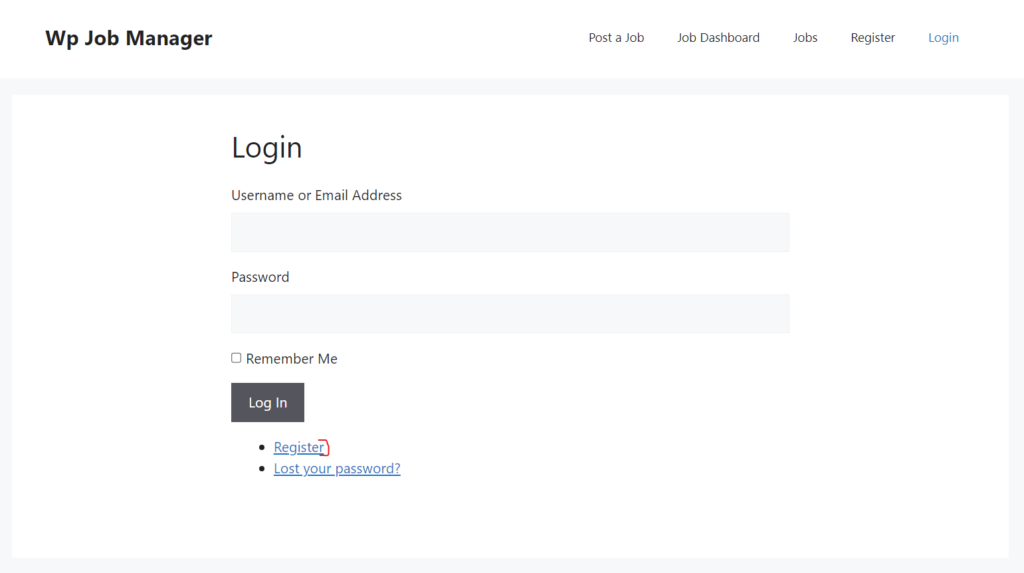
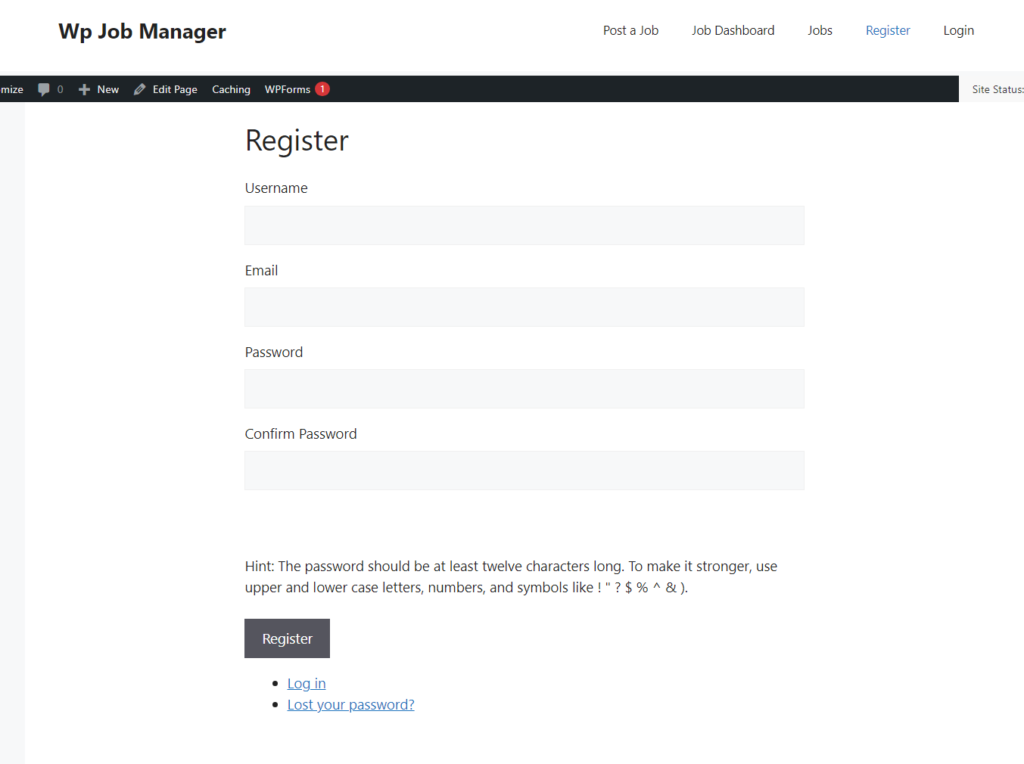
Les versions actuelles de Theme My Login créent automatiquement les pages suivantes lors de l'activation : Connexion, Inscription, Mot de passe oublié et quelques autres, généralement accessibles via les adresses /login et /register. Ouvrez l'onglet « Pages » de votre tableau de bord et vous les verrez apparaître comme des pages WordPress classiques.
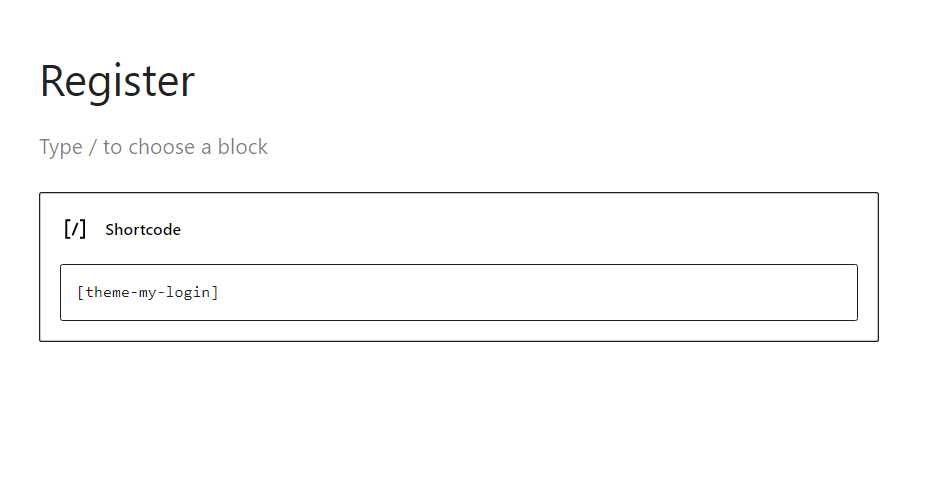
Vous pouvez les modifier comme n'importe quelle page : modifier le slug, ajouter une ligne de texte d'accueil au-dessus du formulaire ou les intégrer à votre menu de navigation. Si jamais vous avez besoin d'utiliser ce formulaire ailleurs, le [thème-mon-login] Le shortcode l'affiche sur la page de votre choix.
Étape 6 : Actualisez vos liens permanents
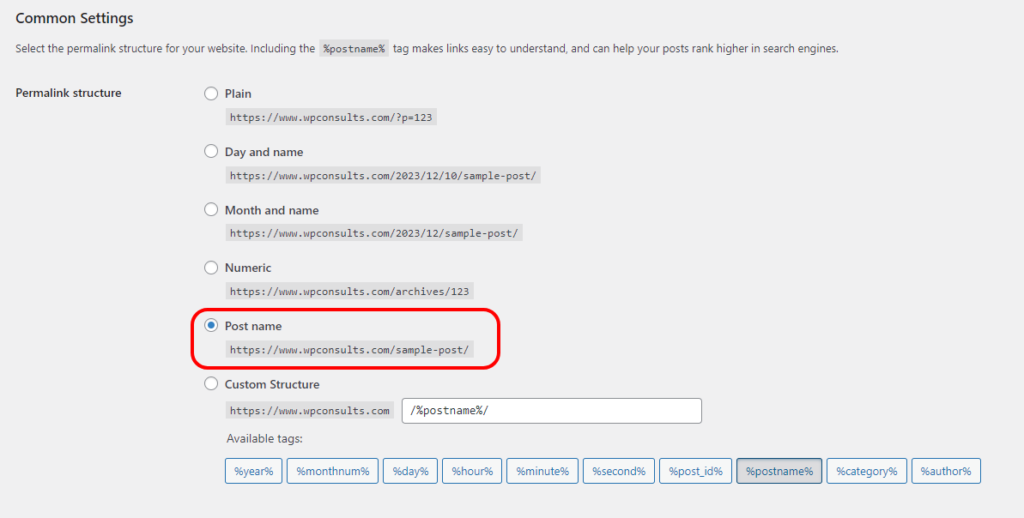
Accédez à Paramètres > Liens permanents, vérifiez la structure que vous utilisez (Nom de l'article pour la plupart des sites), puis cliquez sur « Enregistrer les modifications », même si rien ne semble avoir changé. L'enregistrement actualise les règles de réécriture, ce qui permet de résoudre discrètement le problème des nouvelles pages renvoyant une erreur 404 juste après leur création par un plugin.
Étape 7 : Tester le processus d'inscription et de connexion
Ouvrez une fenêtre de navigation privée, créez un compte test, connectez-vous avec celui-ci, puis publiez une offre d'emploi test de A à Z. Faites-le avant d'envoyer du trafic réel, car un e-mail d'inscription erroné ou une boucle de redirection vous fait perdre chaque candidat qui tombe dessus.
Mise en page des pages de connexion et d'inscription
Comme Theme My Login s'intègre à votre thème, les pages reprennent déjà vos polices, vos couleurs et votre mise en page. Pour un contrôle plus précis, ajoutez du code CSS dans « Apparence > Personnaliser > CSS supplémentaire », en ciblant les classes du formulaire, ou remplacez les fichiers de modèle du plugin dans votre thème enfant si vous maîtrisez le code.
Notez que cela modifie l'apparence des pages front-end, et non celle de l'écran de connexion WordPress d'origine, qui reste accessible aux administrateurs. Si vous souhaitez également personnaliser cet écran, j'ai abordé ce sujet séparément dans Comment personnaliser manuellement la page de connexion de WordPress, et si vous voulez que ce soit plus difficile à trouver, consultez Modifier l'URL de wp-admin sans plugin.
Vérifications de compatibilité avant la mise en ligne du site d'offres d'emploi
Deux éléments perturbent ces configurations plus que tout autre. Premièrement, la mise en cache : si votre plugin de mise en cache affiche une page de connexion ou d’inscription mise en cache, les formulaires se comportent de manière étrange ; il faut donc exclure purement et simplement ces deux pages de la mise en cache. Deuxièmement, les e-mails : les e-mails d’inscription et de réinitialisation de mot de passe finissent souvent dans le dossier spam ou disparaissent, et Configuration du protocole SMTP dans WordPress Cela résout correctement le problème.
Si un formulaire s'affiche de manière anormale, effectuez un test avec un thème par défaut, en ne laissant actifs que WP Job Manager et Theme My Login. Cela permet d'identifier la source du conflit en quelques minutes, au lieu de passer tout un après-midi à tâtonner.
Alors, « Theme My Login » reste-t-il le bon choix pour un site utilisant WP Job Manager ?
Honnêtement, oui, pour la plupart des sites d'offres d'emploi, c'est toujours la solution vers laquelle je me tourne. Elle est gratuite, bien entretenue, ne fait qu'une seule chose et alourdit moins votre site qu'une suite complète de fonctionnalités d'adhésion. Si vous utilisez déjà un plugin d’adhésion ou si votre thème intègre des pages de compte, utilisez ce dont vous disposez plutôt que de faire double emploi ; deux systèmes qui se font concurrence au niveau de l’inscription causent plus de problèmes qu’ils n’en résolvent.
Ce que les gens ont tendance à négliger, ce sont les tests. La mise en place prend quinze minutes, mais c'est l'inscription au test, la connexion et la vérification de l'adresse e-mail qui déterminent si les véritables candidats parviennent réellement à passer l'étape.
Vous avez du mal à configurer vos comptes sur les sites d'offres d'emploi ?
N'hésitez pas à nous contacter ou m'envoyer un courriel si le processus d'inscription ne fonctionne pas correctement. Une page de connexion que les visiteurs peuvent trouver et à laquelle ils peuvent faire confiance fait toute la différence entre un site d'offres d'emploi qui se développe et un site qui reste désert.
Journal des mises à jour
3 juillet 2026
- Nous avons réécrit le guide pas à pas pour la version 2026 : Theme My Login génère désormais automatiquement les pages de connexion et d'inscription ; les étapes ont donc été adaptées en conséquence. De plus, des instructions plus claires sont fournies concernant les paramètres de compte à activer au préalable, ainsi que la mise en cache et la vérification des e-mails avant le lancement.
Vous souhaitez que nos publications apparaissent plus souvent sur Google ?
En un clic, Google affichera ce site dans votre rubrique « À la une ».


Bonjour.