Par défaut, WordPress envoie les e-mails via la fonction « mail » de PHP, ce qui explique pourquoi les réponses à votre formulaire de contact et les e-mails relatifs aux commandes finissent systématiquement dans le dossier spam. La solution consiste à utiliser le protocole SMTP authentifié, et vous n'avez pas besoin de plugin pour cela.
Deux petits extraits de code, l'un dans le fichier wp-config.php et l'autre dans le fichier functions.php, permettent de faire transiter tous les e-mails envoyés par votre site via un véritable serveur de messagerie. Je vais vous expliquer comment procéder pour les deux, ainsi que l'étape relative au mot de passe d'application que la plupart des guides omettent.
Principaux enseignements
- Par défaut, WordPress envoie ses e-mails via la fonction mail() de PHP, sans authentification, ce qui explique pourquoi les e-mails du site finissent si souvent dans le dossier « spam ».
- La configuration manuelle du SMTP nécessite deux éléments : des constantes de connexion dans le fichier wp-config.php et un hook phpmailer_init dans le fichier functions.php.
- Pour Gmail, vous devez utiliser un mot de passe d'application avec la validation en deux étapes ; le mot de passe habituel de votre compte ne fonctionnera pas.
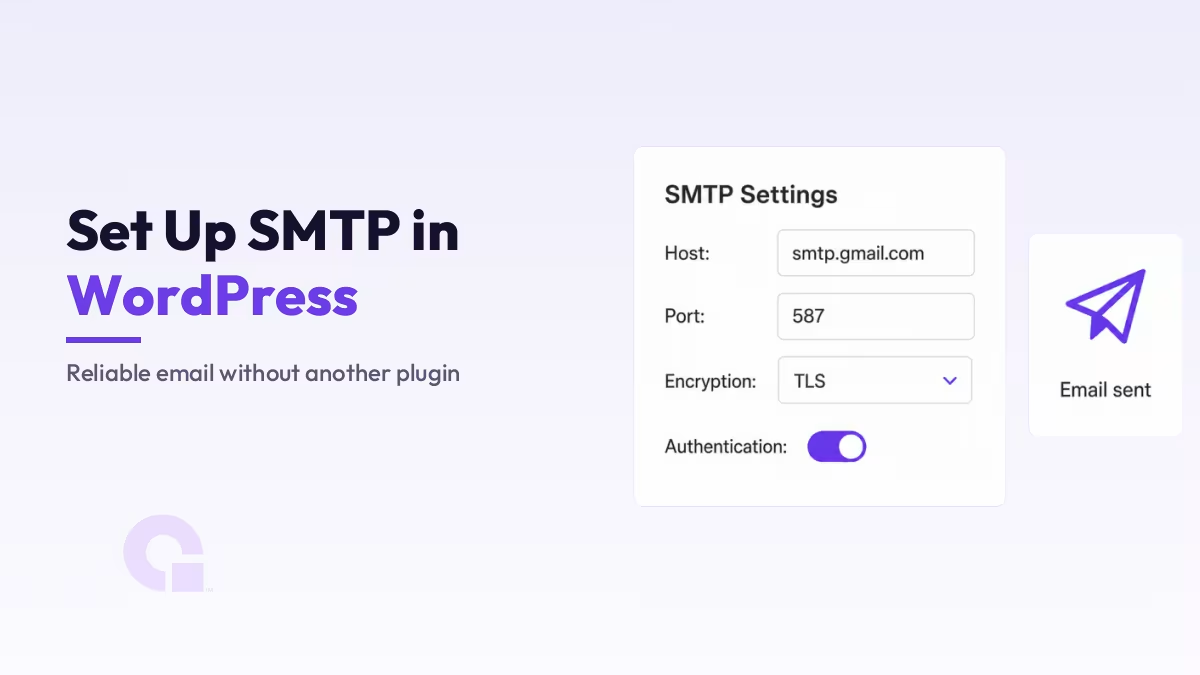
- Le port 587 avec TLS est le paramètre par défaut sécurisé ; veillez à ce que l'adresse d'expéditeur corresponde au compte utilisé pour l'authentification.
- Le protocole SMTP ne représente que la moitié de la délivrabilité ; les enregistrements SPF, DKIM et DMARC associés à votre domaine constituent l'autre moitié.
- La version gratuite de Gmail limite l'envoi à environ 500 messages par jour, ce qui convient pour les notifications du site, mais pas pour les newsletters.
Pourquoi les e-mails de WordPress finissent dans le dossier « Spam » ?
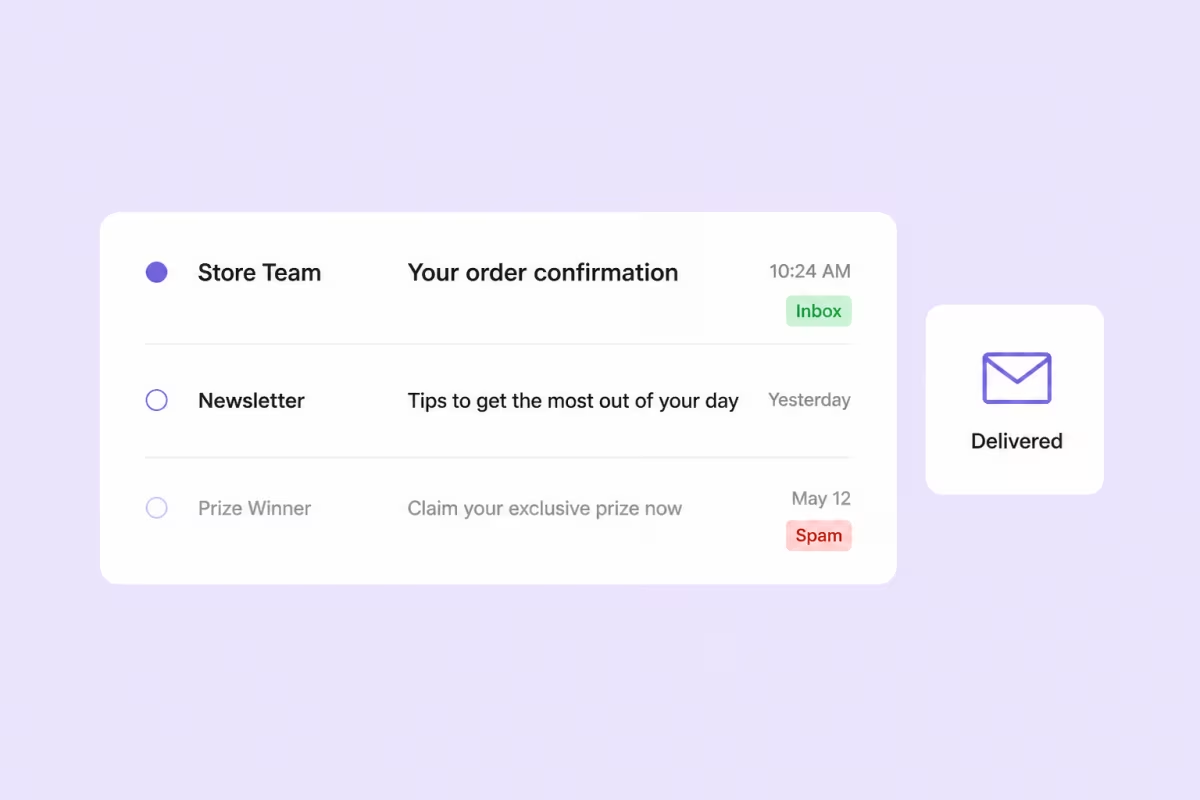
Par défaut, la fonction wp_mail() transmet votre e-mail à la fonction PHP « mail » du serveur web, qui l'envoie sans aucune authentification. Les serveurs destinataires reçoivent alors un message provenant d'un hébergeur aléatoire prétendant représenter votre domaine, et ils considèrent cette affirmation avec méfiance ; l'e-mail est donc filtré ou ignoré sans avertissement.
Le protocole SMTP résout le problème de confiance. Votre site se connecte à un véritable serveur de messagerie à l'aide d'un nom d'utilisateur et d'un mot de passe, et le destinataire voit un expéditeur authentifié plutôt qu'un expéditeur anonyme. Le même e-mail, mais un accueil complètement différent.
Étape 1 : Ajoutez les constantes SMTP au fichier wp-config.php
Ouvrez le fichier wp-config.php situé à la racine de votre site (via le gestionnaire de fichiers, FTP ou SSH) et ajoutez ce bloc n'importe où au-dessus de la ligne qui indique /* C'est tout, fin de la modification ! Bon blogging. */:
// Paramètres de messagerie SMTP
define( 'SMTP_USERNAME', 'you@yourdomain.com' );
define( 'SMTP_PASSWORD', 'votre-mot-de-passe-d'application' );
define( 'SMTP_SERVER',   'smtp.gmail.com' );
define( 'SMTP_FROM',     'you@yourdomain.com' );
define( 'SMTP_NAME',     'Nom de votre site' );
define( 'SMTP_PORT',     '587' );
define( 'SMTP_SECURE',   'tls' );
define( 'SMTP_AUTH',     true );
define( 'SMTP_DEBUG',    0 );
Remplacez ces informations par celles de votre propre serveur de messagerie, votre adresse e-mail et votre mot de passe ; les valeurs Gmail indiquées ici ne sont qu'un exemple courant. Deux détails ont plus d'importance qu'on ne le pense. Veillez à SMTP_FROM avec le même compte que celui utilisé pour vous connecter, car de nombreux serveurs rejettent les e-mails dont l'adresse d'expéditeur ne correspond pas à celle utilisée pour la connexion. Et considérez ce mot de passe comme le mot de passe de la base de données du site, car le fichier wp-config.php est tout aussi sensible.
Étape 2 : Intégrer PHPMailer dans le fichier functions.php
Les constantes ne font rien à elles seules ; il faut indiquer à WordPress de les utiliser. C'est le rôle du fichier Hook `phpmailer_init`, qui s'exécute juste avant l'envoi de chaque e-mail depuis le site. Ajoutez ce code au fichier functions.php de votre thème actif, de préférence dans une thème enfant ainsi, une mise à jour du thème ne peut pas l'effacer :
add_action( 'phpmailer_init', 'wpc_phpmailer_smtp' );

function wpc_phpmailer_smtp( $phpmailer ) {
    $phpmailer->isSMTP();
    $phpmailer->Host       = SMTP_SERVER;
    $phpmailer->SMTPAuth   = SMTP_AUTH;
    $phpmailer->Port       = SMTP_PORT;
    $phpmailer->Username   = SMTP_USERNAME;
    $phpmailer->Password   = SMTP_PASSWORD;
    $phpmailer->SMTPSecure = SMTP_SECURE;
    $phpmailer->From       = SMTP_FROM;
    $phpmailer->FromName   = SMTP_NAME;
}
Désormais, tout ce qui passe par la fonction wp_mail(), c'est-à-dire les réinitialisations de mot de passe, les notifications des formulaires de contact et les e-mails de commande WooCommerce, est envoyé via votre connexion authentifiée. Voici ce que contrôle réellement chaque constante :
| Constante | Ce qu'il contrôle | Valeur typique |
|---|---|---|
| SMTP_SERVER | Le serveur de messagerie auquel votre site se connecte | smtp.gmail.com, ou le serveur de votre hébergeur |
| SMTP_PORT / SMTP_SECURE | Paire « port de connexion et cryptage » | 587 avec TLS (ou 465 avec SSL) |
| SMTP_USERNAME / SMTP_PASSWORD | Le compte avec lequel le site s'authentifie est | Votre boîte mail et son mot de passe d'application |
| SMTP_FROM / SMTP_NAME | L'adresse et le nom de l'expéditeur tels qu'ils apparaissent | Même adresse que le nom d'utilisateur |
| SMTP_DEBUG | Journalisation des connexions à des fins de dépannage | 0 en production, 2 en phase de test |
Utilisation du SMTP de Gmail : mots de passe d'application et limites d'envoi
Si vous utilisez Gmail comme serveur, le mot de passe habituel de votre compte ne fonctionnera pas ; Google exige une authentification en deux étapes ainsi qu'un mot de passe de l'application pour ce type de connexion. Générez-en un dans les paramètres de sécurité de votre compte Google, puis collez ce code à 16 caractères dans SMTP_PASSWORD.
Faites également attention au volume. Google’s limites d'envoi Un compte gratuit est limité à environ 500 messages par jour, ce qui est largement suffisant pour les réinitialisations de mot de passe et les notifications de commande, mais ne convient pas pour les newsletters. Pour tout envoi en masse, utilisez plutôt un service d'e-mails transactionnels ou le serveur de messagerie de votre hébergeur.
Testez votre configuration SMTP avant de vous y fier
Ne partez pas du principe que les extraits de code fonctionnent ; vérifiez-le. Le test le plus rapide, sans plugin, consiste à vous envoyer un e-mail de réinitialisation de mot de passe, puis à ouvrir les détails du message dans Gmail et à vérifier les lignes « Envoyé par » et « Signé par », qui devraient désormais indiquer votre serveur de messagerie plutôt que celui de l'hébergeur.
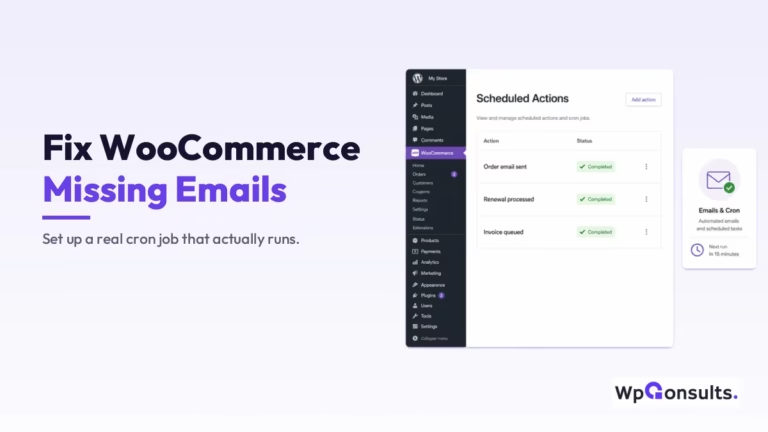
Si vous ne recevez rien, configurez SMTP_DEBUG à 2 temporairement et relancez l'envoi de l'e-mail ; le journal des connexions indique généralement clairement la cause du problème, le plus souvent un mot de passe incorrect ou un port bloqué. N'oubliez pas que les e-mails programmés par WordPress (comme les renouvellements WooCommerce) dépendent également de l'exécution du cron, un autre point de défaillance que j'ai abordé dans Résoudre le problème des e-mails WooCommerce manquants à l'aide d'une véritable tâche cron.
Le protocole SMTP ne représente que la moitié de la délivrabilité des e-mails
L'authentification vous permet d'accéder à la boîte de réception, mais les fournisseurs de messagerie vérifient également si votre domaine se porte garant de l'expéditeur. Cette vérification s'effectue à l'aide de trois enregistrements DNS : SPF répertorie les serveurs autorisés à envoyer des messages pour votre domaine, DKIM signe chaque message afin que toute altération puisse être détectée, et DMARC indique aux récepteurs ce qu'ils doivent faire lorsque les deux premières options échouent.
Si vous envoyez des e-mails depuis votre propre domaine, prenez les vingt minutes supplémentaires nécessaires pour les ajouter chez votre hébergeur DNS, car Gmail et les autres grands fournisseurs accordent désormais une grande importance à ces enregistrements. Une connexion SMTP parfaitement authentifiée provenant d'un domaine sans SPF ni DKIM reste perçue comme insuffisante par un filtre anti-spam.
Configuration manuelle du protocole SMTP, de A à Z
- Ajoutez les constantes SMTP au fichier wp-config.php
- Intégrer PHPMailer dans le fichier functions.php
- Créez le mot de passe d'application pour votre compte de messagerie
- Envoyez un e-mail de test et vérifiez les en-têtes
- Ajoutez les protocoles SPF, DKIM et DMARC chez votre hébergeur DNS
Quand un plugin SMTP est la meilleure solution
La méthode manuelle n'est pas toujours la meilleure, et il serait malhonnête de prétendre le contraire. Si vous gérez le site avec une équipe non technique, si vous préférez OAuth aux mots de passe d'application, ou si vous avez besoin d'un journal des e-mails à présenter à un client, une solution dédiée Plugin SMTP méritent leur place. Les deux extraits ci-dessus remplissent la même fonction de base sans aucune surcharge liée aux plugins, c'est pourquoi je les préfère sur les sites allégés.
La configuration manuelle du protocole SMTP est-elle donc plus intéressante qu'un plugin ?
À mon avis, oui, pour la plupart des propriétaires de sites mono-site, car la configuration manuelle se résume à deux extraits de code que l'on écrit une fois pour toutes et que l'on ne modifie plus jamais, sans plugin supplémentaire à mettre à jour ou qui risque de ne plus être pris en charge. L'option du plugin s'impose lorsque l'on a besoin de fonctionnalités de journalisation, d'OAuth ou d'une interface utilisateur pouvant être gérée par quelqu'un d'autre.
Quoi qu'il en soit, ne vous contentez pas du protocole SMTP. Les sites dont les e-mails parviennent systématiquement dans la boîte de réception sont ceux qui ont également mis en place les protocoles SPF, DKIM et DMARC, et cela n'a rien à voir avec la méthode que vous avez choisie.
Vous avez toujours du mal à récupérer les e-mails qui atterrissent dans le dossier « spam » ?
Si vos e-mails WordPress disparaissent ou si la connexion SMTP ne fonctionne pas, nous contacter ou m'envoyer un courriel et je t'aiderai à en trouver la source. La fiabilité de la messagerie électronique fait partie de ces éléments dont on ne se rend compte que lorsqu'ils ne fonctionnent plus.
Journal des mises à jour
5 juillet 2026
- Nous avons remanié le guide pour y inclure l'exigence relative au mot de passe d'application Gmail, une méthode de test de la connexion ne nécessitant aucun plugin, ainsi que les enregistrements SPF, DKIM et DMARC qui permettent d'optimiser la délivrabilité.
Vous souhaitez que nos publications apparaissent plus souvent sur Google ?
En un clic, Google affichera ce site dans votre rubrique « À la une ».