

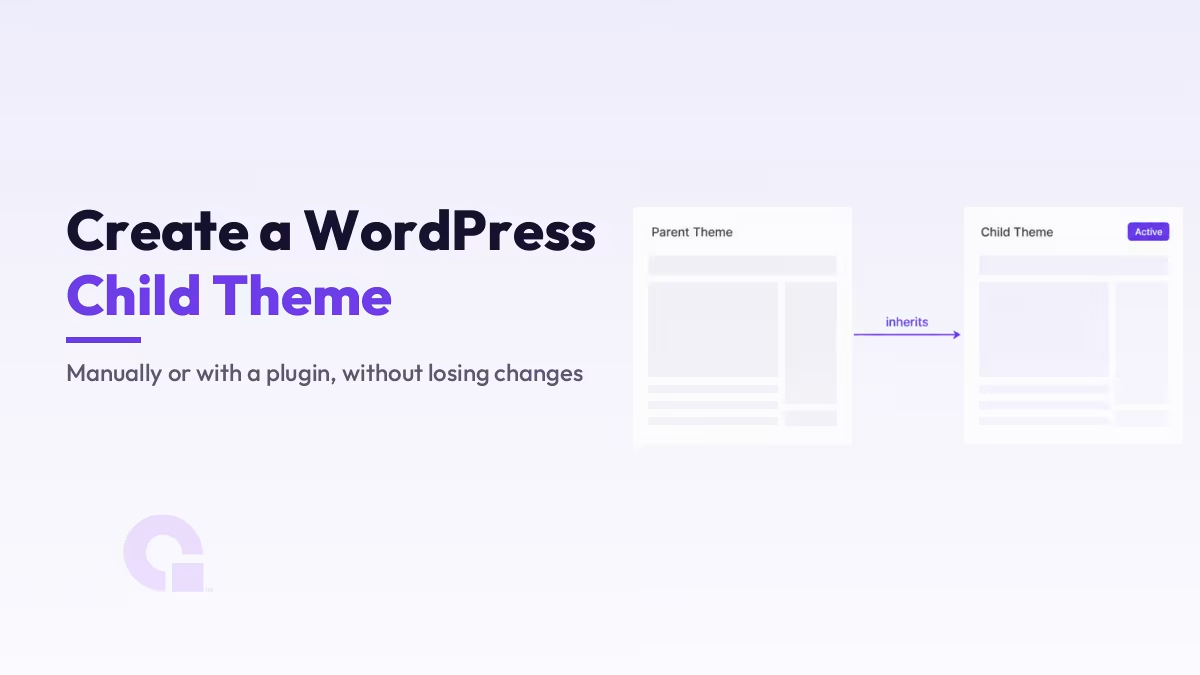
A Thème enfant WordPress vous permet de personnaliser votre site tout en préservant vos modifications lors des mises à jour du thème parent. Sans cela, une mise à jour peut effacer vos modifications sans que vous vous en rendiez compte, et j'ai vu cela arriver à un nombre incalculable de sites.
Voici comment en créer un : d'abord manuellement à l'aide de deux petits fichiers, puis à l'aide d'un plugin si vous préférez ne pas toucher au code. Je vous expliquerai également dans quels cas vous n'avez absolument pas besoin d'un thème enfant, car il arrive parfois que ce ne soit vraiment pas nécessaire.
Principaux enseignements
- Un thème enfant hérite de toutes les propriétés de son thème parent et ne remplace que les éléments que vous modifiez ; ainsi, les mises à jour du thème parent n'affectent jamais vos personnalisations.
- La méthode manuelle ne nécessite qu'un dossier et un style.css fichier ; n'ajoutez le fichier functions.php que si vous souhaitez utiliser du code PHP personnalisé.
- Le Modèle La ligne dans le fichier style.css doit correspondre exactement au nom du dossier du thème parent, sinon le thème enfant ne fonctionnera pas.
- Child Theme Configurator remplit la même fonction sans avoir à écrire de code et permet de transférer vos paramètres du Customizer.
- Pour les modifications portant uniquement sur le CSS ou les thèmes par blocs modifiés dans l'éditeur de site, vous n'aurez peut-être pas besoin d'un thème enfant.
Qu'est-ce qu'un thème enfant WordPress, et pourquoi protège-t-il vos modifications ?
Un thème enfant est un thème qui hérite de la mise en page et des fonctionnalités d’un autre thème, dit « parent ». WordPress charge d’abord les fichiers du thème enfant et se rabat sur le thème parent pour tout le reste ; vous ne remplacez donc que les éléments que vous personnalisez, tandis que le thème parent continue d’assurer l’essentiel du travail.
C'est au moment de la mise à jour que l'on en voit les avantages. Si vous modifiez directement le thème parent, la prochaine mise à jour écrasera votre travail ; en revanche, si vous effectuez les mêmes modifications dans un thème enfant, le thème parent se mettra à jour sans problème par-dessus celles-ci. Le Guide du développeur WordPress recommande précisément cette approche pour modifier tout thème que vous n'avez pas créé vous-même.
Quand il n'est pas nécessaire d'utiliser un thème enfant
Commençons par définir clairement le périmètre, car l'utilisation d'un thème enfant n'est pas systématiquement la meilleure solution pour tout le monde. Si vous souhaitez simplement apporter quelques modifications au CSS, le CSS supplémentaire La zone de l'« Customizer » est conservée même après les mises à jour. Les petits extraits de code PHP peuvent être intégrés dans un plugin dédié aux extraits de code, et les thèmes de blocs modifiés via l'éditeur de site enregistrent ces modifications dans la base de données, et non dans les fichiers du thème ; les mises à jour ne les effacent donc pas.
C'est notamment dans les modifications de modèles, les fonctions personnalisées que vous souhaitez voir intégrées au thème, ainsi que dans tout projet où la personnalisation va au-delà du simple aspect esthétique, qu'un thème enfant prend tout son sens. Si c'est votre cas, poursuivez votre lecture.
Méthode 1 : Créer manuellement un thème enfant WordPress
Vous devez pouvoir accéder aux fichiers de votre site (gestionnaire de fichiers de l'hébergement, FTP ou SFTP) et disposer d'environ cinq minutes. La structure que vous allez créer se présente comme suit :
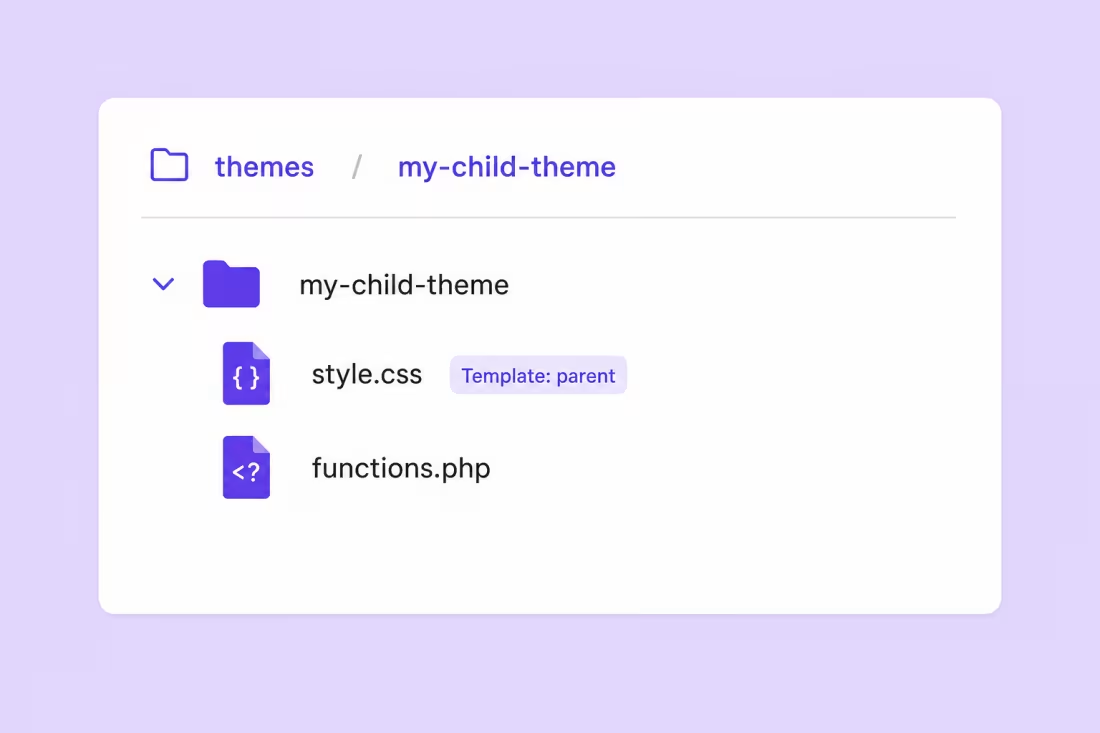
- Créer un dossier à l'intérieur
wp-content/themes/. Donnez-lui le nom du parent, par exemplekadence-child, pour que ton « toi » du futur sache à quoi cela correspond. - Créer le fichier style.css dans ce dossier, avec cet en-tête :
/*
Nom du thème : Mon thème enfant
Modèle : parent-theme
*/
Il y a deux lignes qui comptent ici. Nom du thème c'est tout ce que vous souhaitez voir s'afficher dans l'interface d'administration, mais Modèle doit correspondre exactement au nom du dossier du thème parent, y compris les minuscules. Si le thème parent se trouve dans wp-content/themes/kadence, la ligne est Modèle : kadence; si vous vous trompez, WordPress signalera que le thème est défectueux.
- Créer le fichier functions.php dans le même dossier si les styles du thème parent ne se chargent pas automatiquement (c'est souvent nécessaire pour de nombreux thèmes classiques) :
<?php
add_action( 'wp_enqueue_scripts', 'my_child_theme_enqueue_styles' );

function my_child_theme_enqueue_styles() {
    wp_enqueue_style( 'parent-style', get_template_directory_uri() . '/style.css' );
    wp_enqueue_style( 'child-style', get_stylesheet_uri(), array( 'parent-style' ) );
}
Cela charge d’abord la feuille de style parente, puis votre feuille de style enfant par-dessus, ce qui fait que votre CSS l’emporte en cas de conflit. Une mise en garde toutefois : certains thèmes gèrent déjà leurs propres styles d’une manière différente ; vérifiez donc la documentation du thème parent. Des thèmes bien connus comme Kadence, Astra et GeneratePress proposent même des thèmes enfants prêts à l’emploi que vous pouvez télécharger au lieu d’en créer un vous-même.
Seul le fichier style.css est nécessaire. Si vous n'avez pas de code PHP à ajouter, ignorez complètement le fichier functions.php ; le thème enfant fonctionne uniquement avec la feuille de style.
Activer le thème enfant
Aller à Apparence > Thèmes Dans votre tableau de bord, repérez votre nouveau thème enfant, puis cliquez sur « Activer ». Attention : les paramètres du Customizer, les menus et l'emplacement des widgets sont enregistrés par thème ; le passage au thème enfant peut donc les réinitialiser. Vous devrez peut-être réattribuer les menus ou saisir à nouveau les options du Customizer une seule fois.
Méthode 2 : Créer un thème enfant à l'aide du plugin « Child Theme Configurator »
Si l'édition de fichiers n'est pas votre truc, le logiciel gratuit Configurateur de thème enfant Ce plugin génère pour vous ces deux mêmes fichiers et apporte un atout supplémentaire vraiment utile : il permet de copier les paramètres du Customizer, les menus et les widgets du thème parent vers le thème enfant, ce qui évite le problème de réinitialisation lié à la méthode manuelle.
- Installez et activez le plugin à partir de Plugins > Ajouter un nouveau.
- Ouvrir Outils > Thèmes enfants, sélectionnez votre thème parent, puis cliquez sur Analyser; le plugin vérifie comment le parent charge ses styles et choisit la méthode d'enqueue appropriée.
- Acceptez les paramètres par défaut (ou cochez l'option permettant de copier les paramètres du parent), puis cliquez sur Créer un nouveau thème enfant, puis prévisualisez-le et activez-le depuis « Apparence > Thèmes ».
Une fois le plugin activé, vous pouvez ajouter du code CSS via l’éditeur du plugin ou le Personnalisateur, et du code PHP via le fichier functions.php du thème enfant dans l’éditeur de fichiers du thème (sous « Apparence » pour les thèmes classiques, ou « Outils » pour les thèmes à blocs). C’est exactement là où se trouve mon Extraits de code pour la personnalisation de la page de connexion aller, ce qui correspond exactement au type de modification contre laquelle un thème enfant est censé protéger.
Thèmes enfants dans les thèmes basés sur des blocs
Les thèmes de blocs (ceux modifiés via l'éditeur de site) prennent également en charge les thèmes enfants, le fichier `theme.json` étant hérité de la même manière que les modèles. En pratique, on en a moins souvent besoin, car les modifications apportées via l'éditeur de site sont enregistrées dans la base de données et sont conservées lors des mises à jour ; toutefois, un thème enfant reste utile lorsque l'on souhaite disposer de modifications au niveau des fichiers que l'on peut versionner et déployer.
Quel que soit l'approche que vous adoptiez, n'oubliez pas que le thème lui-même a un impact sur le référencement naturel (SEO) grâce à sa vitesse et à son balisage ; j'ai détaillé les points où cela compte vraiment dans Votre thème WordPress nuit-il à votre référencement ?. Un thème enfant ne change rien à cela ; il permet simplement de conserver vos personnalisations.
Alors, est-ce que tous les sites WordPress devraient utiliser un thème enfant ?
Si c'était mon site et que je prévoyais d'apporter des personnalisations au niveau des fichiers sur un thème classique, je créerais le thème enfant avant d'écrire la moindre ligne de code, car il est très pénible de devoir le mettre à jour après une mise à jour qui a effacé toutes vos modifications. La méthode manuelle est celle que j'utilise par défaut ; elle ne nécessite que deux petits fichiers et on comprend exactement ce qu'ils font.
Mais pour un site qui ne nécessite qu'un peu de CSS supplémentaire, ou un thème de bloc entièrement modifié dans l'éditeur de site, ne pas utiliser de thème enfant est un choix tout à fait légitime, et non une erreur. Adaptez l'outil à l'ampleur de la personnalisation, et non à une règle.
Vous avez besoin d'aide pour personnaliser votre thème en toute sécurité ?
Si votre thème enfant ne s'active pas, ou si une mise à jour a déjà effacé vos personnalisations, nous contacter ou m'envoyer un courriel et je vous aiderai à le reconstruire de manière durable. Dix minutes de configuration maintenant vous éviteront de devoir tout refaire plus tard.
Journal des mises à jour
4 juillet 2026
- J'ai mis à jour ces deux méthodes pour la version actuelle de WordPress : un extrait de code corrigé pour l'enqueue qui charge la feuille de style enfant en s'appuyant sur la feuille de style parent comme dépendance, la mise en garde concernant la réinitialisation du Customizer lors de l'activation, des conseils sur les thèmes de blocs, ainsi qu'une section honnête expliquant dans quels cas il est possible de se passer complètement d'un thème enfant.
Vous souhaitez que nos publications apparaissent plus souvent sur Google ?
En un clic, Google affichera ce site dans votre rubrique « À la une ».


intéressant pendant très longtemps
Des revenus dès le premier jour