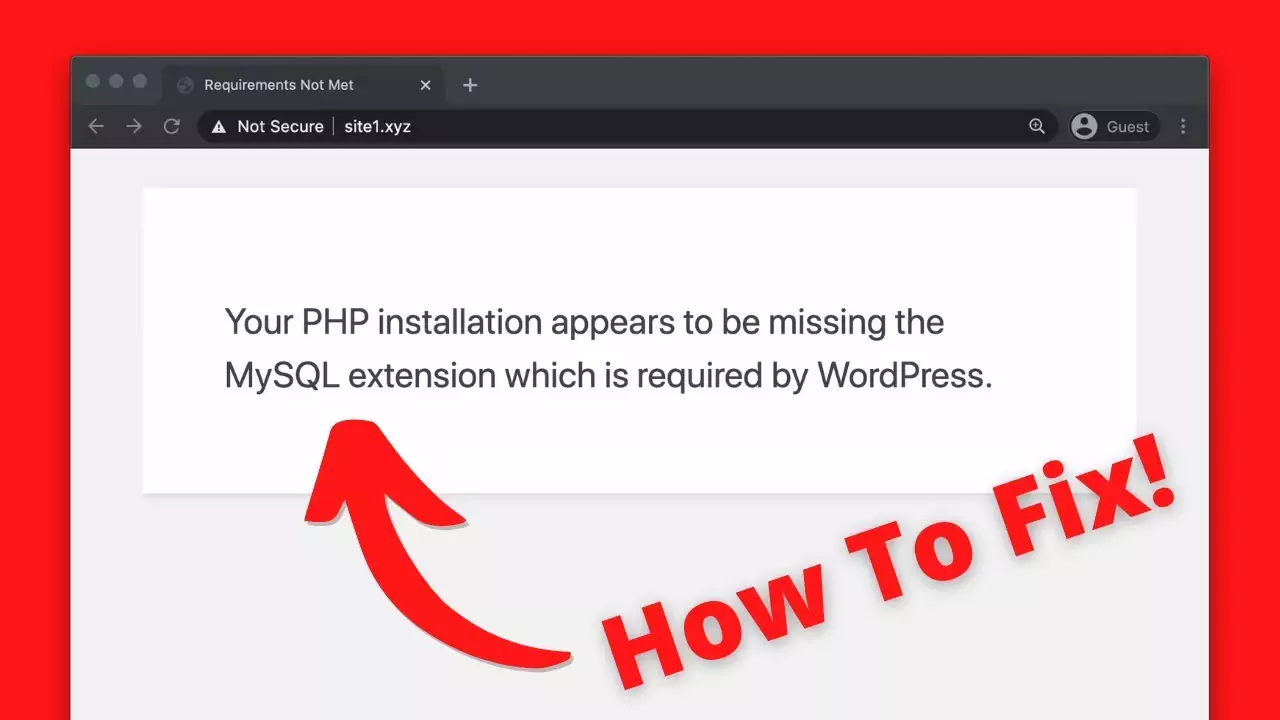
Cette erreur signifie que WordPress ne parvient pas à communiquer avec sa base de données, car le PHP exécuté sur votre serveur ne dispose pas d'un pilote MySQL fonctionnel. Cela peut paraître inquiétant, mais cela se résume presque toujours à une seule cause : une incompatibilité entre votre version de PHP et votre version de WordPress.
Je vais passer en revue toutes les solutions dans l'ordre où je les ai testées, de la mise à jour en un clic à la modification php.ini, et terminez par la seule modification qui empêchera ce problème de réapparaître.
Principaux enseignements
- Ce message signifie qu'aucun pilote MySQL utilisable n'est chargé pour PHP, et que WordPress ne peut donc pas accéder à sa base de données.
- La cause habituelle est une incompatibilité entre les versions : une ancienne version de WordPress sur PHP 7 ou une version supérieure, qui a supprimé la fonction d'origine
mysqlextension au profit de MySQLi et PDO_MySQL. - Suivez les étapes dans l'ordre : mettez à jour WordPress, vérifiez le
.htaccess, puis validez et mettez à jour votre version de PHP. - Si la version de PHP est ancienne, activez la
mysqliextension dans le sélecteur PHP de votre hébergeur, ou demandez à celui-ci de l'activer. - Si l'extension est bien présente mais ne fonctionne toujours pas, cela signifie généralement que le fichier php.ini pointe vers un répertoire d'extensions incorrect.
- L'hébergement WordPress géré assure la mise à jour régulière de PHP et de ses extensions, ce qui élimine toute cette catégorie d'erreurs.
Que signifie réellement l'erreur « extension MySQL manquante » en PHP ?
WordPress stocke toutes ses données (vos articles, vos utilisateurs, vos paramètres) dans une base de données MySQL, et il a besoin d'un pilote PHP pour lire et écrire ces données. Lorsque ce message s'affiche, cela signifie que ce pilote n'est pas chargé ; WordPress se retrouve donc dans une impasse avant même de pouvoir afficher une page.
Voici la partie que la plupart des guides omettent. PHP 7.0 a supprimé l'ancienne mysql_* a complètement supprimé l'extension et a transféré tout le monde vers MySQLi et PDO_MySQL. Cette erreur apparaît donc généralement lorsqu'une ancienne installation de WordPress (qui recherche ce pilote obsolète) est exécutée sur une version moderne de PHP qui ne le fournit plus. Vous pouvez consulter la note d'obsolescence dans le Manuel officiel de PHP MySQLi si vous souhaitez en savoir plus.
Cette mise en perspective est importante, car elle vous indique ce qu’il faut corriger : soit mettre WordPress à jour pour qu’il ne demande plus l’ancien pilote, soit vous assurer que la bonne extension MySQL est bien activée sur le serveur. Presque tous les cas présentés ci-dessous relèvent de l’une de ces deux solutions.
Remarque : Avant d'effectuer la moindre modification, effectuez une sauvegarde complète de votre site. Toutes les modifications proposées ici sont réversibles, mais une sauvegarde vous évite de prendre le moindre risque.
1. Commencez par mettre à jour WordPress
Si votre site utilise une version obsolète de WordPress sous PHP 7 ou une version supérieure, c'est très certainement là que réside le problème ; commencez donc par là. Les versions récentes de WordPress (3.9 et plus) utilisent déjà MySQLi et PDO_MySQL ; il suffit donc souvent de mettre à jour le cœur du logiciel pour que l'erreur disparaisse d'un coup.
Option 1 : mise à jour depuis le tableau de bord
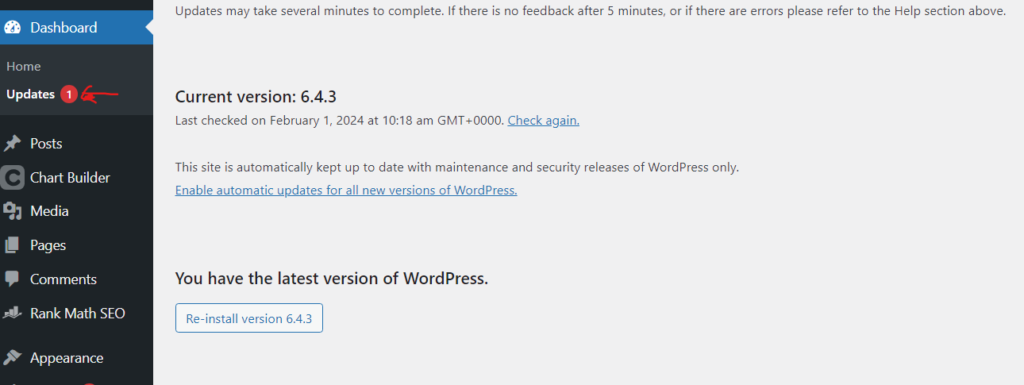
Si vous pouvez toujours vous connecter, cela ne vous prendra que trente secondes. Rendez-vous sur Tableau de bord > Mises à jour et cliquez sur Mise à jour, et WordPress télécharge et installe automatiquement la dernière version pour vous.
Option 2 : mise à jour manuelle via FTP
Si cette erreur vous empêche d'accéder au tableau de bord, vous pouvez tout de même effectuer la mise à jour manuellement. Vous aurez besoin d'un client FTP tel que FileZilla et des identifiants FTP fournis par votre hébergeur. Suivez ensuite ces étapes dans l'ordre afin d'éviter tout écrasement de fichiers importants.
- Téléchargez la dernière version sur wordpress.org/téléchargement puis décompressez-le sur votre ordinateur.
- Connectez-vous à votre serveur à l'aide du client FTP.
- Renommez votre wp-includes et wp-admin à quelque chose comme wp-includes.old et wp-admin.old, à titre de filet de sécurité.
- Téléverser la nouvelle version wp-includes et wp-admin dossiers issus du téléchargement.
- Téléchargez également les fichiers individuels situés dans le dossier racine du téléchargement, en écrasant les anciens, mais laissez wp-config.php seul (celui qui contient vos identifiants de connexion à la base de données).
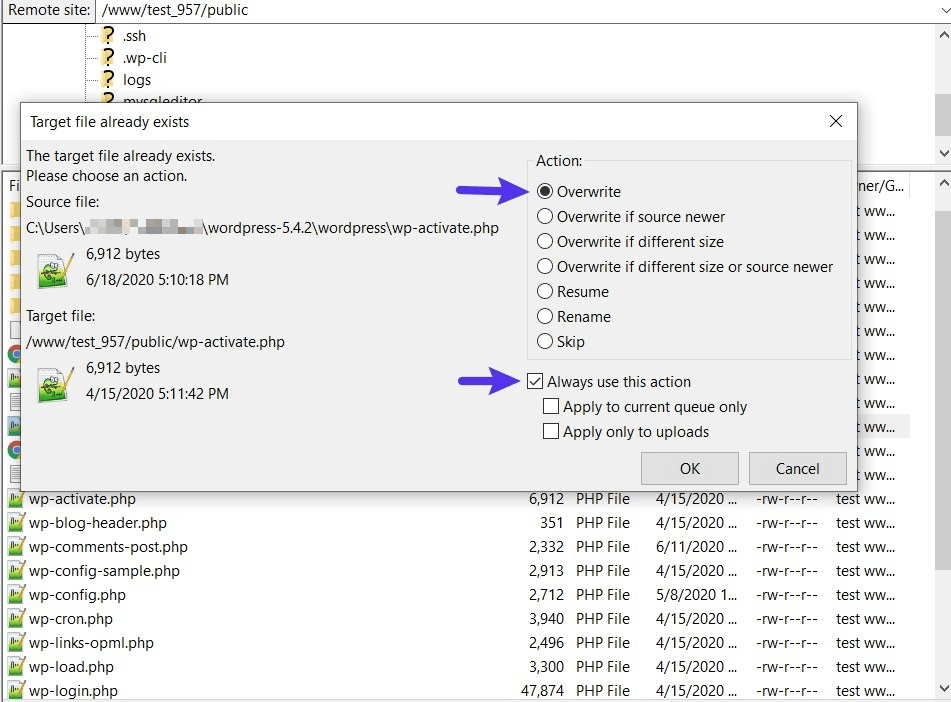
Alors rendez-vous sur yourdomain.com/wp-admin/upgrade.php dans votre navigateur afin que WordPress puisse effectuer les mises à jour de la base de données en attente. Si le problème était dû à une version obsolète du cœur du logiciel, le site devrait à présent s'afficher à nouveau.
2. Vérifiez votre fichier .htaccess
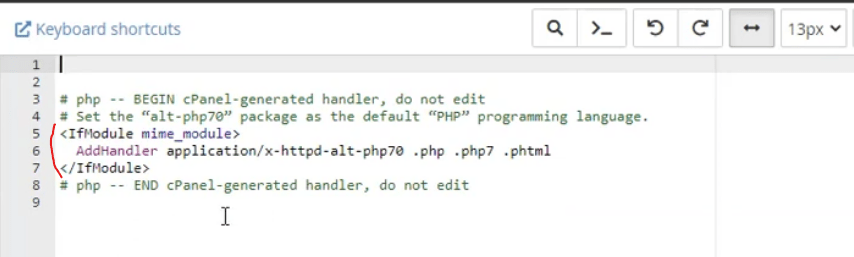
Il arrive parfois qu'une règle isolée dans .htaccess Cela impose un gestionnaire PHP inapproprié, qui charge une version de PHP ne disposant pas du pilote MySQL. C'est un point qu'il convient d'écarter rapidement avant de se lancer dans des modifications plus complexes.
Ouvrez le gestionnaire de fichiers de votre hébergeur (dans cPanel, il se trouve dans la rubrique « Fichiers »), modifiez le fichier .htaccess dans le répertoire racine de votre site, et recherchez toute ligne de code PHP ou d'instruction AddType codée en dur, comme celle ci-dessous. Si vous en trouvez une, supprimez-la, enregistrez, puis actualisez votre site.
Si votre site est hébergé sur cPanel et que vous maîtrisez bien le gestionnaire de fichiers, c'est également depuis ce même panneau que vous pourrez effectuer d'autres opérations de restauration, par exemple lorsque vous devez Réinitialiser un mot de passe WordPress à partir du gestionnaire de fichiers.
3. Vérifiez et mettez à jour votre version de PHP
Si la mise à jour de WordPress n'a pas résolu le problème, il faut ensuite vérifier quelle version de PHP est effectivement utilisée par votre serveur, car une version très ancienne ou mal configurée de PHP est l'autre cause fréquente de ce problème. Il existe deux méthodes simples pour le vérifier.
Option 1 : depuis le tableau de bord WordPress
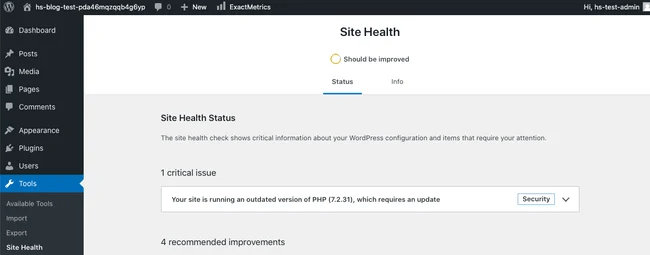
Si vous pouvez vous connecter, rendez-vous sur Outils > État du site > Informations et ouvrez le Serveur section. WordPress affiche la version actuelle de PHP et vous avertit si celle-ci est obsolète, ce qui constitue le moyen le plus rapide de vous en informer.
Option 2 : avec un fichier phpinfo
Vous n'avez plus accès au tableau de bord ? Vous pouvez consulter directement les détails PHP. Dans votre public_html dossier, créez un fichier nommé phpinfo.php et ajoutez ceci :
<?php
phpinfo();
?>
Téléchargez-le, puis rendez-vous sur votredomaine.com/phpinfo.php. Vous obtiendrez un rapport complet sur la configuration de votre PHP, version comprise. Supprimez ce fichier une fois que vous aurez terminé, car il révèle des informations sur le serveur que vous ne souhaitez pas rendre publiques.
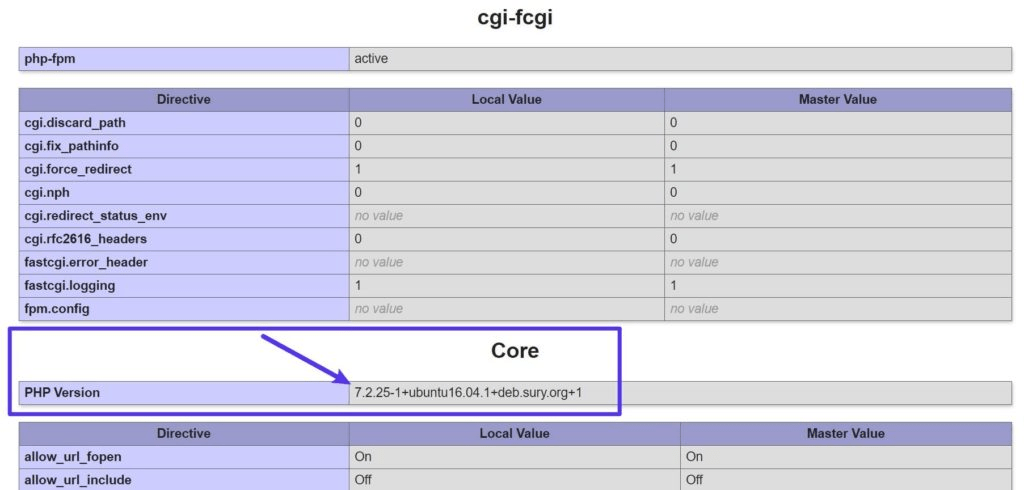
Mise à jour de la version de PHP
Pour passer à une version prise en charge de PHP, connectez-vous à cPanel, puis ouvrez Sélectionner la version de PHP (ou « PHP Selector »), choisissez une version actuelle, puis enregistrez. WordPress affiche la liste de ses version PHP recommandée sur sa page de configuration requise ; veillez donc à respecter ces exigences plutôt que d'opter pour la toute dernière version, qui pourrait ne pas encore être prise en charge par certains anciens plugins.
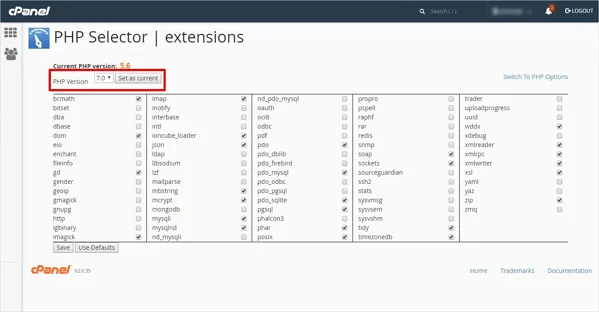
4. Assurez-vous que l'extension MySQL est activée
Sur les anciennes versions de PHP (5.6 et antérieures, avant la suppression de l'extension), il suffit de désactiver le pilote pour que WordPress ne parvienne plus à le détecter, même si PHP fonctionne correctement. La solution consiste donc à vérifier qu'il est bien activé.
La vérification la plus rapide consiste justement à faire cela phpinfo.php page. Ouvrez-la et recherchez un mysqli section ; si elle est présente, le pilote est actif ; si elle est absente, le pilote est désactivé ou n'est pas installé.
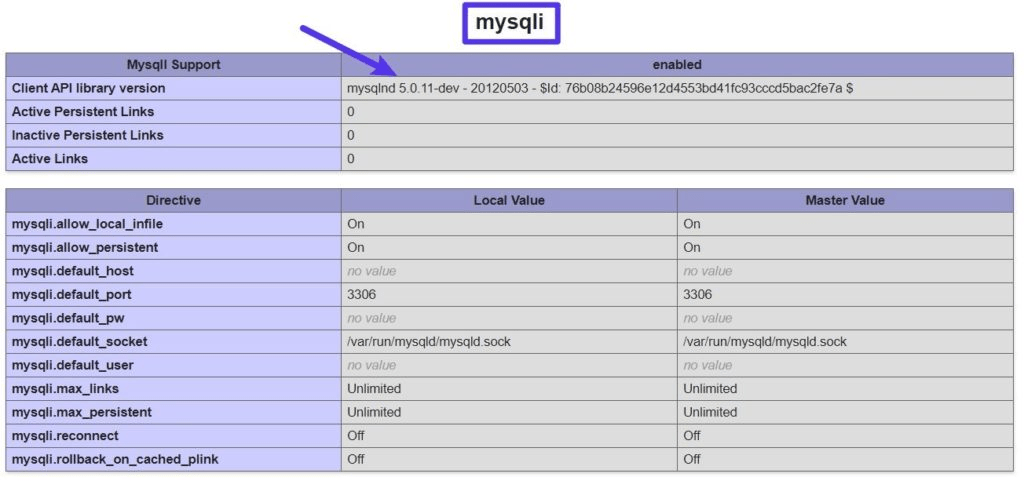
Pour l'activer, rendez-vous sur Sélectionnez « Version PHP » > « Extensions » Dans cPanel, cochez la case mysqli (et nd_mysqli ou pdo_mysql (si elle figure dans la liste), puis enregistrez. Sur un hébergement mutualisé ne proposant pas d'option pour cela, contactez le service d'assistance et demandez-lui d'activer l'extension MySQL pour votre version de PHP ; il s'agit d'une demande courante qu'ils traitent en quelques minutes.
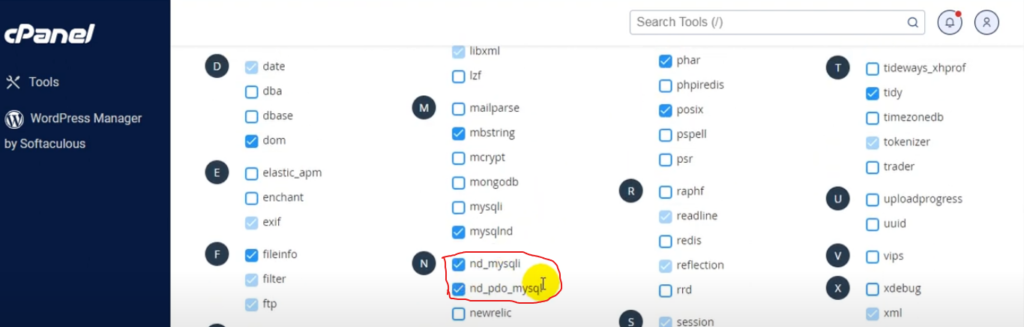
5. Configurez le fichier php.ini pour qu'il pointe vers le bon répertoire d'extensions
Si l'extension est installée et activée et que l'erreur persiste, la dernière cause possible est que le fichier php.ini recherche les extensions au mauvais endroit. Ce cas de figure est plus rare et survient généralement après une migration de serveur ou une modification manuelle de PHP.
Sur votre page phpinfo, repérez la balise Fichier de configuration chargé Lisez cette ligne et notez ce chemin ; c'est le fichier php.ini qui est en charge.

Trouvez maintenant le extension_dir ligne, qui indique à PHP où rechercher les fichiers des pilotes. Si ce dossier ne correspond pas à la réalité (ou si les pilotes ne s'y trouvent pas), cette divergence est à l'origine de votre bug.

Ouvrez le fichier php.ini et assurez-vous que extension_dir pointe vers le dossier « real-extensions », avec extension=mysqli décommenté. Si vous ne savez pas quel fichier php.ini WordPress utilise, ceci Discussion sur Stack Overflow concernant l'emplacement du fichier php.ini C'est une référence fiable. Enregistrez, rechargez la page, et l'erreur devrait avoir disparu. Si c'est votre base de données elle-même qui pose problème plutôt que PHP, consultez mon guide sur Comment trouver votre base de données WordPress vous permet de vérifier les informations de connexion dans le fichier wp-config.php.
La solution définitive : un hébergement qui maintient PHP à jour
Chacune des solutions ci-dessus constitue une réponse à un serveur qui n'est plus synchronisé. Avec un hébergement WordPress bien géré, vous rencontrez très rarement cette erreur, car l'hébergeur veille à ce que PHP, ses extensions et les exigences propres à WordPress restent synchronisés pour vous, et vous signale toute mise à jour de version avant qu'elle ne provoque de dysfonctionnement.
Si vous envisagez de déménager, les deux options qui me reviennent sans cesse à l'esprit sont les suivantes : Hostinger sur le plan budgétaire et Cloudways lorsque vous avez besoin de plus de marge de manœuvre pour évoluer. J'ai géré des sites sur ces deux types d'hébergement pendant des années, et la gestion des versions vous décharge véritablement de ce genre de problème. Cela dit, un hébergement mutualisé bon marché peut très bien faire l'affaire si vous vous chargez vous-même de suivre les mises à jour ; la différence réside dans le fait de savoir qui s'occupe de la maintenance.
Les lecteurs bénéficient d'une réduction de 20% pendant 2 mois sur Cloudways avec le code promo WpConsults2024.
Alors, quelle solution devriez-vous essayer en premier ?
Honnêtement, neuf fois sur dix, c'est un problème d'incompatibilité entre versions ; je commence donc par mettre à jour WordPress et, si ça ne marche pas, je vérifie la version de PHP et j'active mysqli. Ces trois étapes permettent de résoudre la quasi-totalité des cas, et la modification du fichier php.ini constitue la solution de secours pour les cas récalcitrants après une migration.
À mon avis, si cette erreur persiste, cela signifie que le site vous indique que le véritable problème réside dans l'hébergement, et non dans le code. Résolvez-la une fois en suivant les étapes ci-dessus, et si elle réapparaît une deuxième fois, c'est le signe qu'il est temps de changer d'hébergeur et d'opter pour un prestataire qui gère PHP à votre place.
Vous rencontrez toujours l'erreur liée à l'extension MySQL manquante ?
Si vous avez essayé toutes les solutions proposées et que WordPress ne parvient toujours pas à charger l'extension MySQL, nous contacter ou m'envoyer un courriel et je vais y jeter un œil. Une connexion stable à la base de données est la condition sine qua non pour un site WordPress qui fonctionne correctement, il est donc important de s'assurer qu'elle soit bien configurée.
Journal des mises à jour
1er juillet 2026
- J'ai réécrit le guide pour expliquer pourquoi cette erreur se produit (PHP 7 ayant abandonné l'ancien pilote MySQL au profit de MySQLi), j'ai réorganisé les solutions dans l'ordre dans lequel je les utilise réellement, et j'ai mis à jour les recommandations concernant la version de PHP et l'hébergement en utilisant des références actuelles.
Vous souhaitez que nos publications apparaissent plus souvent sur Google ?
En un clic, Google affichera ce site dans votre rubrique « À la une ».