La compression Gzip réduit la taille de vos fichiers HTML, CSS et JavaScript avant leur envoi au navigateur, ce qui en fait l'un des moyens les plus économiques d'améliorer la vitesse d'un site. Dans ce guide, je vais vous montrer comment cela fonctionne, comment vérifier si vous en disposez déjà (c'est probablement le cas), comment l'activer et le tester, et dans quels cas Brotli a discrètement pris le relais.
Principaux enseignements
- Gzip compresse les fichiers texte (HTML, CSS, JavaScript, SVG) sur le serveur et réduit souvent leur taille à une fraction de ce qu'elle était avant leur envoi.
- Vérifiez avant de procéder à toute configuration: la plupart des hébergeurs et des CDN modernes compressent déjà les réponses, et une double configuration entraîne des bugs inattendus.
- Activez-le d'abord via votre panneau d'hébergement ou votre plugin de mise en cache ; les extraits de code .htaccess et Nginx constituent une solution de secours manuelle.
- Ne compressez jamais les images ou les vidéos avec gzip ; les formats tels que JPEG, WebP et MP4 sont déjà compressés et cette opération n'apporte aucun avantage.
- Brotli permet une compression plus efficace que gzip et est pris en charge par tous les navigateurs modernes. Ainsi, lorsque votre serveur ou votre CDN le propose, privilégiez-le et conservez gzip comme solution de secours.
Comment fonctionne la compression gzip ?
Lorsqu'un navigateur demande votre page, il indique les formats de compression qu'il prend en charge via l'en-tête « Accept-Encoding ». Le serveur compresse la réponse, envoie le fichier plus léger avec un En-tête « Content-Encoding », et le navigateur le décompresse instantanément dès sa réception.
Le texte se compresse très bien, car le code et les balises comportent de nombreuses répétitions ; ainsi, gzip réduit systématiquement la taille des fichiers HTML, CSS et JavaScript à une fraction de leur taille d'origine. Moins d'octets transitant sur le réseau signifie un chargement plus rapide, ce qui se répercute directement sur votre Core Web Vitals, et cela facilite même l'exploration, puisque Googlebot limite le nombre d'éléments récupérés par fichier.
L'ordre judicieux pour configurer la compression
- Vérifiez si votre site renvoie déjà des réponses compressées
- Sinon, activez-la au niveau de l'hébergeur, du CDN ou du plugin de mise en cache.
- Ce n'est qu'à ce moment-là qu'il faut recourir à des règles .htaccess ou Nginx définies manuellement
- Vérifiez l'en-tête « Content-Encoding » et passez à l'étape suivante
Vérifiez d'abord : votre site est probablement déjà compressé
Voici l'étape que la plupart des tutoriels sur gzip omettent : les hébergeurs modernes, les serveurs LiteSpeed et les CDN comme Cloudflare compressent les réponses par défaut ; cette fonctionnalité est donc déjà prise en charge par de nombreux sites. La reconfigurer ne sert à rien et peut parfois entraîner des anomalies liées à une double compression.
Pour vérifier cela rapidement, il suffit d'exécuter une commande depuis n'importe quel terminal :
curl -s -I -H "Accept-Encoding: gzip, br" https://yoursite.com | grep -i content-encodingSi le résultat est content-encoding : gzip ou content-encoding : br, c'est terminé ; fermez cet onglet et consacrez votre temps à un goulot d'étranglement plus important. Si la requête ne renvoie aucun résultat, ou Lighthouse indique “ Activer la compression du texte ”, continuez à lire.
Comment activer la compression gzip dans WordPress
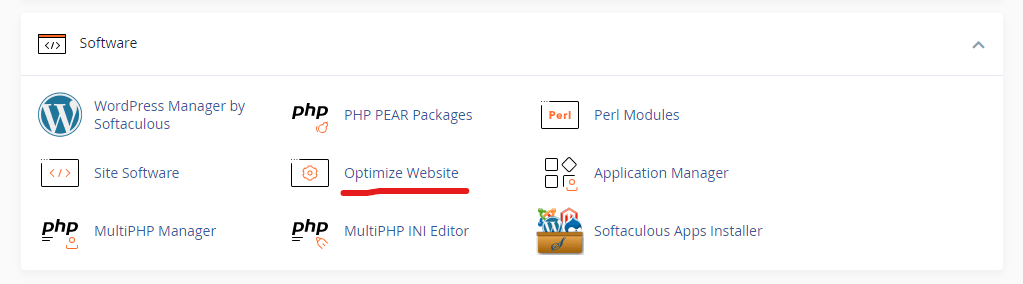
Commencez par les réglages les plus simples. La plupart des plugins de mise en cache (LiteSpeed Cache, WP Rocket, W3 Total Cache) disposent d'une option de compression, et sur les hébergements cPanel, le Optimiser le site web Cet outil active la compression Apache pour l'ensemble de votre compte en deux clics.
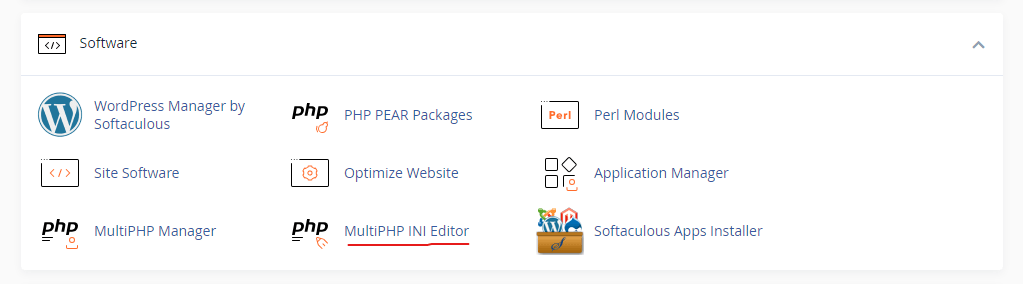
Certains hébergeurs le rendent accessible via PHP : dans l'éditeur INI de MultiPHP de cPanel, il suffit d'activer zlib.output_compression permet à PHP de compresser ses propres données de sortie. N'utilisez cette option que lorsque les options au niveau du serveur mentionnées ci-dessus ne sont pas disponibles, car la compression au niveau du serveur est plus propre que celle effectuée au sein de PHP.
Activer manuellement la compression gzip dans Apache et Nginx
Apache : la règle mod_deflate dans le fichier .htaccess
Sous Apache, ajoutez ceci à votre fichier .htaccess. Cela indique au module mod_deflate de compresser les types de fichiers textuels tout en laissant les autres inchangés :
AddOutputFilterByType DEFLATE text/html text/plain text/xml text/css application/javascript application/json image/svg+xmlNginx : les directives gzip
Sous Nginx, l'équivalent se place dans la configuration de votre serveur (il n'y a pas de fichier .htaccess). Le gzip_min_length La ligne ignore les fichiers de très petite taille pour lesquels la compression coûte plus cher qu’elle ne permet d’économiser, conformément à la Documentation du module gzip d'Nginx:
gzip on;
gzip_types text/html text/plain text/xml text/css application/javascript application/json image/svg+xml;
gzip_min_length 256;
Une petite précision concernant les niveaux de compression : gzip accepte les niveaux 1 à 9, mais viser le niveau 9 n'est pas une bonne idée, car la taille du fichier ne diminue pratiquement pas, tandis que votre processeur est nettement plus sollicité à chaque requête. Les valeurs par défaut (entre 4 et 6 environ) constituent le juste milieu, c'est pourquoi je ne les modifie pas sur les sites de mes clients.
Comment vérifier que la compression gzip fonctionne
La commande « curl » mentionnée plus haut est la méthode la plus rapide pour vérifier cela, mais le navigateur vous permet d'obtenir le même résultat : ouvrez les outils de développement, chargez votre page, cliquez sur la requête principale dans l'onglet « Réseau », puis recherchez encodage du contenu dans les en-têtes de réponse. Vous remarquerez également que la taille transférée est nettement inférieure à la taille de la ressource, ce qui prouve que la compression fonctionne.
Testez également un fichier CSS et un fichier JS, et pas seulement la page elle-même, car une configuration incorrecte entraîne souvent la compression du code HTML alors que les fichiers statiques sont fournis sans compression. PageSpeed Insights détecte également ce problème ; un site qui passe le test cesse simplement d'afficher l'avertissement relatif à la compression du texte.
Gzip ou Brotli : quelle méthode de compression choisir en 2026 ?
Brotli est le nouvel algorithme développé par Google ; il permet de compresser les fichiers texte de manière nettement plus efficace que gzip, à un coût comparable, et tous les navigateurs modernes le prennent en charge. Cloudflare et la plupart des hébergeurs axés sur les performances l'utilisent automatiquement, ce qui explique pourquoi le test curl précédent vérifie si br aussi.
Cela ne rend pas pour autant gzip obsolète : il est universellement pris en charge, intégré à tous les serveurs, et la différence sur un site déjà allégé est minime. La règle pratique est simple :, Utilisez Brotli lorsque votre pile le prend en charge et utilisez gzip comme solution de secours; ce qu’il ne faut surtout pas faire, c’est passer un après-midi à régler manuellement gzip alors qu’il suffit d’activer un CDN pour bénéficier gratuitement de Brotli. Le même raisonnement s’applique à la minification, dont j’ai parlé lorsque Cloudflare a supprimé la fonctionnalité « Auto Minify »: la compression en périphérie se charge désormais discrètement du gros du travail.
Erreurs courantes liées à la compression gzip
Le point essentiel concerne la compression des fichiers multimédias. Les formats JPEG, PNG, WebP et vidéo sont déjà compressés en interne ; les compresser à nouveau avec gzip ne fait donc que gaspiller des ressources du processeur sans apporter le moindre gain. C'est pourquoi les extraits de code ci-dessus ne mentionnent que les types de fichiers texte.
Le deuxième problème concerne l'accumulation de couches : un plugin compresse le contenu en sortie tandis que le serveur le compresse à nouveau, ce qui se traduit par des pages déformées ou des erreurs d'encodage inexpliquées. Choisissez une seule couche, de préférence le serveur ou le CDN, et désactivez les autres. Et si votre hébergeur gère tout cela via un panneau d'administration, ce n'est pas une limitation, mais le produit qui fonctionne comme prévu.
Alors, la compression gzip mérite-t-elle encore que l'on s'y intéresse ?
La compression de texte reste tout à fait utile ; ce qui a changé, c'est la part de cette compression que vous devriez effectuer manuellement. Sur la plupart des piles de 2026, la bonne approche consiste à vérifier que la compression est activée, à privilégier Brotli lorsqu'il est proposé, et à résister à la tentation de modifier davantage les paramètres, car l'en-tête indique clairement si le fichier est compressé ou non.
Si votre site affiche effectivement du texte non compressé aujourd'hui, voici l'une des meilleures solutions que vous pouvez mettre en œuvre en cinq minutes. Il suffit de corriger cela à un seul niveau, de vérifier l'en-tête, puis de concentrer vos efforts sur les images et l'hébergement, où se cachent généralement les gains les plus importants.
L'en-tête de compression est toujours absent après tout ça ?
N'hésitez pas à nous contacter ou m'envoyer un courriel et je t'aiderai à identifier le calque qui ne se compresse pas. En général, cela ne prend que deux minutes une fois qu'on sait où chercher.
Journal des mises à jour
3 juillet 2026
- J'ai réécrit le guide en m'appuyant sur le principe « vérifier d'abord » (la plupart des hébergeurs et des CDN effectuent déjà la compression), j'ai ajouté la comparaison avec Brotli ainsi qu'un test en une seule commande, et j'ai conservé les extraits de code Apache et Nginx en précisant davantage le rôle de chaque ligne.
Vous souhaitez que nos publications apparaissent plus souvent sur Google ?
En un clic, Google affichera ce site dans votre rubrique « À la une ».

 Catégories et balises WordPress : comment choisir, et quel est le rôle de vos pages d'archives dans les résultats de recherche ?
 Comment corriger une page alternative à l'aide d'une balise canonique correcte, et quelles URL sont correctes
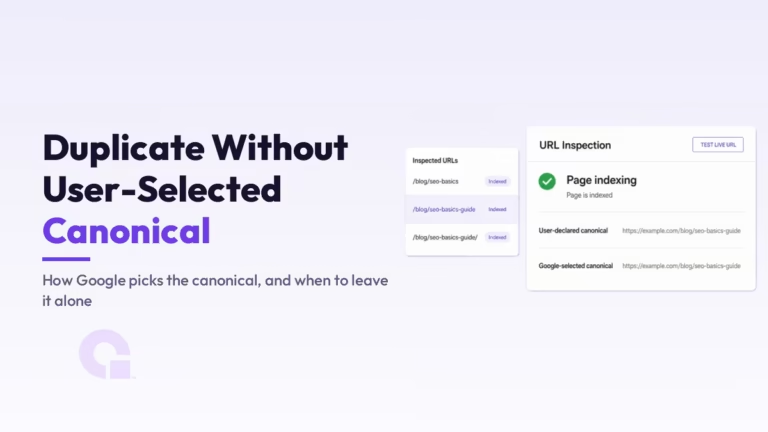 Duplicata sans URL canonique choisie par l'utilisateur : comment Google sélectionne l'URL canonique, et quand ne pas intervenir