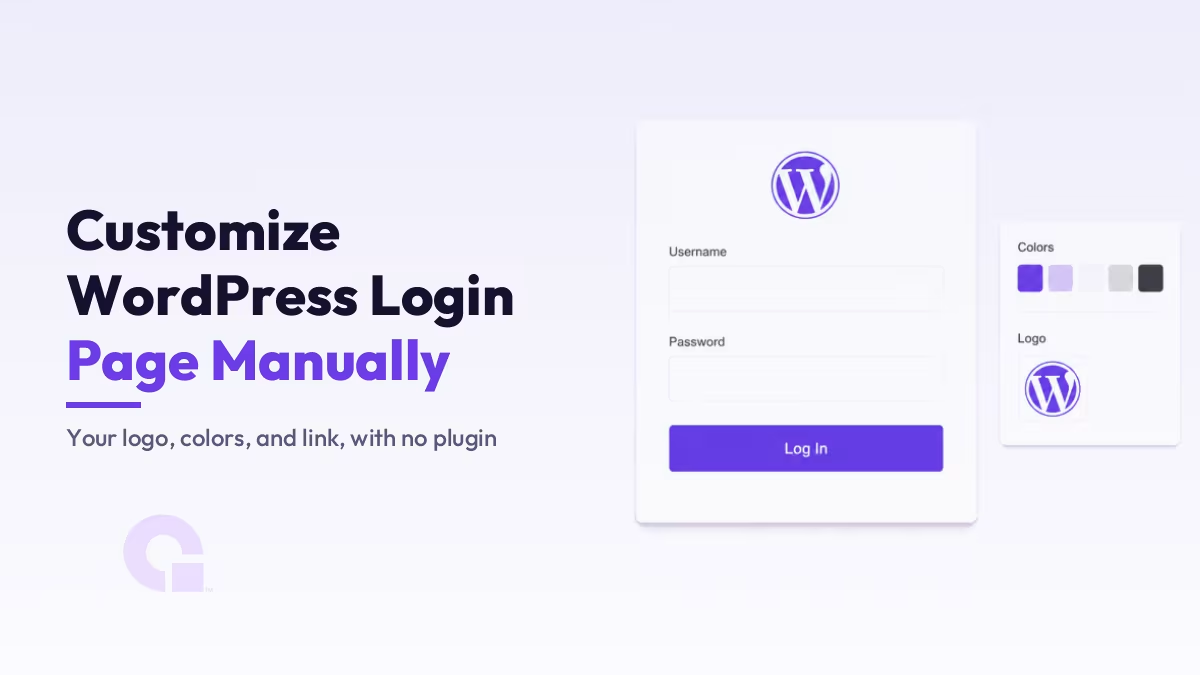
Jede WordPress-Website verfügt standardmäßig über dieselbe Anmeldeseite: das WordPress-Logo, einen grauen Hintergrund und eine blaue Schaltfläche, die nichts mit Ihrer Marke zu tun hat. Sie benötigen kein Plugin, um daran etwas zu ändern, denn mit ein paar kleinen Code-Schnipseln lassen sich das Logo ersetzen, das Formular neu gestalten und Details bereinigen, die die meisten Nutzer ohnehin nie beachten.
Ich werde Ihnen Schritt für Schritt genau den Code erklären, den ich verwende, um die WordPress-Anmeldeseite manuell anzupassen. So erfahren Sie, was jede einzelne Zeile bewirkt, anstatt einfach einen rätselhaften Code-Block einzufügen und auf das Beste zu hoffen.
Wichtigste Erkenntnisse
- Fast alles hängt an einem Haken,
login_enqueue_scripts, das Ihr CSS auf wp-login.php und nirgendwo sonst ausgibt. - Dein Logo ersetzt das WordPress-Logo mithilfe eines kleinen CSS-Blocks und zweier Filter (
login_headerurlundlogin_headertext) Richten Sie den Logo-Link auf Ihre Website statt auf wordpress.org aus. - Fügen Sie die Code-Schnipsel in die Datei „functions.php“ eines Child-Themes oder in ein Code-Schnipsel-Plugin ein und testen Sie sie in einem zweiten Browser, damit Sie nicht durch einen Tippfehler ausgesperrt werden.
- Der Browser-Tab trägt standardmäßig die Bezeichnung “WordPress”; der
login_titleDer Filter entfernt es – das ist der letzte Schliff, den die meisten Anleitungen auslassen. - Plugins wie LoginPress erfüllen dieselbe Aufgabe über ein Bedienfeld; die Code-Lösung liefert Ihnen einfach dasselbe Ergebnis, ohne dass Sie etwas Neues aktualisieren müssen.
Warum sollte man die WordPress-Anmeldeseite überhaupt anpassen?
Bei einem Solo-Blog, bei dem du die einzige Person bist, die sich einloggt, ist die Standardseite ehrlich gesagt völlig in Ordnung, und ich würde keinen ganzen Nachmittag damit verbringen. Sobald jedoch andere Personen diesen Bildschirm sehen, beginnt sie, für die Marke zu werben: Kunden-Dashboards, Mitglieder-Websites, WooCommerce-Shops mit Kundenkonten und Blogs mit mehreren Autoren zeigen die Anmeldeseite immer auch Nutzern an, die nicht du selbst bist.
Eine Anmeldeseite mit Ihrem Logo und Ihren Farben wirkt wie ein fertiges Produkt, während die Standardseite den Eindruck einer Vorlage vermittelt, an deren Fertigstellung niemand jemals rangekommen ist. Das ist zwar nur ein kleines Vertrauenssignal, aber Vertrauenssignal-Stapel, und das hier dauert etwa fünfzehn Minuten.
Wo der Code für die Anmeldeseite hingehört (und wo nicht)
Jeder der folgenden Codeausschnitte wird in die Datei Ihres Child-Themes eingefügt: funktionen.php, oder in ein Code-Snippets-Plugin, wenn Sie ein Sicherheitsnetz wünschen, das ein fehlerhaftes Snippet deaktiviert, anstatt die Website mit einem weißen Bildschirm anzuzeigen. Das ist dieselbe Basis, die ich auch für andere kleine Anpassungen verwende, wie zum Beispiel Einen Link zum Duplizieren eines Beitrags ohne Plugin hinzufügen. Füge sie niemals in das übergeordnete Theme ein, da das nächste Theme-Update deine Arbeit unbemerkt löscht.
Eine Warnung aus eigener Erfahrung: Testen Sie dies, während Sie in einem zweiten Browser angemeldet bleiben. oder in einem separaten Fenster. Die Anmeldeseite ist der einzige Ort, an dem ein kleiner Syntaxfehler dazu führen kann, dass Sie tatsächlich ausgesperrt werden – und sollte das jemals passieren, können Sie dennoch Passwort über den Dateimanager zurücksetzen.
Ersetzen Sie das WordPress-Logo durch Ihr eigenes
Das Logo ist lediglich ein CSS-Hintergrundbild auf der #login h1 a Element, sodass dessen Ersetzung einen Stilblock erfordert. WordPress stellt uns das login_enqueue_scripts Hook, der alles, was Sie daran anhängen, ausschließlich im Kopfbereich der Anmeldeseite ausgibt, sodass dieses CSS an keiner anderen Stelle Ihrer Website geladen wird.
function wpc_login_logo() { ?>
    <style>
        #login h1 a {
            background-image: url('<?php echo esc_url( get_stylesheet_directory_uri() ); ?>/images/login-logo.png');
            background-size: contain;
            background-position: center;
            width: 240px;
            height: 84px;
        }
    </style>
<?php }
add_action( 'login_enqueue_scripts', 'wpc_login_logo' );
Laden Sie Ihr Logo auf eine Bilder Ordner in Ihrem Child-Theme oder fügen Sie stattdessen eine vollständige URL aus der Medienbibliothek ein und passen Sie anschließend die Breite und Höhe so an, dass sie in etwa den Proportionen entsprechen. background-size: contain Sorgt dafür, dass das Logo in jedem von Ihnen gewählten Rahmen scharf bleibt, sodass Sie sich nicht mit dem Zuschneiden herumschlagen müssen.
Verweisen Sie das Anmelde-Logo auf Ihre Website und nicht auf WordPress.org
Standardmäßig verweist das Logo auf wordpress.org, und der beim Bewegen des Mauszeigers angezeigte Text lautet “Powered by WordPress”, was auf einer mit dem Kundenlogo versehenen Anmeldeseite etwas seltsam wirkt. Mit zwei kleinen Filtern lassen sich beide Probleme beheben:
add_filter( 'login_headerurl', function () {
    return home_url();
} );

add_filter( 'login_headertext', function () {
    return get_bloginfo( 'name' );
} );
Der erste Filter, login_headerurl, ersetzt das Linkziel durch Ihre eigene Homepage, und der zweite ersetzt den Text durch den Namen Ihrer Website. Es handelt sich zwar nur um einzeilige Änderungen, doch sie machen den Unterschied zwischen einer White-Label-Seite und einer Seite aus, die Besucher weiterhin auf die Website eines anderen weiterleitet.
Gestalten Sie den Hintergrund, das Formular und die Schaltfläche des Anmeldebereichs
Nachdem das Logo nun festgelegt ist, besteht der Rest aus einfachem CSS, das in denselben Stilblock aus dem ersten Codeausschnitt eingefügt wird. Diese Selektoren betreffen die Elemente, die man tatsächlich ändern möchte: den Seitenhintergrund, die Formularkarte, die Schaltfläche und die Links unter dem Formular.
body.login {
    background-color: #f6f5ff;
}
.login form {
    border-radius: 10px;
    border: 1px solid #e4e0f5;
    box-shadow: 0 8px 24px rgba(103, 61, 229, 0.08);
}
.wp-core-ui .button-primary {
    background: #673de5;
    border-color: #673de5;
}
.login #backtoblog a,
.login #nav a {
    color: #4c4670;
}
Passe die Farben an deine eigene Farbpalette an, und schon bist du fertig. .wp-core-ui .button-primary ist die Anmeldeschaltfläche selbst, und der letzte Block gestaltet die Links “Passwort vergessen?” und “Zurück zur Website”; achte darauf, dass die Schaltfläche einen starken Kontrast aufweist, da dieses Formular oft um 7 Uhr morgens von noch halb schlafenden Nutzern verwendet wird.
Bonus: “WordPress” aus dem Titel der Registerkarte „Anmelden“ entfernen
Öffnen Sie Ihre Anmeldeseite und schauen Sie sich die Browser-Registerkarte an: Bei einer Standardinstallation endet der Titel mit “WordPress”. Die login_title Der Filter steuert diese gesamte Zeichenfolge, sodass Sie sie stattdessen mit dem Namen Ihrer eigenen Website ersetzen können:
add_filter( 'login_title', function ( $login_title, $title ) {
    return $title . ' | ' . get_bloginfo( 'name' );
}, 10, 2 );
Der Filter erhält den vollständigen Titel sowie den seitenbezogenen Teil ($-Titel, in der Regel “Anmelden”), sodass durch die Rückgabe Ihrer eigenen Kombination das nachgestellte “WordPress” sauber entfernt wird. Diese Änderung dauert nur zwei Minuten und ist genau das Detail, das einem Kunden auffällt, ohne dass er genau sagen kann, warum die Seite plötzlich den Eindruck vermittelt, fertig zu sein.
| Was Sie ändern | Haken oder Filter | So funktioniert es |
|---|---|---|
| Logo-Bild | login_enqueue_scripts | CSS-Hintergrundbild für das `h1 a`-Element auf #login |
| Logo-Link und Hover-Text | login_headerurl, login_headertext | Zwei einzeilige PHP-Filter |
| Hintergrund, Formular und Gestaltung der Schaltflächen | login_enqueue_scripts | Einfaches CSS im selben Stilblock |
| Titel des Browser-Tabs | login_title | PHP-Filter, der die Titelzeichenfolge neu aufbaut |
Eines erreicht dieses Styling jedoch nicht: Es macht die Anmeldeseite nicht sicherer; die URL lautet weiterhin „wp-login.php“ und Bots finden sie nach wie vor jeden Tag. Falls das Ihr nächstes Anliegen ist, stelle ich in […] zwei sichere Ansätze vor. Die wp-admin-URL ohne Plugin ändern.
Sollte man die Anmeldeseite also manuell oder mithilfe eines Plugins anpassen?
Für mich hat die manuelle Programmierung hier die Nase vorn, und zwar nicht, weil Plugins wie LoginPress schlecht funktionieren; sie sind wirklich praktisch, mit Live-Vorschau und vorgefertigten Vorlagen. Die Anmeldeseite ist einfach eine Einmal einstellen und dann nicht mehr daran denken, und ein ganzes Plugin mit all seinen Updates und Upsell-Seiten nur für vier kleine Code-Schnipsel mitzuführen, bedeutet mehr Wartungsaufwand, als die Aufgabe rechtfertigt.
Wenn Sie sich mit der Datei „functions.php“ nicht wohlfühlen, nutzen Sie das Plugin ohne schlechtes Gewissen, denn eine individuell gestaltete Anmeldeseite ist einer Standardseite ohnehin überlegen. Wenn Sie jedoch Code einfügen können, erzielen Sie mit der manuellen Vorgehensweise dasselbe Ergebnis, ohne dass Sie etwas Neues aktualisieren müssen, und Sie verstehen nun jede einzelne Zeile davon.
Kommen Sie bei der Anpassung Ihrer Anmeldeseite nicht weiter?
Sollte ein Snippet nicht wie gewünscht funktionieren oder sollten Sie die Anmeldeseite an Ihr Markenbild anpassen wollen, können Sie gerne kontaktieren Sie uns oder E-Mail und ich werde Ihnen den richtigen Weg weisen.
Änderungsprotokolle
02. Juli 2026
- Ich habe die Anleitung überarbeitet und übersichtlichere Codeausschnitte mit einfachen Erläuterungen zu den einzelnen Hooks und Filtern eingefügt, die Korrektur für den Logo-Link und die Bereinigung der Browser-Registerkarten hinzugefügt sowie die Styling-Beispiele aktualisiert.
Möchtest du, dass unsere Beiträge öfter bei Google erscheinen?
Ein Schritt – und Google zeigt diese Seite in Ihren „Top Stories“ an.