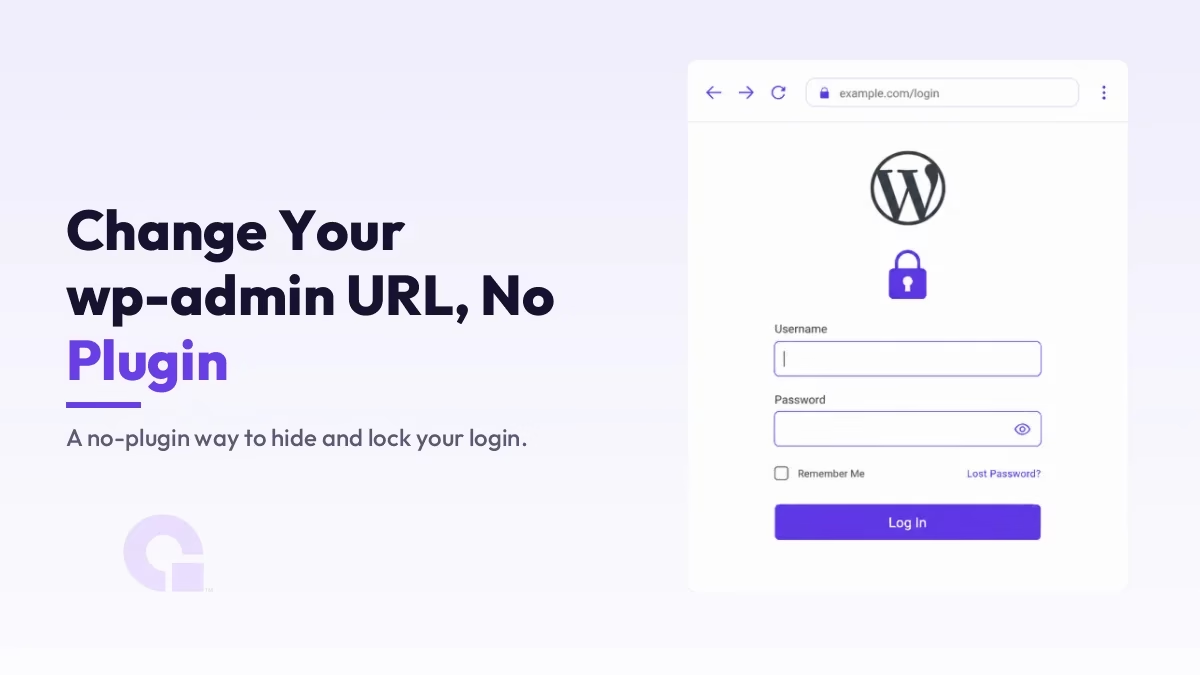
Das Ändern der wp-admin-URL ist eine der häufigsten Anforderungen zur Absicherung von WordPress, vor allem weil Bots den ganzen Tag lang auf /wp-login.php zugreifen, um einen Weg ins System zu finden. Das lässt sich zwar auch ohne Plugin bewerkstelligen, erfordert jedoch einen Code-Schnipsel oder eine Serverregel – und es gibt dabei einen Vorbehalt, den man gleich zu Beginn erwähnen sollte.
Ich werde Ihnen zwei Methoden ohne Plugins vorstellen: eine Schutzmaßnahme mit geheimem Schlüssel in der Datei „functions.php“ und eine ordnungsgemäße Passwortsperre in der Datei „.htaccess“. Anschließend werde ich Ihnen ehrlich erklären, wovor das Ausblenden des Anmeldeformulars Sie schützt und wovor nicht.
Wichtigste Erkenntnisse
- WordPress kann den Ordner „wp-admin“ aus dem Kern nicht sauber umbenennen, daher erfordert eine Änderung ohne Plugin entweder einen Code-Schnipsel in der Datei „functions.php“ oder eine Regel in der Datei „.htaccess“.
- Mit einem Login-Gate können Sie auf wp-login.php die Eingabe eines geheimen Schlüssels verlangen, sodass Bots, die die einfache URL aufrufen, abgewiesen werden.
- Eine Passwortsperre über die .htaccess-Datei ist die sicherere Alternative ohne Plugin, da sie einen zweiten Anmeldevorgang einfügt, noch bevor WordPress überhaupt geladen wird.
- Sichern Sie sich immer einen Rückweg über FTP oder Ihren Dateimanager, denn ein falscher Codeausschnitt kann dazu führen, dass Sie sich aussperren.
- Das Verbergen des Anmeldebereichs sorgt nur für Unübersichtlichkeit, nicht für Sicherheit; sichere Passwörter, Zwei-Faktor-Authentifizierung und eine Begrenzung der Anmeldeversuche leisten die eigentliche Arbeit.
Kann man „wp-admin“ wirklich ohne Plugin ändern?
Zum Teil, und das sollte man klarstellen. WordPress verfügt über keine Kern-Einstellung, um „wp-admin“ oder „wp-login.php“ umzubenennen, daher können Sie daraus keinen ansprechenden benutzerdefinierten Slug machen, wie es ein spezielles Plugin tut. Was Sie jedoch auch ohne Plugin tun können, ist zu steuern, wer auf den Anmeldebildschirm zugreifen darf – damit erreichen Sie das eigentliche Ziel hinter dieser Anfrage: die Bots von Ihrer Anmeldeseite fernzuhalten.
Die beiden folgenden Methoden tun genau das. Die eine ändert die URL, über die Sie sich anmelden, die andere fügt ihr eine feste Sperre hinzu – und beide stellen eine echte Verbesserung gegenüber der Situation dar, in der /wp-login.php völlig ungeschützt bleibt.
Methode 1: wp-login.php mit einem geheimen Schlüssel schützen
Die sauberste Methode, Ihre Anmelde-URL ohne Plugin zu ändern, besteht darin, wp-login.php mit einem geheimen Schlüssel zu schützen. Fügen Sie dies in die Datei „functions.php“ Ihres Child-Themes oder in ein Code-Snippets-Plugin ein – genau dort, wo ich auch andere Anpassungen wie die Ausschnitt zu doppelten Beiträgen und Seiten:
add_action( 'login_init', 'wpc_gate_login' );
function wpc_gate_login() {
    // Let logout, password resets, and form submissions through
    if ( ! empty( $_GET['action'] ) || 'POST' === $_SERVER['REQUEST_METHOD'] ) {
        return;
    }
    // Require your secret key on the plain login screen
    if ( ! isset( $_GET['wpc_key'] ) || 'change-this-to-your-own-secret' !== $_GET['wpc_key'] ) {
        wp_safe_redirect( home_url( '/' ) );
        exit;
    }
}
Ihre Anmelde-URL lautet https://yoursite.com/wp-login.php?wpc_key=change-this-to-your-own-secret. Jeder, der die einfache URL „/wp-login.php“ aufruft, wird auf Ihre Startseite weitergeleitet – genau das passiert auch den Bots. Die Überprüfung lässt das Abmelden, das Zurücksetzen von Passwörtern und das Absenden von Formularen bewusst zu, sodass normale Anmeldungen weiterhin funktionieren.
Eine Regel, bevor du es speicherst: Halte einen gewissen Abstand ein. Speichern Sie die URL für Ihren Schlüssel als Lesezeichen und stellen Sie sicher, dass Sie über FTP oder den Dateimanager Ihres Hosts auf Ihre Dateien zugreifen können. Denn wenn Sie den Schlüssel falsch eingeben, sperren Sie sich selbst aus, und nur durch das Löschen des Snippets können Sie den Zugriff wiederherstellen.
Methode 2: wp-admin mit .htaccess passwortschützen
Wenn Sie eine noch sicherere Lösung als eine versteckte Tür wünschen, sperren Sie den gesamten wp-admin-Ordner auf Serverebene. Dadurch wird im Browser eine Aufforderung zur Eingabe von Benutzername und Passwort angezeigt, noch bevor WordPress überhaupt geladen wird, sodass Brute-Force-Skripte Ihr Anmeldeformular gar nicht erst erreichen können. Erstellen Sie eine .htpasswd Datei über Ihren Host, fügen Sie dann Folgendes in die .htaccess innerhalb von /wp-admin/:
# Den Ordner "wp-admin" mit einem Passwort schützen
AuthType Basic
AuthName „Geschützter Admin-Bereich“
AuthUserFile /home/Ihr-Benutzername/.htpasswd
Require valid-user

# Stellen Sie sicher, dass admin-ajax.php erreichbar bleibt, damit das Frontend weiterhin funktioniert

Require all granted
Punkt AuthUserFile Verwenden Sie den tatsächlichen Pfad, den Ihr Host Ihnen angibt, und überspringen Sie die Ausnahme „admin-ajax.php“ nicht, da sonst Frontend-Funktionen, die auf AJAX basieren, möglicherweise nicht mehr funktionieren. Dies ist die Methode, der ich auf der Liste der „No-Plugin“-Lösungen am meisten vertraue, da es sich um eine echte Sperre und nicht um eine Hintertür handelt. Apaches eigene Anleitung zur Authentifizierung führt Sie durch die Erstellung der Passwortdatei, falls Ihr Host dies nicht für Sie übernimmt.
Das Ausblenden der Anmeldung ist nicht dasselbe wie deren Absicherung
Hier kommt der Teil, den die meisten Anleitungen auslassen. Das Umbenennen oder Ausblenden Ihres Login-Bereichs reduziert vor allem den Datenmüll durch automatisierte Bots – was für Ihre Protokolle und die Serverauslastung ein echter und lohnender Gewinn ist –, aber das ist noch lange nicht dasselbe wie Sicherheit. Ein entschlossener Angreifer kann den Login-Bereich dennoch finden, und eine versteckte URL nützt Ihnen nichts, wenn Ihr Passwort schwach ist.
Betrachten Sie die Änderung der URL also als eine kleine Maßnahme und konzentrieren Sie sich vor allem auf die Grundlagen: ein starkes, einzigartiges Admin-Passwort, Zwei-Faktor-Authentifizierung und eine Begrenzung der fehlgeschlagenen Anmeldeversuche. WordPress’ eigene Anleitung zur Härtung Diese werden hier erläutert, und sie sind weitaus wichtiger als die Slug, unter der Ihr Login zu finden ist. Wenn Sie einen Shop betreiben, gilt dieselbe Denkweise auch in einem größeren Zusammenhang Einhaltung der PCI-DSS-Vorgaben Arbeit.
Lohnt es sich also, „wp-admin“ ohne Plugin zu verbergen?
Es lohnt sich, solange Sie genau wissen, was Sie kaufen. Wenn du dich mit Programmiercode auskennst, würde ich zur .htaccess-Passwortsperre greifen, da diese Brute-Force-Angriffe tatsächlich verhindert, anstatt nur die Tür zu verschieben, während die „functions.php“-Sperre eine gute, weniger aufwendige Alternative ist, wenn du lediglich die Bots abschütteln möchtest.
Allerdings möchte ich nicht behaupten, dass der Weg ohne Plugin übersichtlicher ist als ein Plugin, das die URL sauber und sicher umbenennt, wie beispielsweise „WPS Hide Login“. Wenn Sie ein einzelnes Plugin nicht stört, ist das der einfachere Weg. So oder so: Führen Sie zuerst die eigentlichen Sicherheitsmaßnahmen durch und betrachten Sie die versteckte URL als die zusätzliche Sicherheitsstufe, die sie darstellt.
Haben Sie sich ausgesperrt oder sind Sie sich nicht sicher, ob es sicher ist?
Falls Sie durch ein Snippet ausgesperrt wurden oder Ihre Anmeldung ordnungsgemäß absichern möchten, ohne dabei etwas zu beschädigen, können Sie gerne kontaktieren Sie uns oder E-Mail und ich werde dir dabei helfen, das zu klären.
Änderungsprotokolle
02. Juli 2026
- Ich habe den Text überarbeitet und zwei sichere Methoden ohne Plugins hinzugefügt – eine Anmeldeschranke mit geheimem Schlüssel und eine Passwortsperre über .htaccess – sowie einen ehrlichen Abschnitt darüber ergänzt, warum das Verbergen der Anmeldung lediglich eine Verschleierung ist und kein Ersatz für echte Sicherheitsmaßnahmen.
- Die Überschriften der Abschnitte wurden präzisiert, sodass jede für sich genommen verständlich ist.
Möchtest du, dass unsere Beiträge öfter bei Google erscheinen?
Ein Schritt – und Google zeigt diese Seite in Ihren „Top Stories“ an.