---
url: 'https://www.wpconsults.com/create-xml-sitemap-manually/'
language: 'en'
title: 'How to Create an XML Sitemap Manually in WordPress'
author:
name: 'Abdullah Nouman'
url: 'https://www.wpconsults.com/author/nouman/'
date: '2023-11-28T09:49:46-06:00'
modified: '2023-11-28T03:49:46-06:00'
type: 'post'
categories:
- 'Technical SEO'
tags:
- 'SEO'
- 'without plugin series'
- 'wordpress tutorials'
image: 'https://www.wpconsults.com/wp-content/uploads/2026/07/create-xml-sitemap-manually-7475.avif'
published: true
---
# How to Create an XML Sitemap Manually in WordPress
An XML sitemap is just a list of your important URLs that you hand to search engines so they can find and crawl your pages faster. You can create an XML sitemap manually in WordPress, either as a static file you write yourself or as a small snippet that generates one on the fly, and this guide walks through both.
I will also be honest about something most tutorials skip: for the majority of WordPress sites, you do not actually need to do this by hand, and I will show you when the manual route is genuinely worth it.
## Key Takeaways
- WordPress has generated a basic sitemap at /wp-sitemap.xml automatically since version 5.5, so many sites are already covered.
- A manual sitemap makes sense for custom setups, static pages, or when you need control the default cannot give.
- You can build one as a static .xml file or generate it dynamically with a functions.php snippet.
- Whatever you build, you still submit it in Google Search Console and check that it validates.
- If you do not want to touch code, an SEO plugin builds and pings the sitemap for you.
Table of Contents
- What a manual XML sitemap is, and what WordPress already gives you
- When building a sitemap manually is actually worth it
- Method 1: write a static sitemap.xml by hand
- Method 2: generate a dynamic sitemap with a functions.php snippet
- How to submit your manual sitemap to Google Search Console
- So, should you build your WordPress sitemap manually?
- Update Logs
## What a manual XML sitemap is, and what WordPress already gives you
A sitemap is a simple XML file listing your URLs, each with optional details like the last modified date. Search engines read it as a map of what to crawl, which helps most on newer or larger sites where pages might otherwise be missed.
Here is the part worth knowing before you write a single line: since WordPress 5.5, core generates a basic sitemap for you at **yoursite.com/wp-sitemap.xml**. SEO plugins go further, producing richer sitemaps and pinging search engines when content changes. So creating one manually is a deliberate choice, not a default requirement.
| Approach | Best for | Effort |
| --- | --- | --- |
| WordPress core (wp-sitemap.xml) | Most sites that just need Google to find their pages | None, it is on by default |
| An SEO plugin (like Yoast) | Control over what is included, plus automatic pinging | Low |
| Static .xml file | Small or static sites, or a fixed set of URLs | Medium, you update it by hand |
| Dynamic functions.php snippet | Custom setups needing a bespoke sitemap | High, you own and maintain the code |
How the four ways to give Google a sitemap compare, so you can pick the lightest one that does the job.
## When building a sitemap manually is actually worth it
The manual route earns its keep in a few real situations. You might run a mostly static or custom-coded setup where the WordPress default does not apply cleanly, or you want a sitemap that lists only a specific subset of URLs, or you need a format the core and plugins will not produce for you.
Outside those cases, hand-building a sitemap is effort you will have to maintain forever, since every new page means an update. That is the honest trade-off, so weigh the control you gain against the upkeep you take on before you commit.
## Method 1: write a static sitemap.xml by hand
The simplest manual sitemap is a plain text file you create yourself. Open a text editor, follow the [sitemaps.org protocol](https://www.sitemaps.org/protocol.html), and list each URL inside a **url** block like this:
```
https://example.com/
2026-07-01
https://example.com/blog/my-post/
2026-06-20
```
Save it as **sitemap.xml**, then upload it to your site’s root folder over FTP or your host’s file manager so it lives at yoursite.com/sitemap.xml. Open that URL in a browser to confirm it loads as clean XML, which should look like the view below.
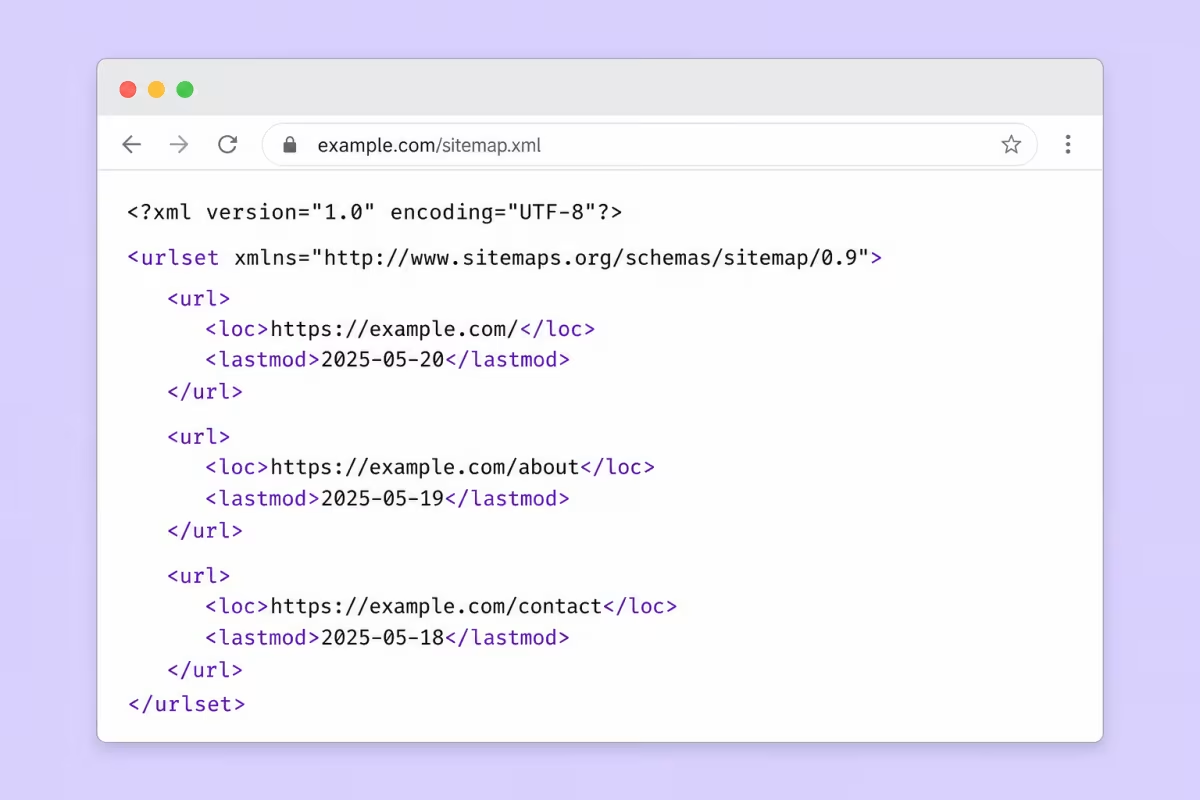
The catch with a static file is obvious: it does not update itself. Every time you publish or remove a page you edit this file, which is fine for a handful of fixed URLs but painful for an active blog.
## Method 2: generate a dynamic sitemap with a functions.php snippet
If you want a hand-built sitemap that still stays current, generate it dynamically. This snippet registers a custom endpoint and outputs an XML sitemap of your published posts and pages every time it is requested, so it never goes stale. Add it to your child theme’s **functions.php**:
```
array( 'post', 'page' ),
'post_status' => 'publish',
'posts_per_page' => -1,
) );
echo '' . PHP_EOL;
echo '' . PHP_EOL;
foreach ( $items as $item ) {
echo ' ';
echo '' . esc_url( get_permalink( $item ) ) . '';
echo '' . esc_html( get_the_modified_date( 'c', $item ) ) . '';
echo '' . PHP_EOL;
}
echo '';
exit;
} );
```
After you paste it in, go to **Settings > Permalinks** and click Save once. That flushes WordPress’s rewrite rules so the new endpoint works, and your sitemap is then live at yoursite.com/custom-sitemap.xml. The **esc_url** and **esc_html** calls are there on purpose, because escaping output is what keeps the file safe and valid.
## How to submit your manual sitemap to Google Search Console
Building the file is only half the job; Google still needs to know it exists. Add the sitemap URL to your **robots.txt** with a line like *Sitemap: https://example.com/sitemap.xml*, then submit the same URL under Sitemaps in [Google Search Console](https://developers.google.com/search/docs/crawling-indexing/sitemaps/build-sitemap).
Publishing a manual sitemap, start to finish
1. Build the sitemap: a static .xml file or the dynamic snippet
2. Open it in a browser and confirm it loads as valid XML
3. Add its URL to robots.txt and submit it in Search Console
4. Recheck in Search Console once Google has fetched it
The order that gets a hand-built sitemap discovered without the common fetch errors.
If Search Console throws an error after you submit, it is usually one of two things. Either it [could not fetch the sitemap](https://www.wpconsults.com/sitemap-couldnt-fetch-issue-solved/), or your server is [returning it as an HTML page](https://www.wpconsults.com/fix-your-sitemap-appears-to-be-an-html-page-error/) instead of XML. Both are common with hand-built sitemaps, and I have written the fixes for each. If any of the terms here are new, the [SEO glossary](https://www.wpconsults.com/100-seo-terms-for-beginners/) covers them.
## So, should you build your WordPress sitemap manually?
Honestly, for most WordPress sites I would not. The core sitemap already covers the basics, and if you want more control with none of the maintenance, the simplest route is to let a plugin build and ping it for you, which is exactly the job handled by [Rank Math](https://rankmath.com/?ref=pixelydgroup). That frees you to spend your time on content and links instead of babysitting an XML file.
The manual methods still have their place, and I would reach for them when a custom or static setup genuinely needs it, or when I want a sitemap that lists exactly what I choose. If that is you, the dynamic snippet is the one I would use, because it gives you the control of doing it by hand without the chore of updating a file every time you publish.
### Stuck on a sitemap that will not submit?
If your sitemap is throwing errors or Google will not index it, [contact us](https://wpconsults.com/work-with-wpconsults/) or [email me](mailto:abdullah@wpconsults.com) and I will help you get it crawled. A clean sitemap is a small thing that quietly helps every page get found.
## Update Logs
**03 Jul 2026**
- Rewrote for 2026: added the fact that WordPress core already generates a sitemap, honest guidance on when hand-building is worth it, a cleaner static-file and functions.php method with safe escaping, and clear steps for submitting to Search Console.